Did you know that iPhone users, on average, check their devices about 80 times a day? That’s a lot of screen time! But what happens when that screen suddenly stops working?
Imagine you’re trying to power off your iPhone, but the screen is unresponsive. Maybe you dropped it, or perhaps it’s just acting up. Whatever the reason, you’re stuck with a device you can’t turn off in the usual way.
This situation is more common than you might think. Many iPhone users face this problem at some point, especially after accidental drops or software glitches. It can be frustrating and even a bit scary if you don’t know what to do.
Don’t worry, though. In this article, you’ll learn some simple tricks to power off your iPhone without using the screen.
These methods are easy to follow, even if you’re not tech-savvy. So, let’s get started and solve this problem together!
How to turn off your iPhone when the screen or buttons aren’t working
Sometimes, your iPhone might give you a hard time when you want to turn it off. Maybe the screen isn’t responding, or the buttons are stuck.
Don’t worry. You’ve got options! Let’s walk through some easy ways to power down your iPhone, no matter what’s acting up.
1. Let the battery run out
The simplest way to turn off your iPhone is to let the battery drain completely. Here’s what you can do:
- Just leave your iPhone alone and wait for the battery to run out.
- If you’re in a hurry, try moving to an area with a weak cell signal. Your phone will use more power trying to stay connected.
- Remember, this method takes time, but it’s foolproof.
2. Force restart your iPhone
- Quickly press and release the Volume Up button.
- Quickly press and release the Volume Down button.
- Press and hold the Side button until you see the Apple logo.

3. Use Voice Commands with Siri
If your iPhone’s screen and buttons aren’t responding, but Siri is still working, you can use voice commands:
- Say “Hey Siri” to activate the voice assistant.
- Tell Siri to “turn on VoiceOver“.

- Once VoiceOver is on, say “Hey Siri, open Settings“.

- Then say, “Hey Siri, turn off my iPhone“.

This method uses accessibility features to navigate to the power off option without needing to touch the screen.
4. Use the Back Tap feature
For iPhones running iOS 14 or later, you can use the Back Tap feature:
- Go to Settings > Accessibility.
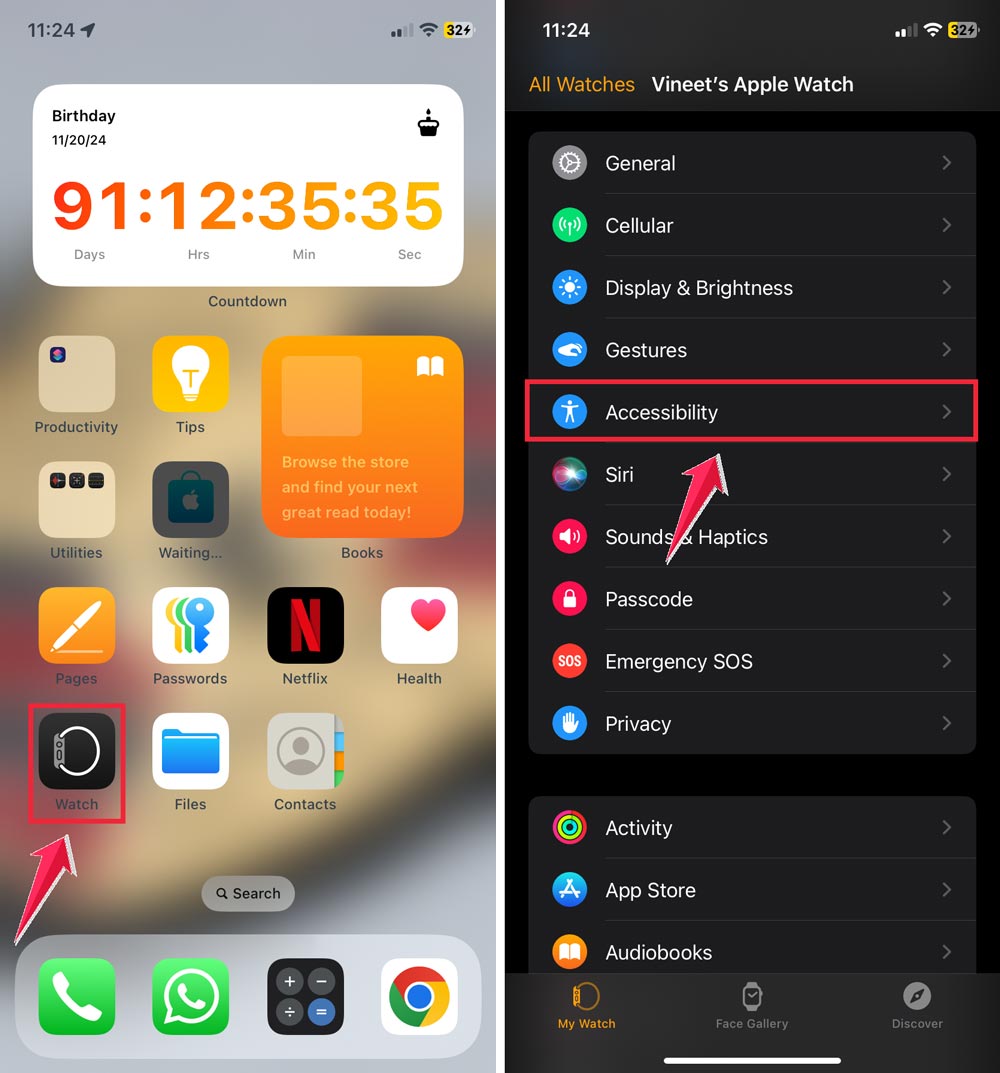
- Click on Touch > Back Tap.

- Choose either “Double Tap” or “Triple Tap”.
- Scroll down and select “Shut Down“.

Now you can turn off your iPhone by tapping the back of your device two or three times.
5. Emergency SOS method
On newer iPhones, you can use the Emergency SOS feature to access the power off slider:
- Press and hold the Side button and either Volume button.
- Continue holding until the Emergency SOS slider appears.
- Slide the “Power Off” slider to shut down your iPhone.

This method works even if your screen is partially unresponsive.
6. Schedule Downtime
For a proactive approach, you can schedule your iPhone to turn off automatically:
- Go to Settings > Screen Time.
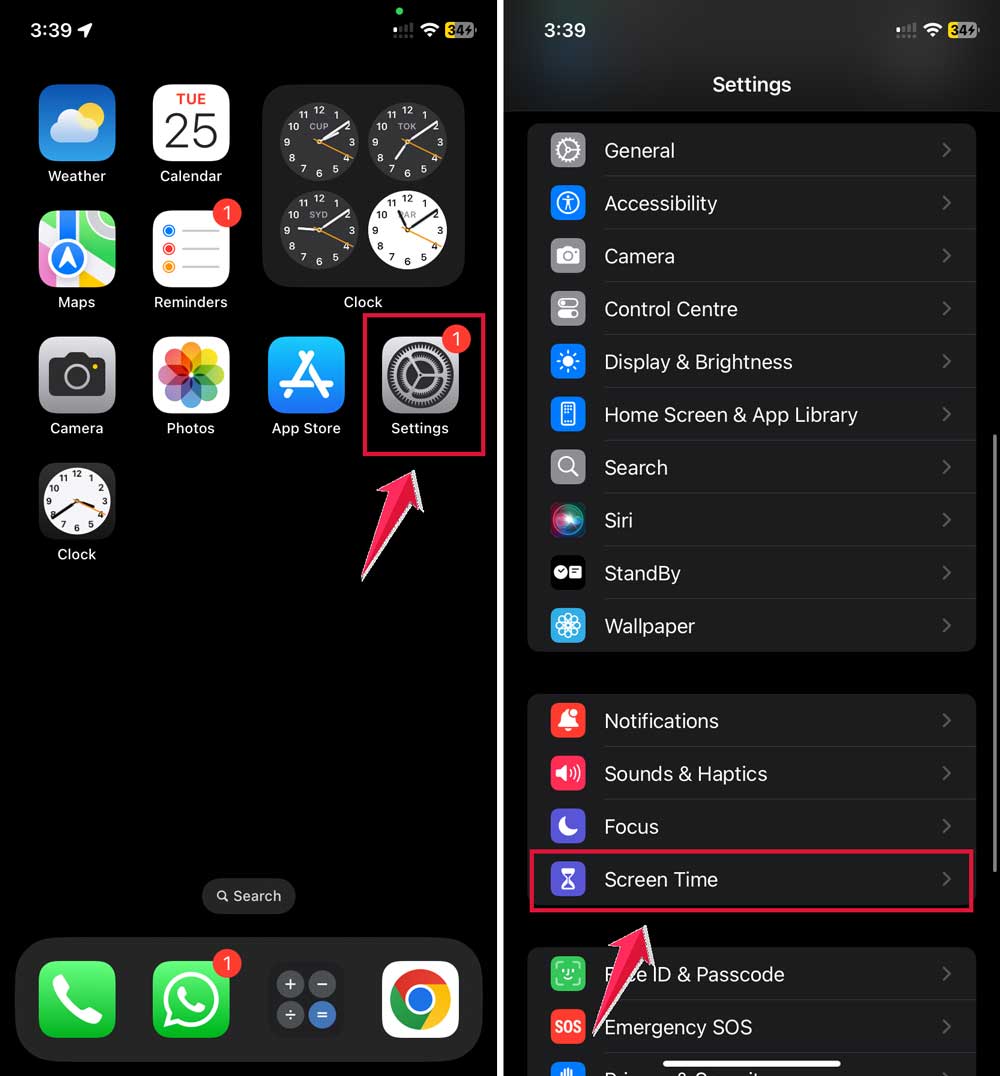
- Click on Downtime.
- Set a schedule for when you want your iPhone to be unusable.
- Enable “Block at Downtime“.

While this doesn’t fully power off your iPhone, it makes it unusable during set hours, which can be helpful for conserving battery or ensuring uninterrupted rest.
7. Use the Shortcuts app
You can create a shortcut to turn off your iPhone:
- Open the Shortcuts app.
- Tap the “+” to create a new shortcut.
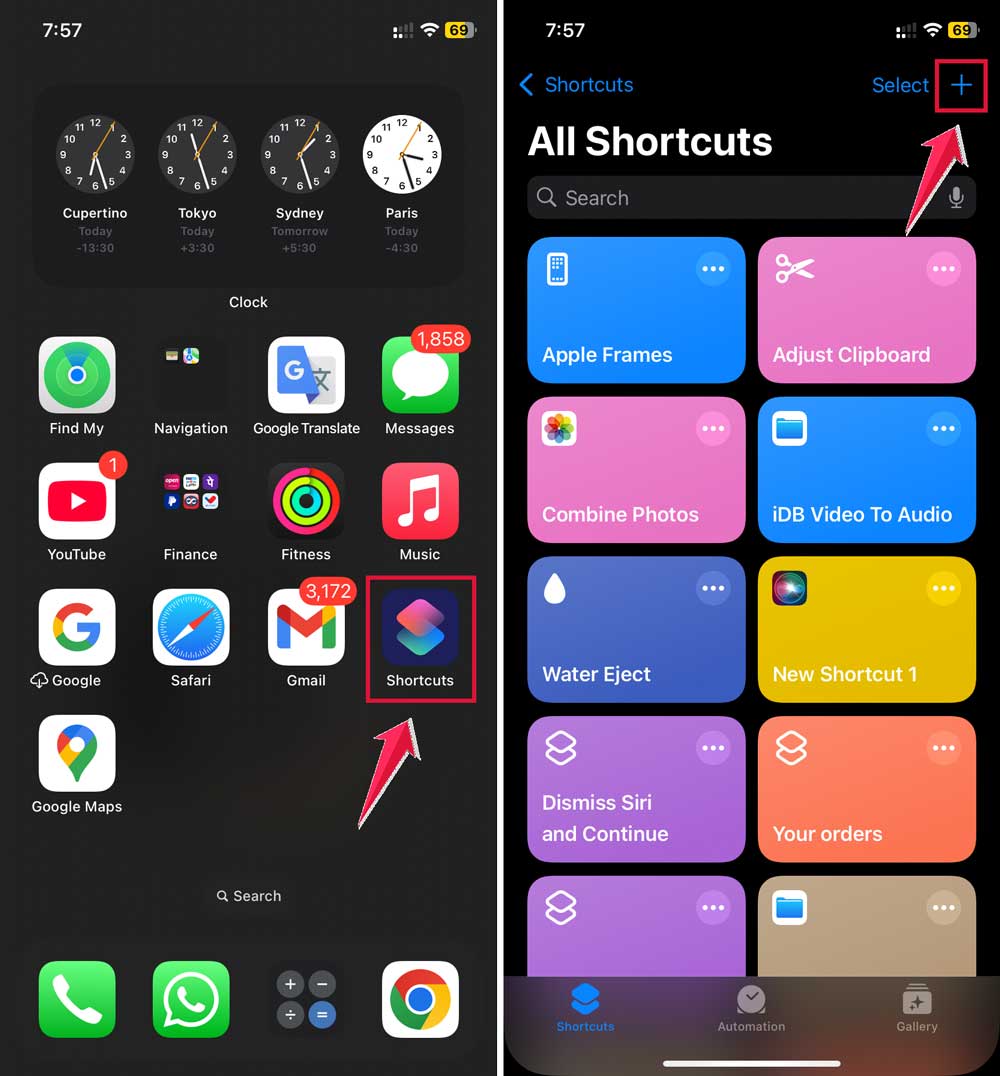
- Search for and add the “Shut Down” action.
- Name your shortcut and add it to your home screen.

Now you have a one-tap solution to turn off your iPhone.
8. Turn off your iPhone from Settings
If your buttons aren’t working but the screen is:
- Open the Settings app.
- Tap General.
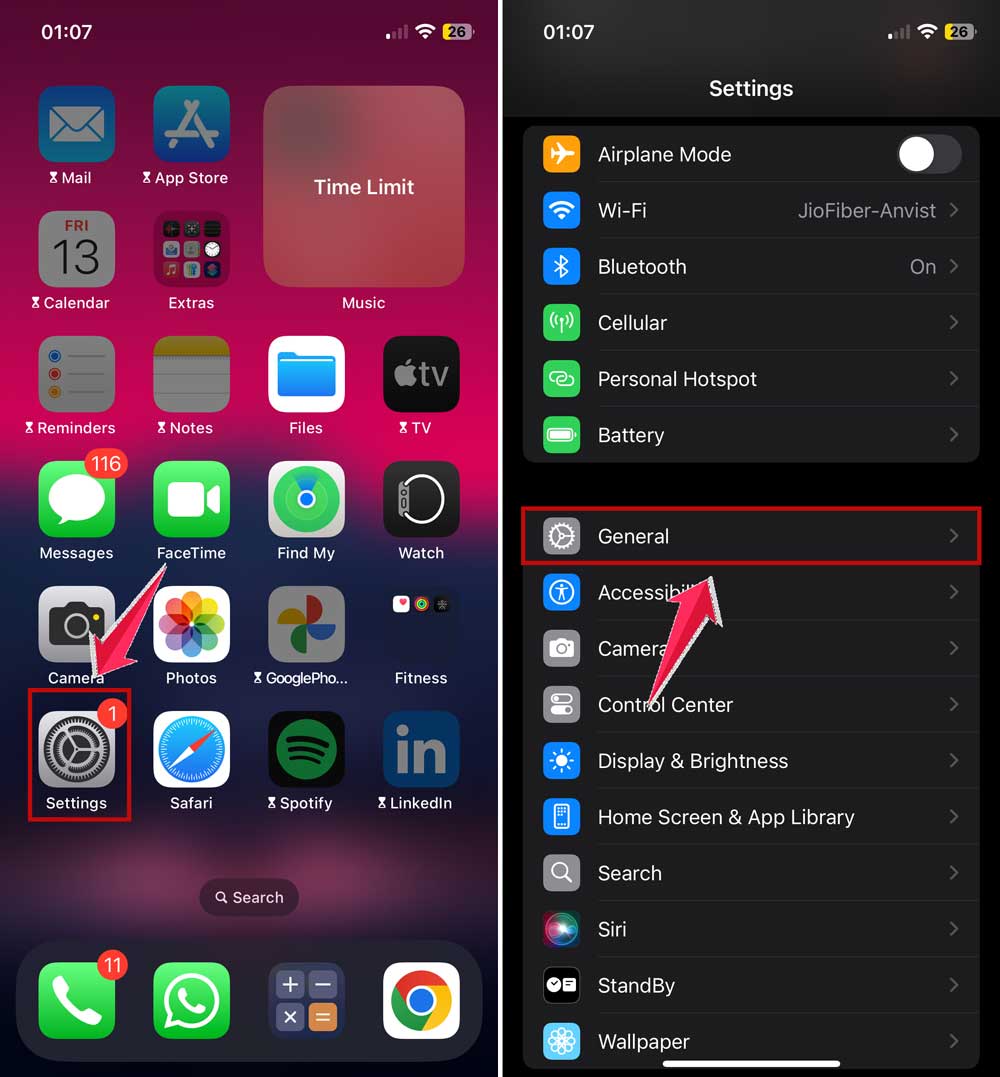
- Scroll down and tap Shut Down.
- Slide to power off.

9. Use AssistiveTouch
AssistiveTouch creates a virtual button on your screen that can help you turn off your iPhone:
- Go to Settings > Accessibility > Touch.

- Go to “AssistiveTouch”
- Turn on AssistiveTouch.
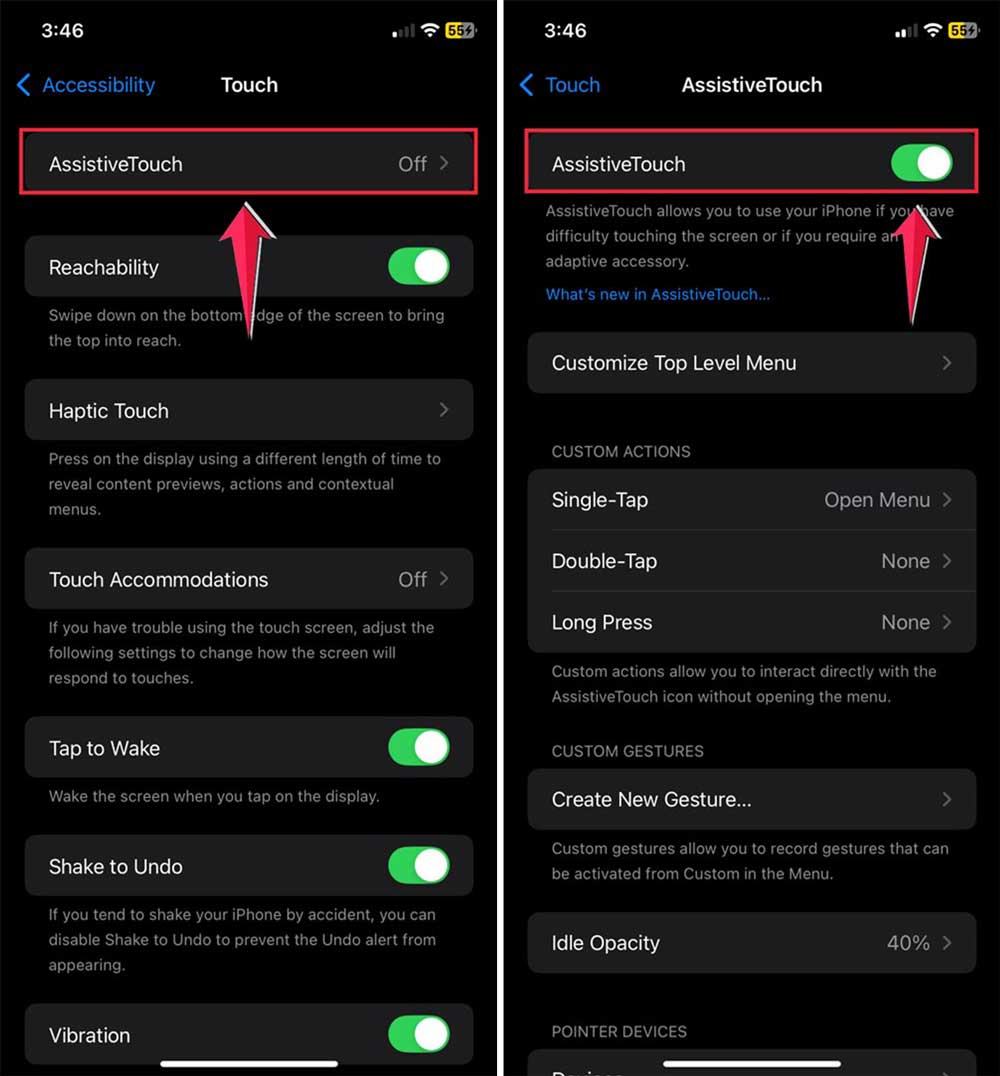
- Tap the AssistiveTouch button > Device > Lock Screen.
- Hold the virtual lock screen button until you see the power off slider.

Remember, if you’re still having trouble after trying these methods, it might be time to contact Apple Support or visit an Apple Store.
They can help you figure out what’s wrong and get your iPhone working properly again.
The takeaway
Turning off your iPhone when the screen isn’t working can be tricky, but it’s not impossible. We’ve explored several methods to help you power down your device, no matter what’s causing the problem.
Remember, you can always let your iPhone’s battery run out naturally. If you’re in a hurry, try the force restart method using the volume and side buttons. For older iPhones with a home button, there’s a different button combination to use.
Some people think they need to visit a repair shop every time their iPhone acts up. But often, you can solve these issues yourself with a bit of know-how. The methods we’ve discussed are safe and won’t harm your device.
The most important thing to remember is that you have options. Whether it’s using voice commands, back taps, or even creating shortcuts, there’s always a way to turn off your iPhone.
Don’t let an unresponsive screen or button stop you from managing your device. With these tips in your pocket, you’re well-equipped to handle whatever your iPhone throws at you.
We’d love to hear your thoughts! Have you tried any of these methods? Do you have any other tips for turning off an iPhone when the screen isn’t working? Share your experience in a comment below.