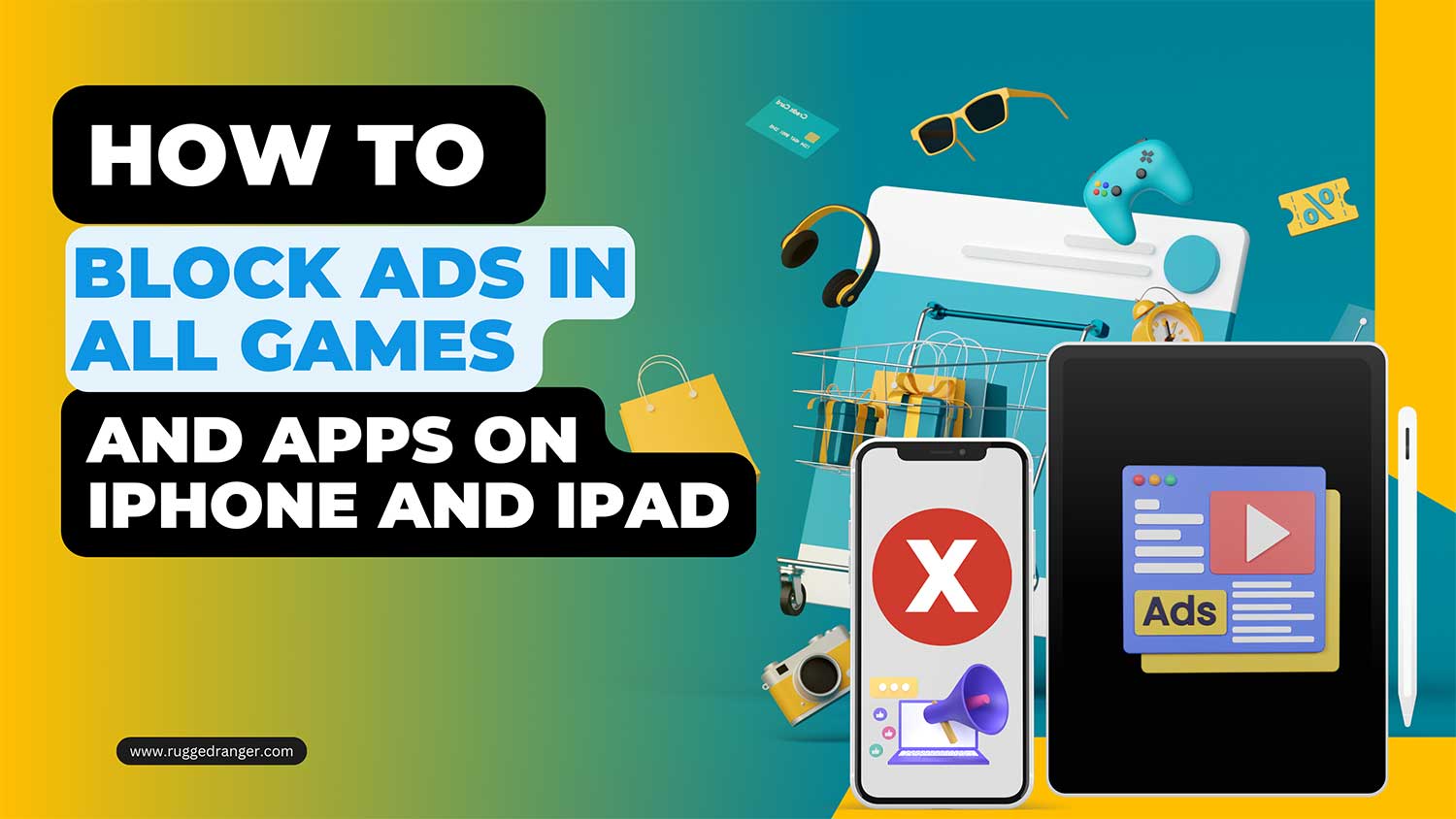
You’re playing your favorite game on your iPhone, completely focused, when suddenly, an ad pops up and ruins your flow.
Sound familiar? Or maybe you’re trying to watch a video on YouTube, but those ads keep interrupting. Perhaps you’re just browsing a website, and the screen is cluttered with annoying banners and pop-ups.
It’s frustrating, isn’t it? These ads aren’t just annoying. They’re eating up your data, slowing down your device, and stealing your precious time. You might be wondering if there’s a way to enjoy your apps, games, and browsing without these constant interruptions.
Why are these ads everywhere? Well, many free apps, games, and websites use ads to make money. It’s how they can offer their services without charging you upfront. But that doesn’t mean you have to put up with them.
Good news for you. There’s a simple way to block these ads on your iPhone and iPad. You don’t need to be tech-savvy or use complicated methods.
In this guide, you’ll learn an easy process to enjoy your screen time without those pesky interruptions. Ready to take control of your digital experience?
How to block ads on your iPhone and iPad for free
Are you tired of ads interrupting your games and apps? There’s a simple solution called Luna’s adblocker profile.
It’s free and works with iOS 15/iPadOS 15 and later. You don’t need to jailbreak your device or do anything complicated.
Follow these steps:
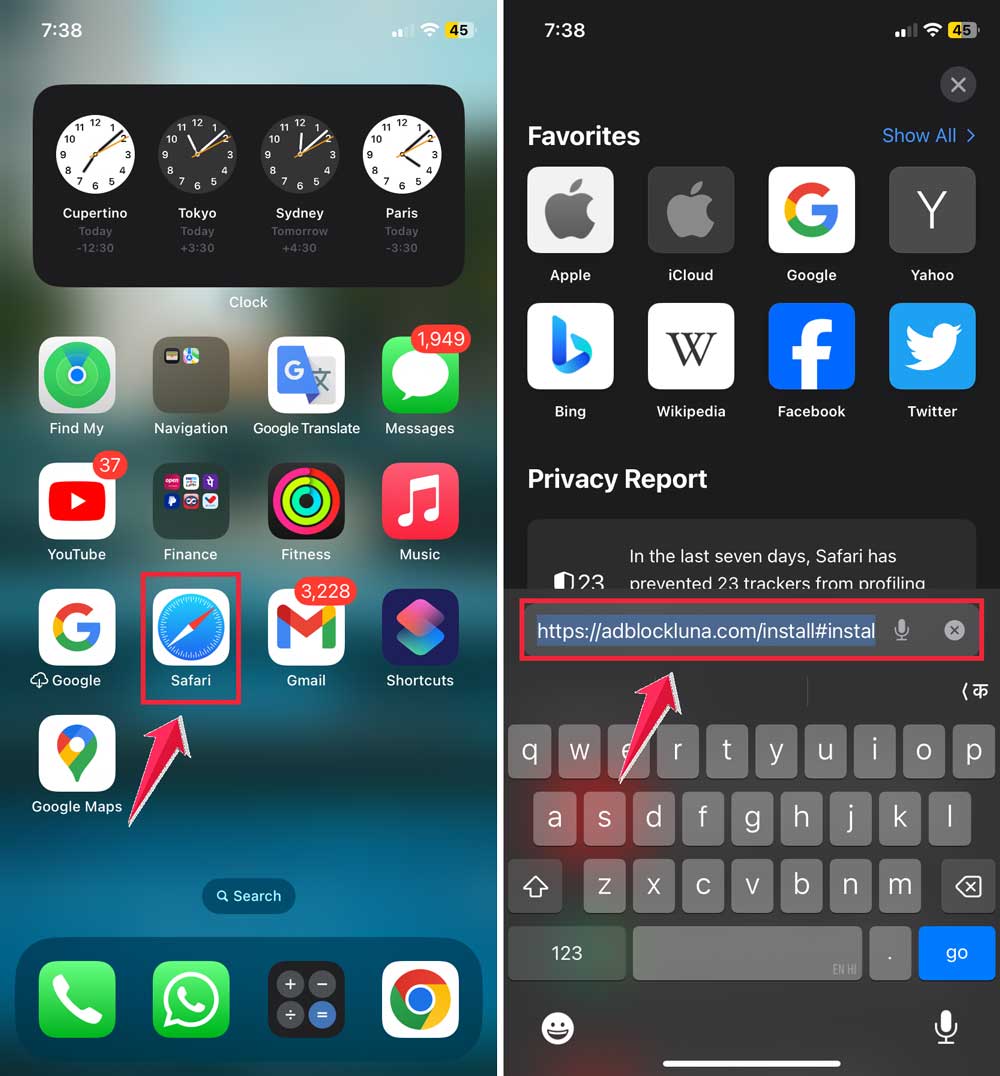
- Open Safari on your device. Head to the website “adblockluna.com“.
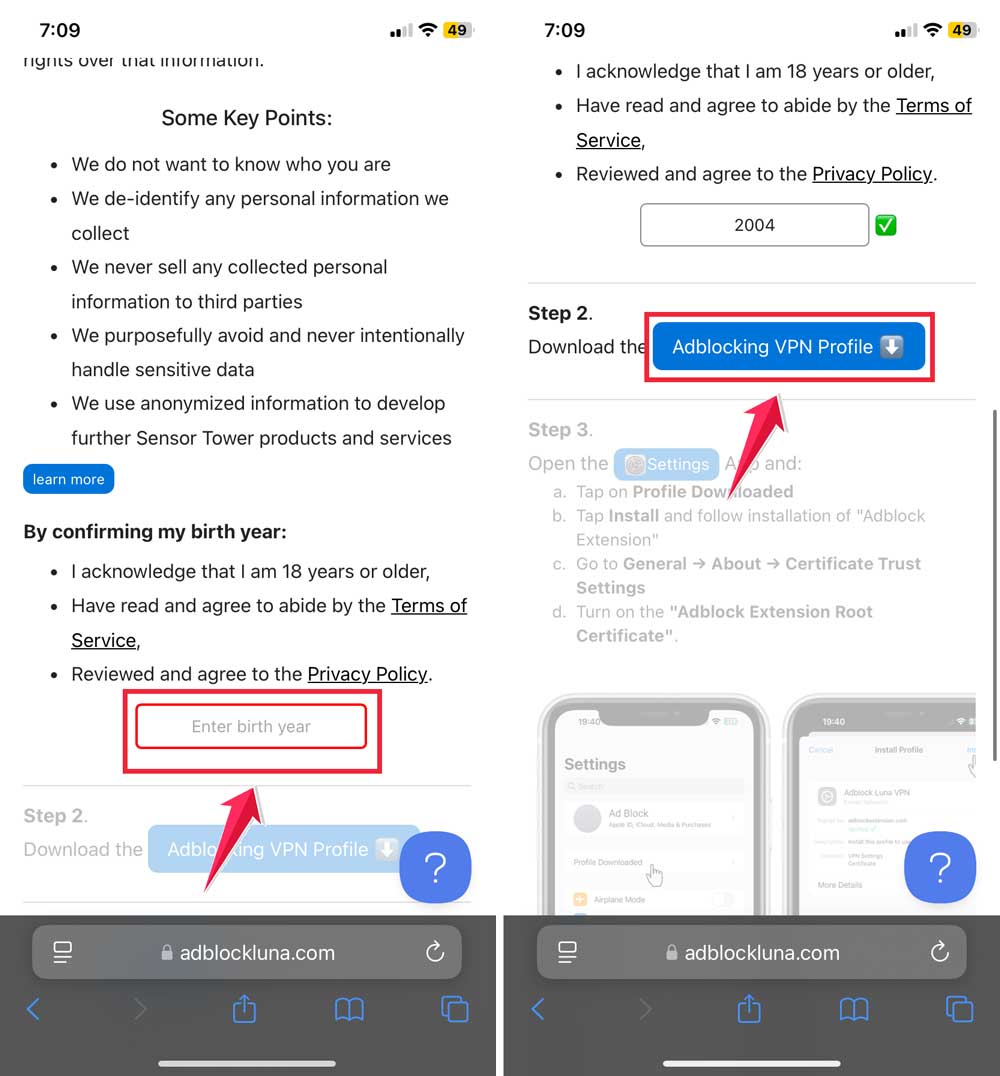
- Enter your birth year. You’ll see a prompt asking for this. Don’t worry, it’s not for personal info. Just enter the year and tap the “Adblocker Profile” button.
- Check your Settings. Open your Settings app and look for “Profile Downloaded”. Tap on it. If you don’t see it right away, tap “More” under your device name to find it.
- Install the profile. Now, install the Adblock Luna VPN profile on your device. Follow the prompts to complete this step.

- Adjust one more setting. Go back to Settings and navigate to General > About.
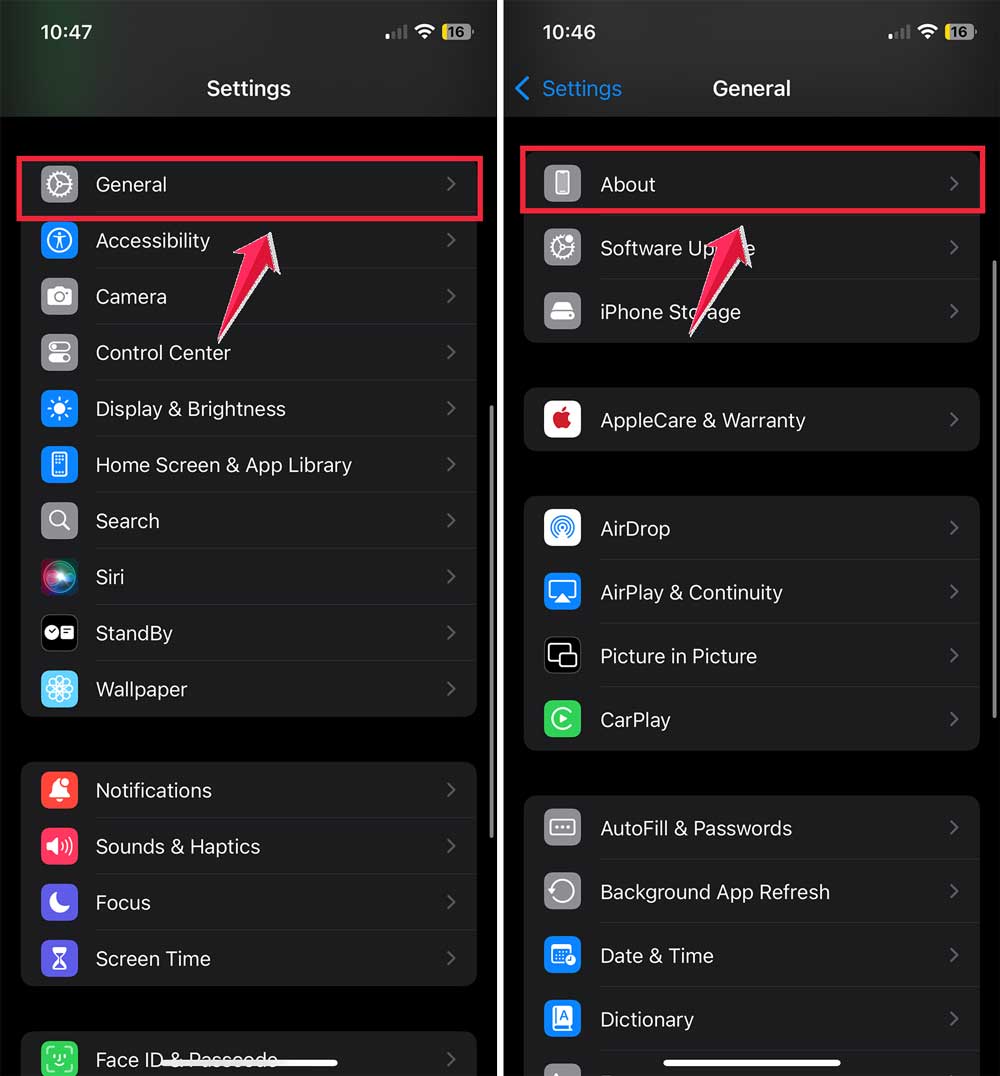
- Click on the “Certificate Trust Settings.”
- Find the toggle for “Adblock Extension Root Certificate” and make sure it’s turned on.

That’s it! You’ve set up an ad blocker on your iPhone or iPad. You should now see fewer ads in your games, and apps, and while browsing. Enjoy your new, less cluttered digital experience!
Remember, this method is free and doesn’t require any special tech skills. If you run into any issues, you can always revisit these steps or check the Luna website for updates.
How to manage Luna Adblocker Profile on iPhone and iPad
Sometimes, you might want to adjust settings or remove Luna Adblocker from your device. Here’s how to do it:
Adjust Luna’s Settings
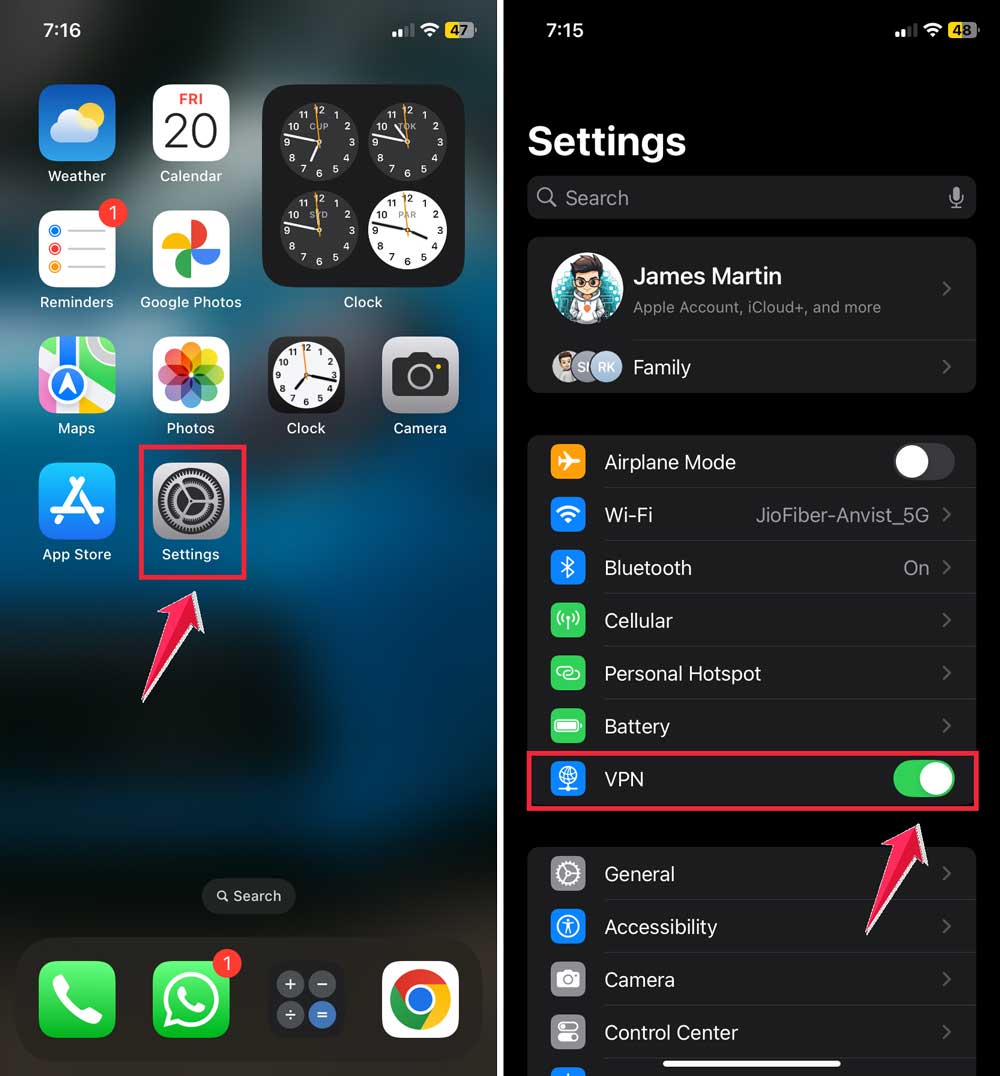
- Open the Settings app on your iPhone or iPad.
- Scroll down and tap on VPN.
- Turn on “Enable Adblock Luna VPN”.
- Here, you can adjust the settings as needed.
Remove Luna Adblocker
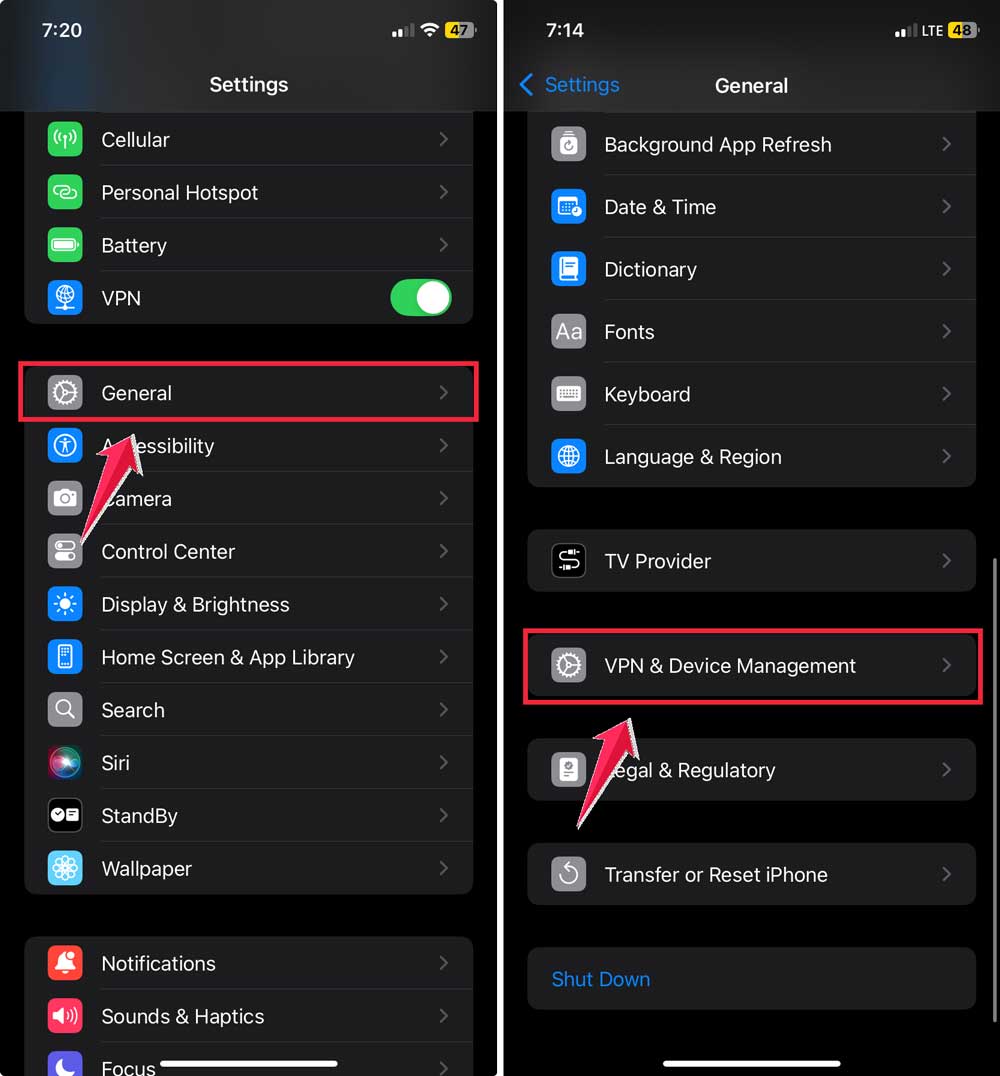
- Open the Settings app.
- Tap on General.
- Find and tap on VPN & Device Management.
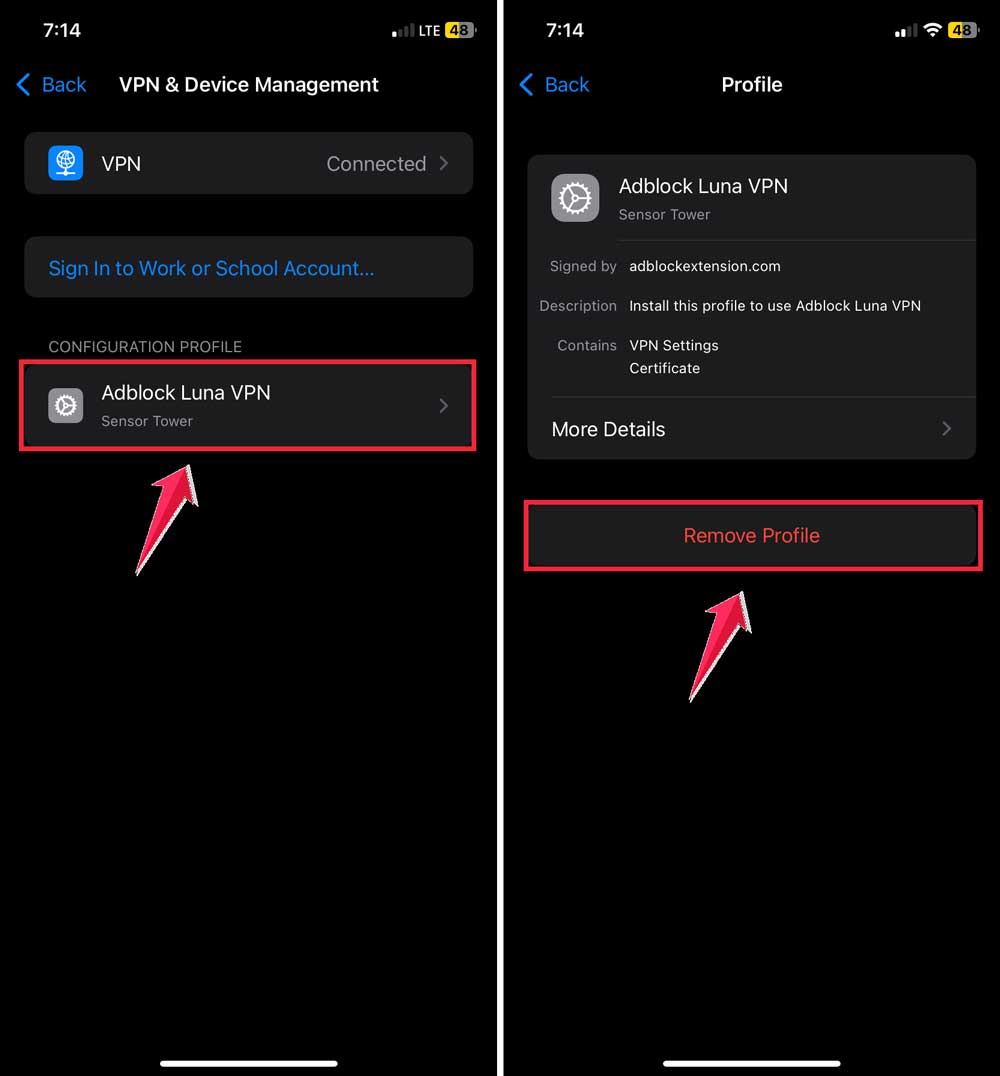
- Look for Adblock Luna VPN and tap on it.
- Tap Remove Profile, then confirm your choice.
If you prefer visual instructions, you can find a video guide to help you through this process. Just search for “Luna Adblocker setup guide” on your favorite video platform.
The takeaway
Now you know how to block those annoying ads on your iPhone and iPad. It’s a simple process that doesn’t cost you anything or require any special tech skills.
Remember, all you need to do is download and install the Luna adblocker profile through Safari. Then, make a few quick adjustments in your device settings.
After that, you’re good to go! You’ll notice fewer ads interrupting your games, apps, and browsing, and free up space.
Some people think blocking ads is complicated or that it might harm their device. But that’s not true with this method. It’s safe and easy to use. Plus, you can always adjust or remove it if you need to.
The most important thing to remember is that you have control over your digital experience. You don’t have to put up with constant ad interruptions. Give this method a try and enjoy a cleaner, less cluttered time on your iPhone or iPad.
We’d love to hear about your experience using this ad-blocking method. Feel free to leave a comment below, sharing your thoughts in a single line.