Did you know that the average person checks their phone about 58 times a day? With all those glances, wouldn’t it be nice to see something fresh each time?
Well, good news! Your iPhone has a feature that lets you set up multiple pictures as wallpaper, giving your device a new look throughout the day.
Many iPhone users stick with the same wallpaper for months, maybe even years. It’s not because they don’t want variety. It’s often because they don’t know how to change it easily. But your iPhone is capable of so much more than displaying a single static image.
With iOS 16, Apple introduced a feature called Photo Shuffle. This lets you select multiple photos that your iPhone will cycle through as wallpaper. It’s like having a slideshow of your favorite memories right on your lock screen.
In this article, you’ll learn how to set up multiple pictures as wallpaper on your iPhone. We’ll walk you through the process step by step, making it easy for you to add some variety to your daily phone use.
Ready to give your iPhone a fresh new look? Let’s get started!
How to set multiple wallpapers on your iPhone Lock Screen
Want your iPhone to show a new wallpaper every time you look at it? Here’s how you can make that happen:
- Open the Settings app on your iPhone.
- Scroll down and tap on “Wallpaper”.
- Tap “Add New Wallpaper”.
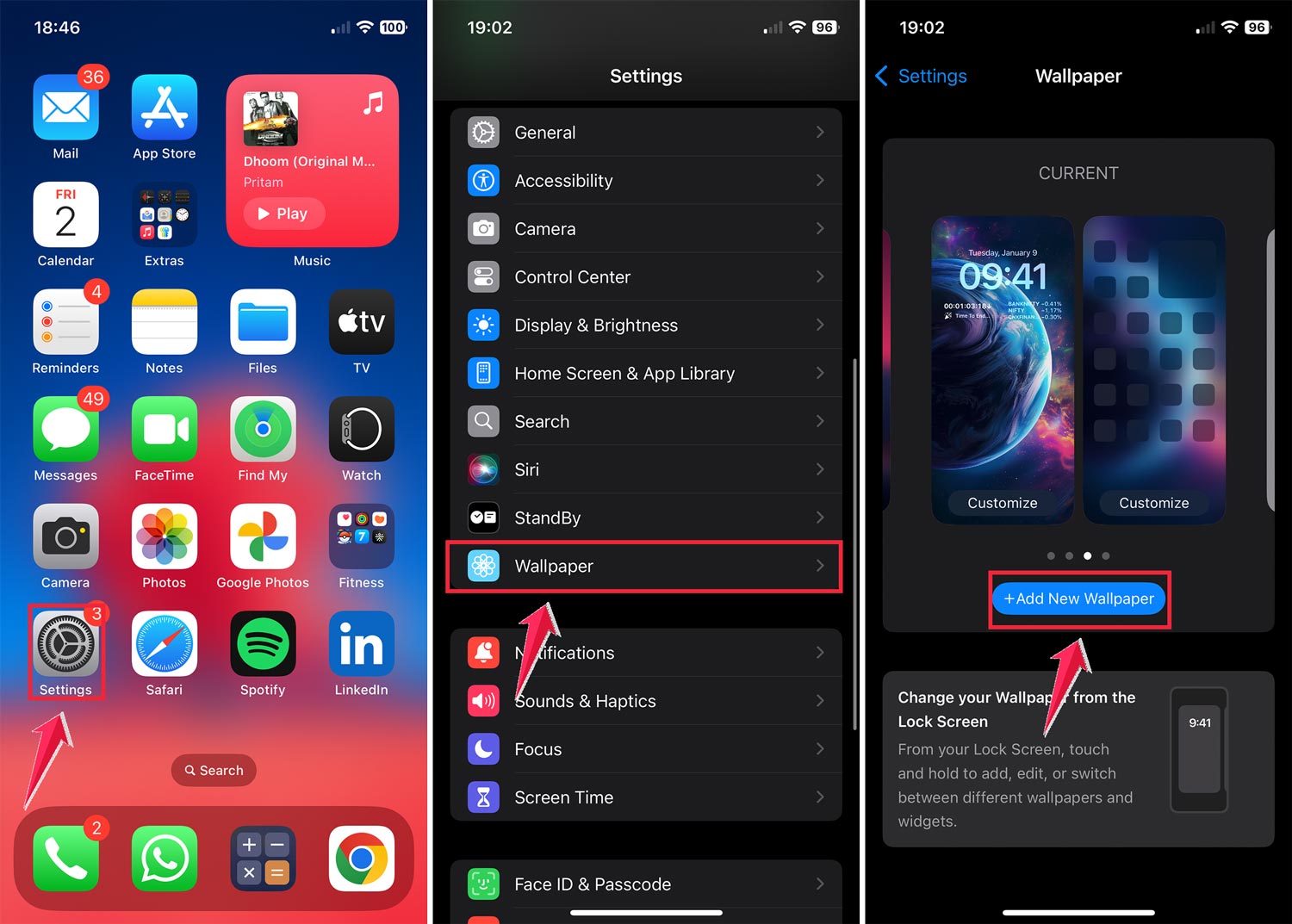
- Choose “Photo Shuffle” at the top of the screen.
- Select how often you want the wallpaper to change. You can choose to change it when you tap the screen, when you lock your phone, or at set intervals like hourly or daily.
- Tap “Select Photos Manually” and choose the photos you want to use.

- You can pick up to 50 photos.
- Once you’ve selected your photos, tap “Add” in the top-right corner.
- If you want to preview or adjust your photos, you can do so on the next screen. Tap the grid icon in the bottom-left corner to add or remove photos.
- When you’re happy with your selection, tap “Add” again in the top-right corner.
- Finally, tap “Set as Wallpaper Pair” to use your new rotating wallpapers on both your Lock Screen and Home Screen.

How to remove blur from your iPhone Home Screen
If you want to see your wallpapers clearly without any blur effect, here’s what you can do:
- Open the Settings app on your iPhone.
- Scroll down and tap on “Wallpaper”.
- Under the Home Screen preview on the right, tap “Customize”.
- Tap the “Blur” button to turn off the blur effect.
- Tap “Done” to save your changes.
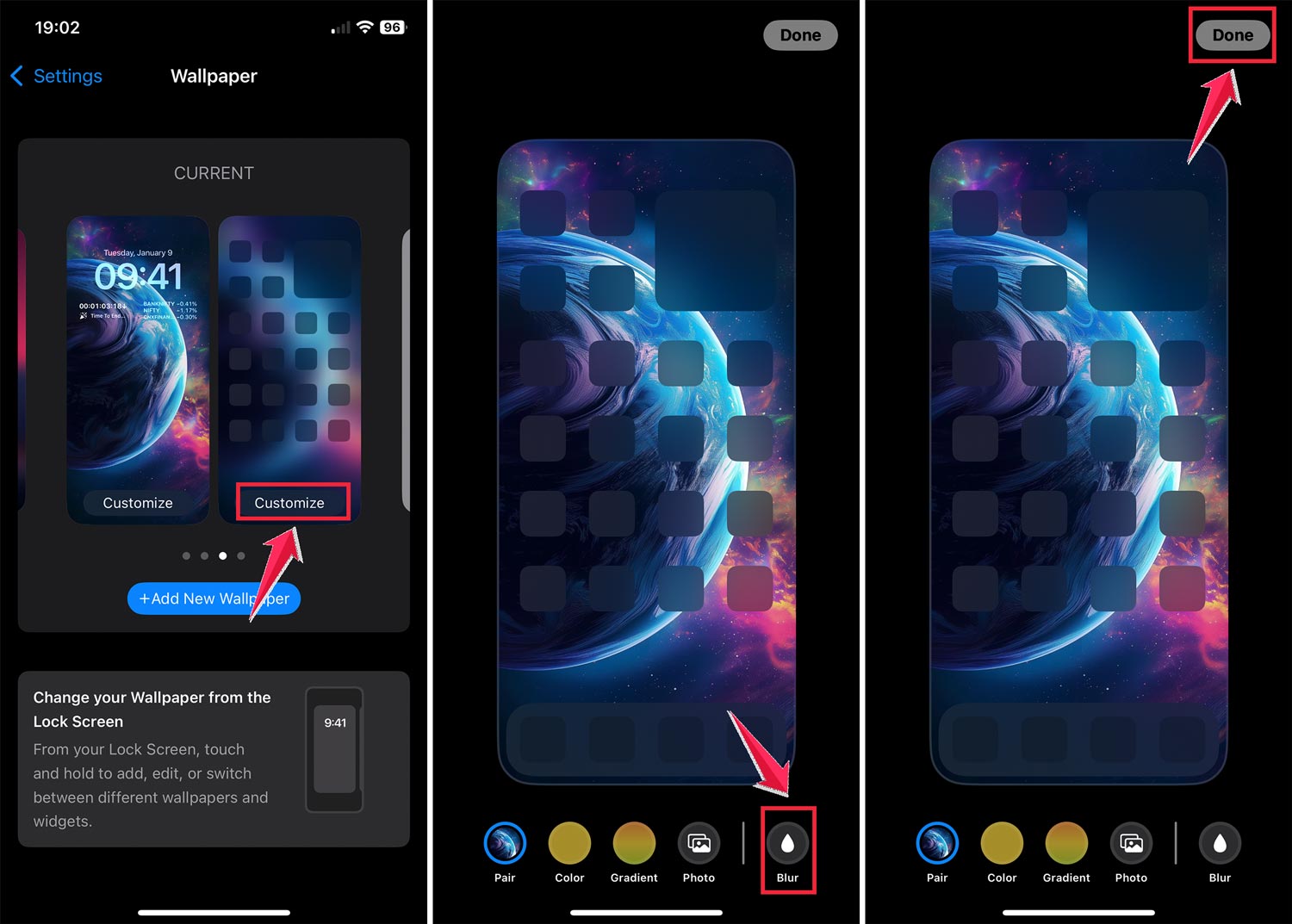
Now, your home screen wallpapers will appear without any blur, allowing you to see your photos in full clarity. Just note that this might make app icons blend in more.
The takeaway
Changing your iPhone’s wallpaper can make your device feel fresh and personal. With iOS 16, you can now set multiple pictures to rotate as your wallpaper, giving your lock screen a new look throughout the day. This feature lets you showcase your favorite photos and memories every time you check your phone.
Setting up this rotating wallpaper is simple. You just need to select the photos you want to use and choose how often you want them to change, and your iPhone takes care of the rest. You can even remove the blur effect from your home screen if you want to see your wallpapers more clearly.
Remember, these new features are about making your iPhone more enjoyable to use. They’re not just for show. They can help you stay connected to important memories or inspire you throughout the day. Don’t be afraid to experiment with different photos and settings until you find what works best for you.
Your iPhone is a personal device, so make it reflect your personality. Take some time to set up your wallpapers and enjoy the new look of your device. It’s a small change that can make a big difference in how you interact with your phone every day.
What do you think about these new wallpaper features? Share your thoughts in a comment below.