Did you know that every day, thousands of people get locked out of their phones because of a simple SIM card PIN mistake? It’s a frustrating experience that can throw a wrench in your daily routine.
Picture this: You’re about to make an important call or reply to an urgent message, but your phone won’t let you in. Why? You’ve entered the wrong PIN for your SIM card a few times, and now it’s locked up tight.
Suddenly, you can’t make calls, send texts, or use mobile data. It feels like you’ve hit a digital dead end.
This problem is more common than you might think. Maybe you mixed up your PIN with another password, or perhaps your fingers slipped on the keypad. Whatever the reason, it can leave you feeling stuck and stressed.
But here’s the good news: you’re not actually locked out for good. There are ways to get back into your phone and start using it again, even if you don’t have the PUK code on hand.
In this article, we’ll show you exactly what to do when you’re faced with a locked SIM card. We’ll walk you through the steps to unlock it, explain what a PUK code is, and give you tips to prevent this from happening again.
How to unlock your SIM card without a PUK code
The reality is that you can’t unlock a SIM card without a PUK code if it’s been locked due to multiple incorrect PIN entries.
The only method left to you is to call customer care, visit the online portal, or visit a physical store. We strongly advise you to stop attempting anything with your SIM card at this point.
There are other ways to get your phone working again. Here’s what you can do:
1. Contact your mobile carrier
Your first and best option is to reach out to your mobile carrier. They’re the experts who can help you regain access to your phone. Here’s how you can do this:
- Use another phone to call your carrier’s customer service number. You can usually find this on their website or on your last bill.
- Explain to the representative that you’ve locked your SIM card and don’t have the PUK code. After unlocking or changing SIMs, you might see a message about why your iPhone might prompt you to add a cellular plan.
- Be ready to answer some security questions. They’ll need to verify that you’re the owner of the account.
- Once they’ve confirmed your identity, they can help you unlock your SIM card remotely or provide you with the PUK code.
2. Try a default PUK code
Some carriers use standard PUK codes for their SIM cards. While this isn’t guaranteed to work, it’s worth a try.
Common default codes include “11111111“, “12345678“, or “00000000“.
Remember, you only get a few attempts at entering the PUK code before your SIM card is permanently locked, so use this option carefully.
3. Visit a carrier store
If calling doesn’t work out, you can visit your carrier’s physical store. Bring your ID and any account information you have.
The staff there can verify your identity in person and help unlock your SIM card.
4. Consider getting a new SIM card
If all else fails, you might need to get a new SIM card. While this isn’t ideal, it’s better than being locked out of your phone.
Your carrier can set you up with a new SIM card, usually keeping your old number and plan.
How to change or disable the SIM PIN code
Tired of dealing with SIM PIN lockouts? You can easily change or turn off your SIM PIN.
Here’s how to do it on both iPhones and Android devices:
1. For iPhone users
Turn off the SIM PIN
- Open the “Settings” app.
- Tap “Cellular”.

- Select “SIM PIN”.
- Switch off “Lock SIM Pin”.
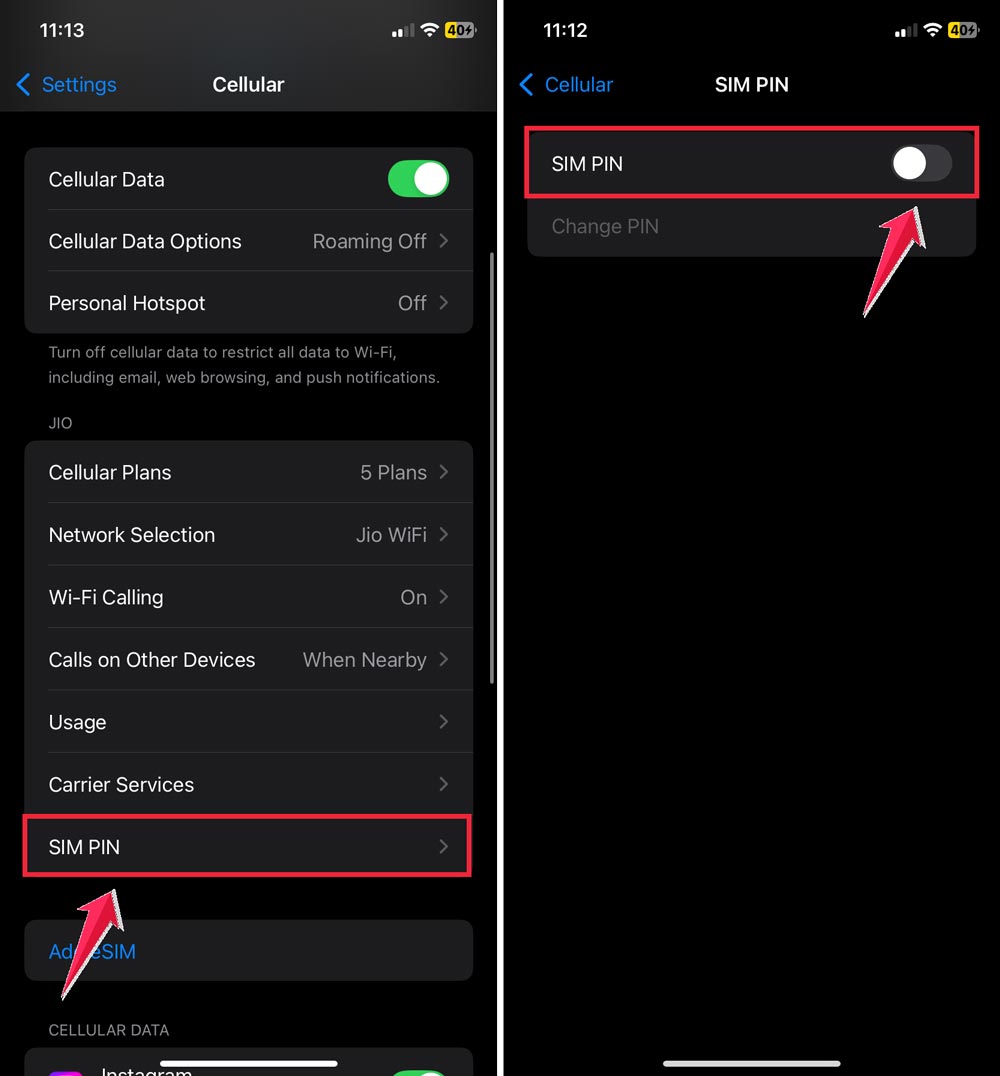
If asked for a PIN, use the default one from your SIM card’s plastic holder or your current PIN if you’ve changed it before.
Change your SIM PIN
- Go to “Settings” > “Cellular” > “SIM PIN”.
- Tap “Change SIM PIN”.
- Enter your old PIN, then set a new one.

2. For Android users
Turn off the SIM PIN
- Open the “Settings” app.
- Find and tap “Security”.

- Select “Set up SIM card lock”.
- Tap “Other Security Settings”.
- Switch off “Lock SIM card”.
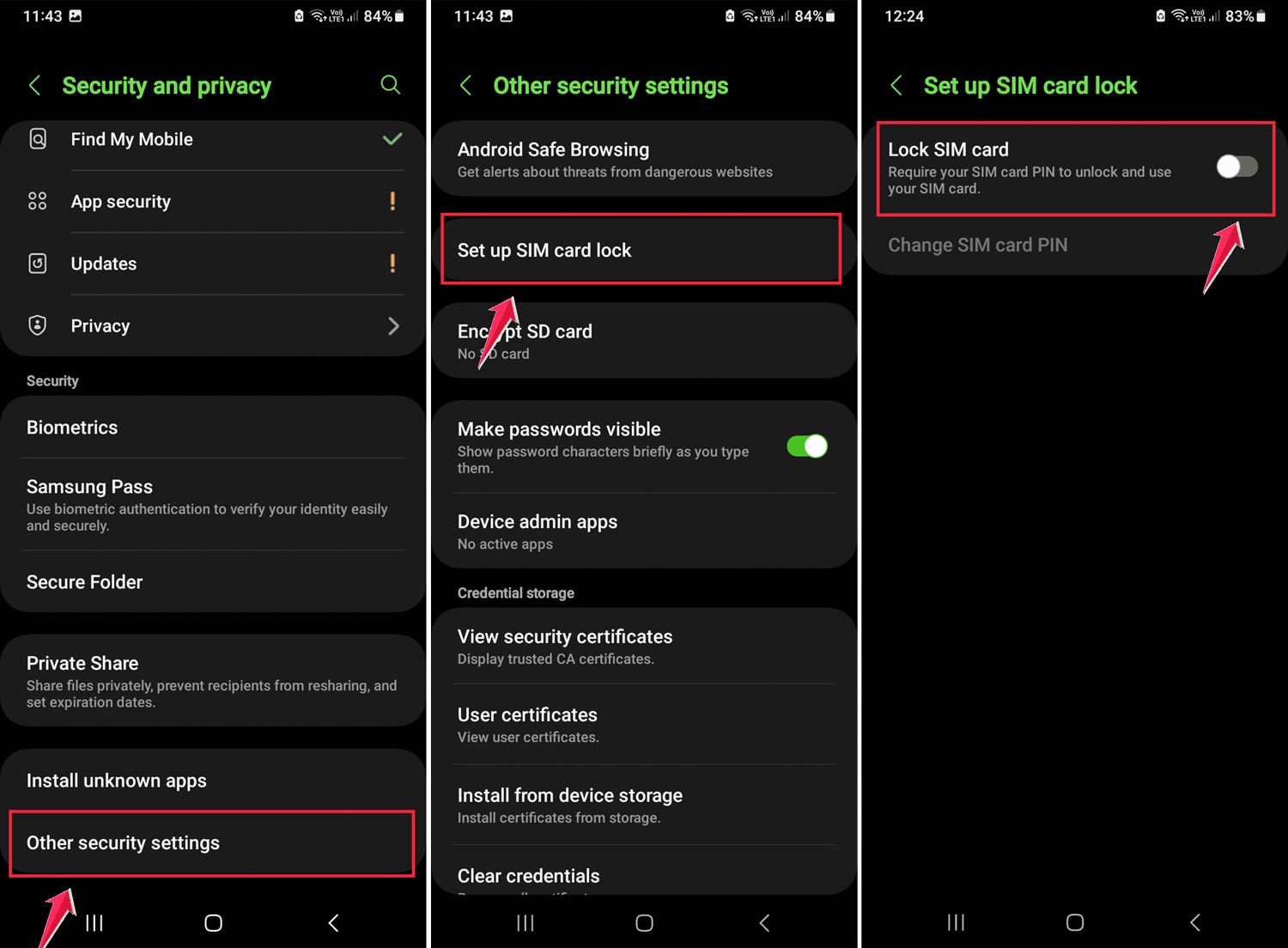
Change your SIM PIN
- Go to “Settings” > “Security” > “Set up SIM card lock”.
- Tap “Change SIM PIN”.
- Enter your current PIN, then choose a new one.
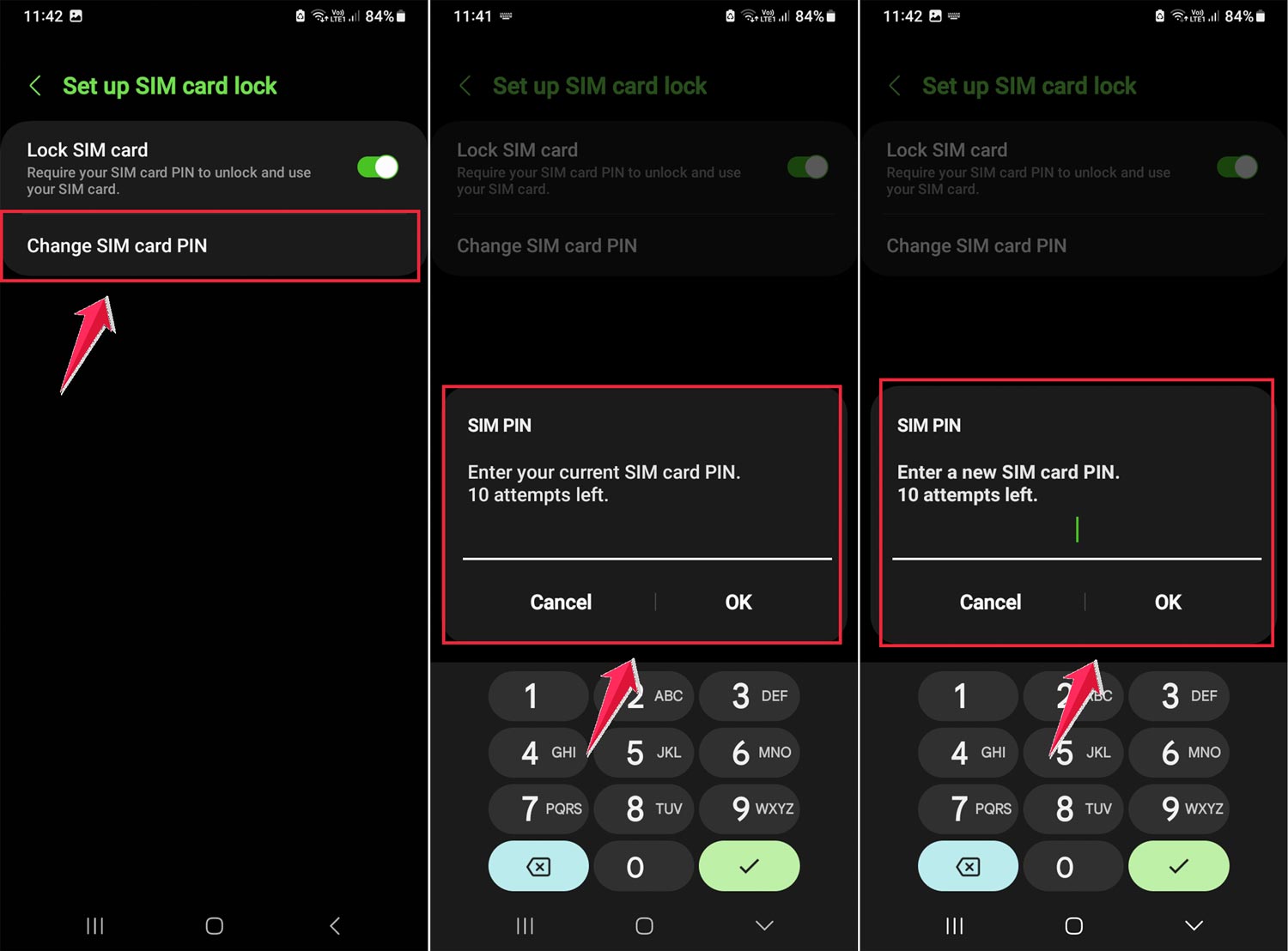
By following these steps, you can easily manage your SIM PIN and avoid future lockouts.
Whether you prefer to change your PIN to something more memorable or turn it off completely, you now have the tools to take control of your SIM security.
The takeaway
In today’s digital age, managing your SIM PIN and PUK codes is essential for keeping your mobile phone secure and accessible.
These codes act as your phone’s gatekeepers, protecting your personal information and preventing unauthorized access.
We’ve covered several key points to help you handle these codes effectively. First, always keep your original PIN and PUK letter in a safe place.
If you forget your PIN, you can easily retrieve it from this document. You can also check iPhone unlock history if you’re unsure who has accessed your device.
If you’re locked out, your PUK code is your backup plan. Remember, you can also contact your mobile provider or check their online portal to recover your PUK if needed.
Contrary to what some might think, you don’t need to be a tech expert to manage your SIM security.
By following the simple steps we’ve outlined, like changing your PIN to a memorable number or disabling it if you prefer, you can take control of your phone’s security with ease.
The most important thing to remember is that you’re not alone in this. Whether you’re dealing with a locked SIM card or just want to update your security settings, there’s always a solution.
By staying informed and taking proactive steps, you can ensure that your mobile connection remains secure and accessible whenever you need it.
We’d love to hear your thoughts! Share your experiences with SIM PINs and PUKs in a single line comment below.