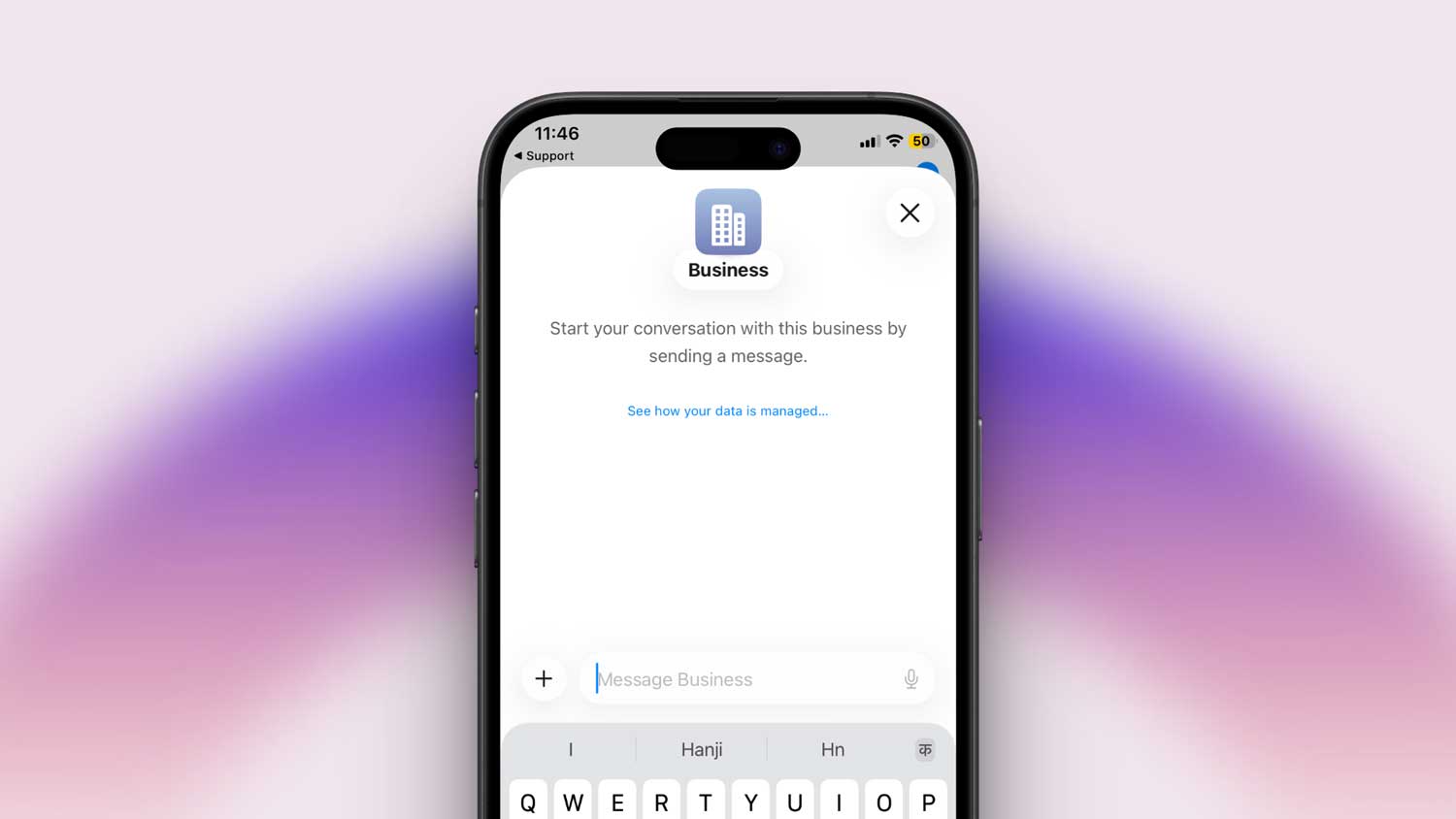
You don’t always feel like calling, right? Especially when it’s something small.
Maybe your iPhone isn’t charging. Or you just updated iOS and now something feels off.
Good news. You can text Apple Support directly from your iPhone.
It’s fast. It’s easy. And you don’t need to wait on hold.
Let me show you exactly how to do it.
You’ll need the Apple Support app
This is the official app from Apple. If you don’t have it yet, it takes just a few seconds to download.
Here’s how to get started.
Step 1: Open the App Store on your iPhone.
Step 2: Type “Apple Support” in the search bar and hit search.
Step 3: Tap the download icon next to the app. If you’ve installed it before, you’ll see an Open button instead.

That’s it. Once it installs, you’re ready to connect with a support agent.
Open the app and choose your device
When you launch the app, you’ll land on the home screen. Apple already knows which devices are linked to your Apple ID.
Step 1: Tap on the Support tab at the bottom of the screen.
Step 2: Select the device you’re having trouble with. It could be your iPhone, iPad, Mac, or even AirPods.
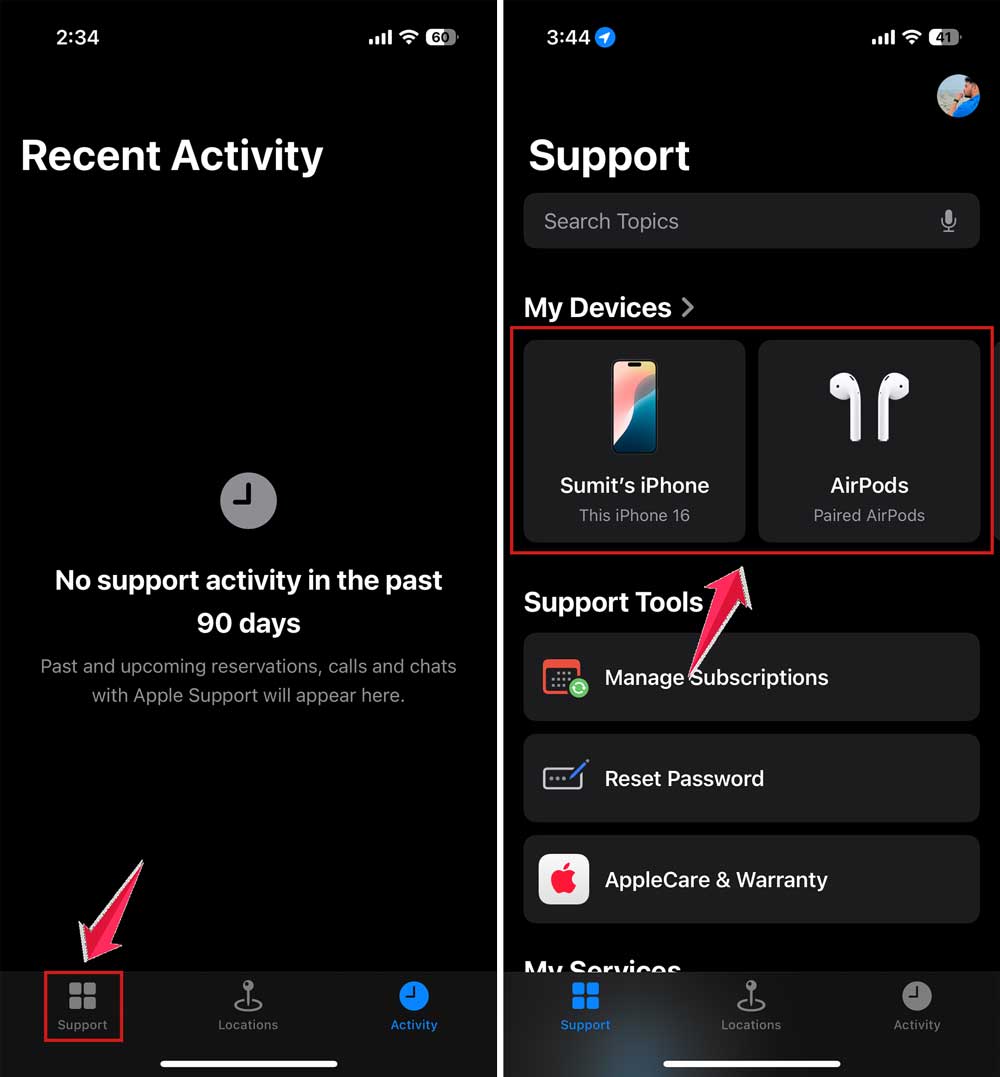
Once you tap on the device, the app will show you a list of common problems.
Select the issue you’re facing
You don’t need to explain everything yet. Just choose the category that matches your issue best.
Step 1: Look through the list of topics like “Battery and Charging,” “App Store,” or “Repairs & Physical Damage.”
Step 2: If nothing matches exactly, tap the “Search Topics” box.
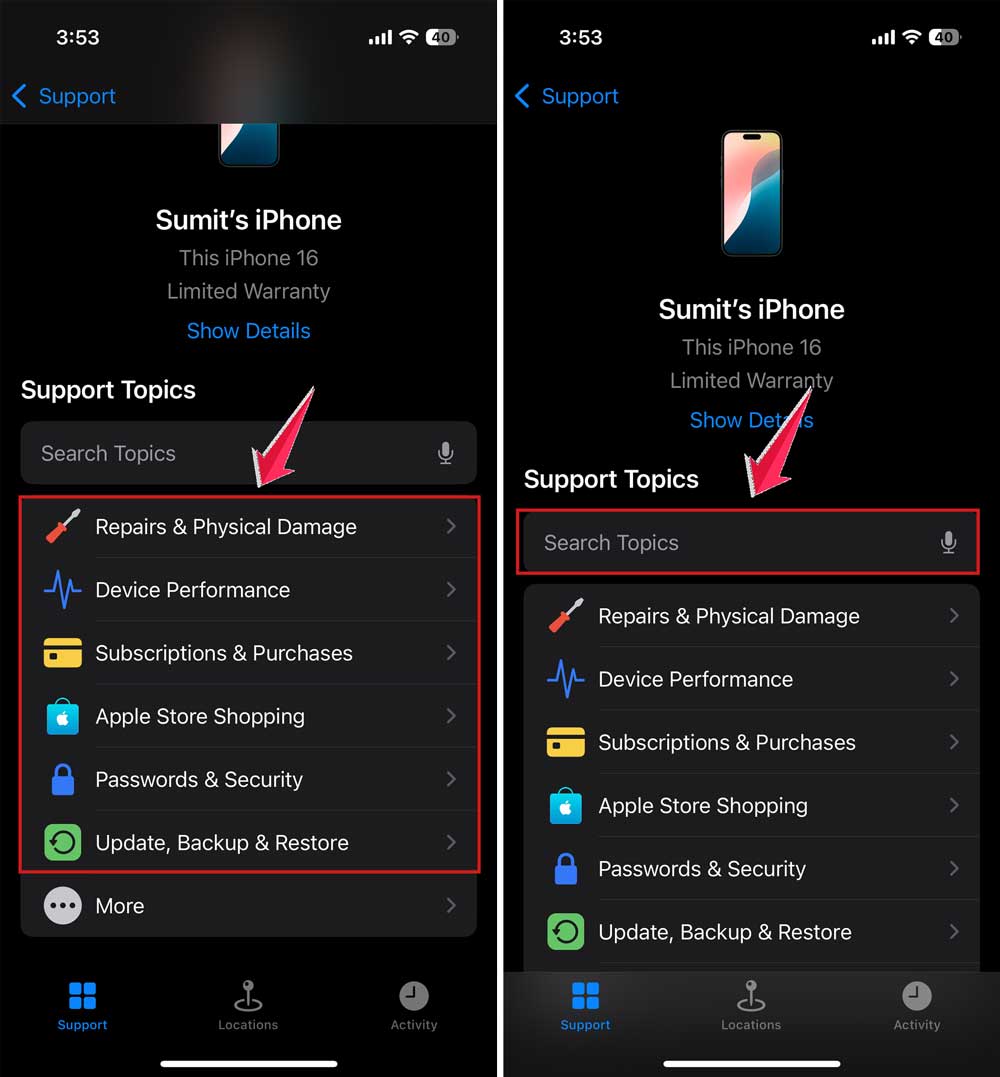
This lets you type your problem in your own words. Something like “FaceTime keeps disconnecting” or “iPhone won’t update.”
Now you can start a text chat with Apple
Here’s the part you came for.
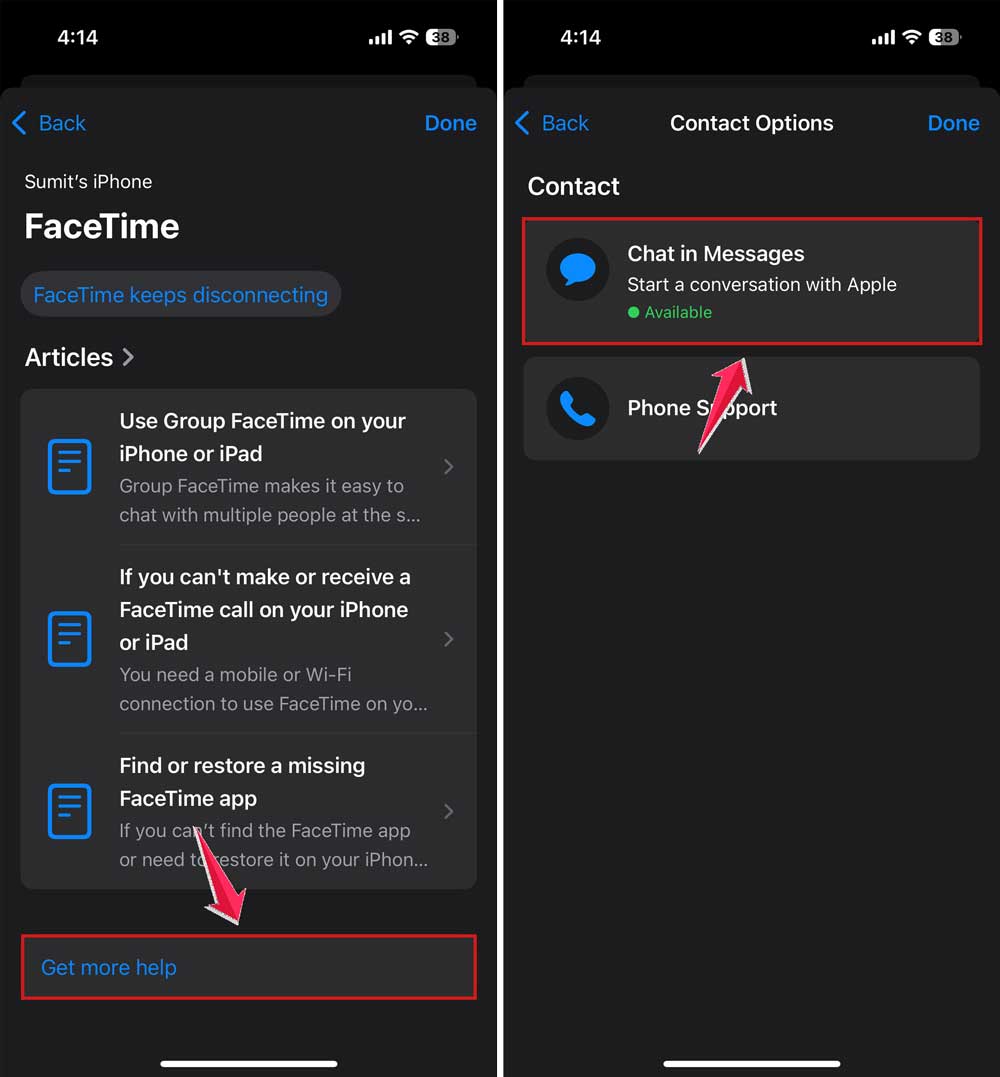
After you choose your issue, Apple shows you the available support options. If your solution is there, check on it. If not, then do this.
Step 1: Tap on Get More Help.
Step 2: Then choose Chat.
Step 3: The app might ask for permission to send you notifications. Choose Allow so you don’t miss their replies.
Step 4: A new chat window will open, and in a few seconds, a real Apple advisor will join the conversation.
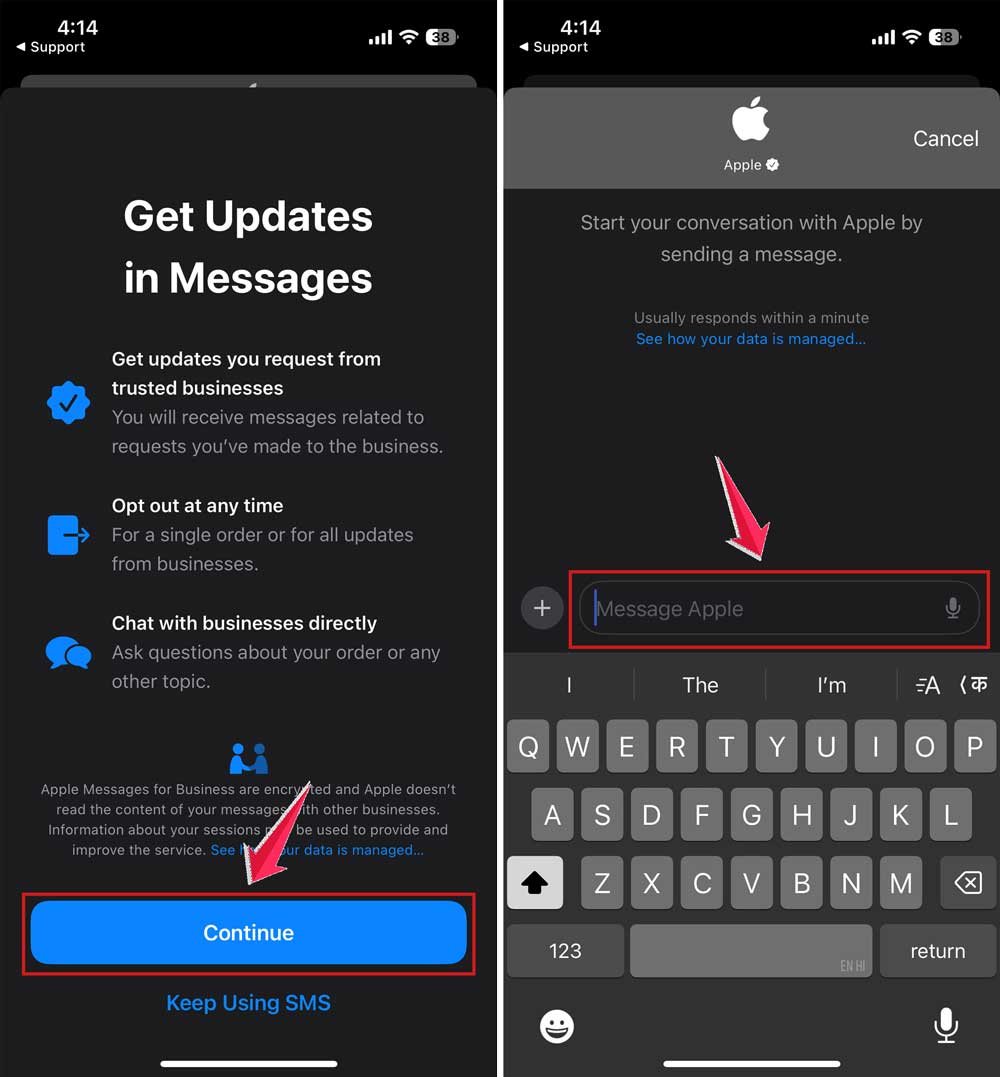
You can now text your question or describe the problem you’re facing.
A few things you can keep in mind while chatting
You’re texting a real human. Not a bot. So don’t stress.
Explain your issue as clearly as you can. If you have already tried restarting or updating your device, let them know. It helps them skip the obvious suggestions and give you real solutions faster.
And if you accidentally leave the app, don’t worry. You’ll get a notification when they reply, and your chat will still be there.
You can even go back and review the full conversation later if you need to follow instructions again.
What if chat isn’t available?
Sometimes, depending on your issue, Apple might only offer a phone call or repair appointment.
If that happens, don’t panic. Just try rephrasing your issue.
Tip: When you type your problem manually, you’re more likely to unlock the chat option. especially for general questions or software problems.
For example, instead of selecting “iPhone not turning on,” try “iPhone won’t boot after update” in the “Tell us what’s happening” box.
Still no chat? You can always call them or schedule a call later. Or use the website (I’ll explain that below).
Can you text Apple Support without the app?
Yes, but the app is the easiest way.
If you don’t want to use the Apple Support app, here’s another way to reach them:
Step 1: Open Safari on your iPhone.
Step 2: Go to support.apple.com.
Step 3: Tap Get Support, then choose your device and issue like before.
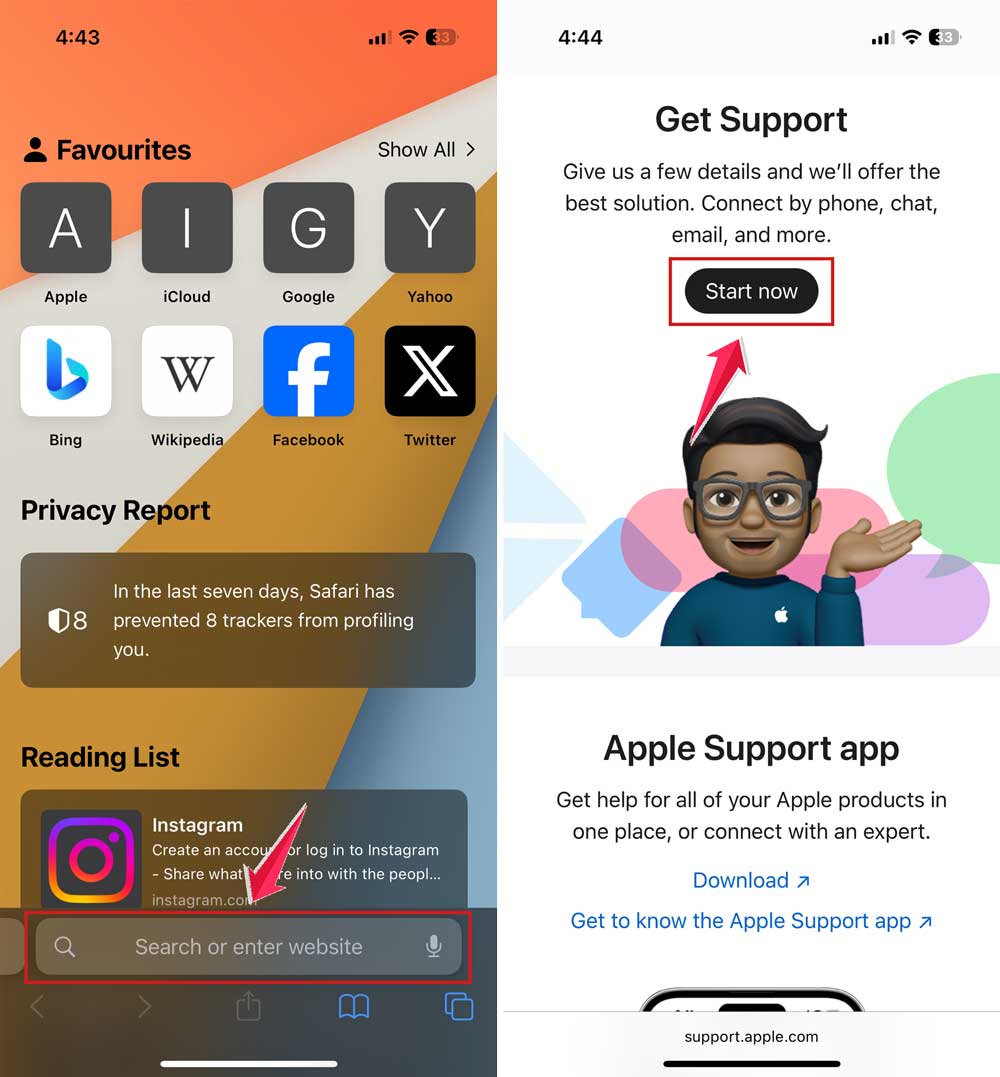
Depending on the problem, you might get a chat option right there in Safari. It works the same way, just in your browser instead of the app.
Do you need an Apple ID to text them?
Yes. Apple needs to know who you are and what devices you own.
When you use the app, it signs you in automatically with the Apple ID you’re using on that iPhone.
If you’re using the website, you’ll need to sign in manually.
This lets them pull up warranty info, device details, and give you faster help. Without an Apple ID, chat might not be available.
Can you talk to Apple about someone else’s device?
You can, but it helps to have their device info ready.
For example, if you’re helping your friend or parent, you can still use your iPhone to contact Apple. But they may ask for the serial number or Apple ID linked to the device that’s having issues.
If possible, have the other person nearby so they can help verify things if needed.
What kind of problems can you solve by texting Apple?
Honestly, almost anything that doesn’t need a screwdriver.
If your iPhone’s acting weird after an update, or your iCloud won’t sync, or you just forgot your Apple ID password.
You can text them. Got an app that keeps crashing? Subscription you want to cancel? FaceTime not working? Yup, they’ll help with all that too.
They’ll walk you through what to do, step by step. And if it turns out the issue needs a repair or store visit, they’ll point you in the right direction. You don’t need to figure it all out alone.
Your takeaway
You don’t have to call. You don’t have to wait on hold. And you don’t need to guess your way through settings.
You can just text Apple Support.
It’s free. It’s easy. And it’s built into your iPhone.
Whether it’s a quick question or something more serious, help is just a few taps away. Now you know exactly how to use it.
Go ahead and try it next time your Apple device acts up. You might be surprised how helpful a simple chat can be.
Need help figuring out which Apple ID is on your device or how to check your warranty status? Let me know. I’ll walk you through that, too.