Did you know that the average iPhone user has about 80 apps installed? That’s a lot of digital footprints!
Sometimes, you might want to keep some of your app purchases private. Whether you’re planning a surprise or just prefer to keep your app choices to yourself, here’s what you need to know.
When you buy an app on your iPhone, it’s linked to your Apple ID. This means the purchase shows up on any device using that same ID.
While this can be convenient, it’s not always ideal for privacy.
Unfortunately, Apple doesn’t provide a way to completely delete your purchase history.
However, you can hide purchases from view. It’s like tucking away your shopping bags where others can’t see them. But what if you want a truly fresh start?
In this article, you’ll learn a neat trick to keep your app purchases private.
We’ll walk you through creating a new Apple ID, which gives you a clean slate for future purchases. Don’t worry. It’s simpler than it sounds, and we’ll guide you every step of the way.
Can you delete App Store purchases on your iPhone?
Here’s something you need to know: you can’t actually delete your App Store purchase history.
Apple doesn’t provide a way to permanently erase these records. This means that even if you hide an app, it’s still tied to your Apple ID.
What you can do is hide purchases. This removes them from view, but they’re still there in the background. It’s like putting items in a closet but not putting them away.
If you want a truly fresh start, creating a new Apple ID is your best option. Here’s why:
- Your old purchases stay linked to your old Apple ID.
- Your new Apple ID starts with a clean slate.
- Any new purchases you make will only be associated with this new ID.
Remember, though, that you won’t have access to your old purchases with your new ID. It’s a trade-off between privacy and access to your previous app library.
Now, let’s walk through the process of creating a new Apple ID for those who decide this is the right choice for them.
How to create a new Apple ID for private app purchases
Want to start fresh with your app purchases? Creating a new Apple ID is the way to go. Here’s how you can do it:
Step 1: Sign out of your current Apple ID
First, you need to sign out of your current Apple ID in the App Store. Here’s how:
- Open the App Store on your iPhone. (If you’ve accidentally lost access, here’s how to get App Store back on iPhone and iPad )
- Tap on the “Apps” button at the bottom of the screen.
- Tap on your profile picture or icon in the top-right corner.
- Scroll down and tap “Sign Out.”

Don’t worry. Signing out of the App Store won’t affect your other data like photos or contacts.
Step 2: Create a new Apple ID
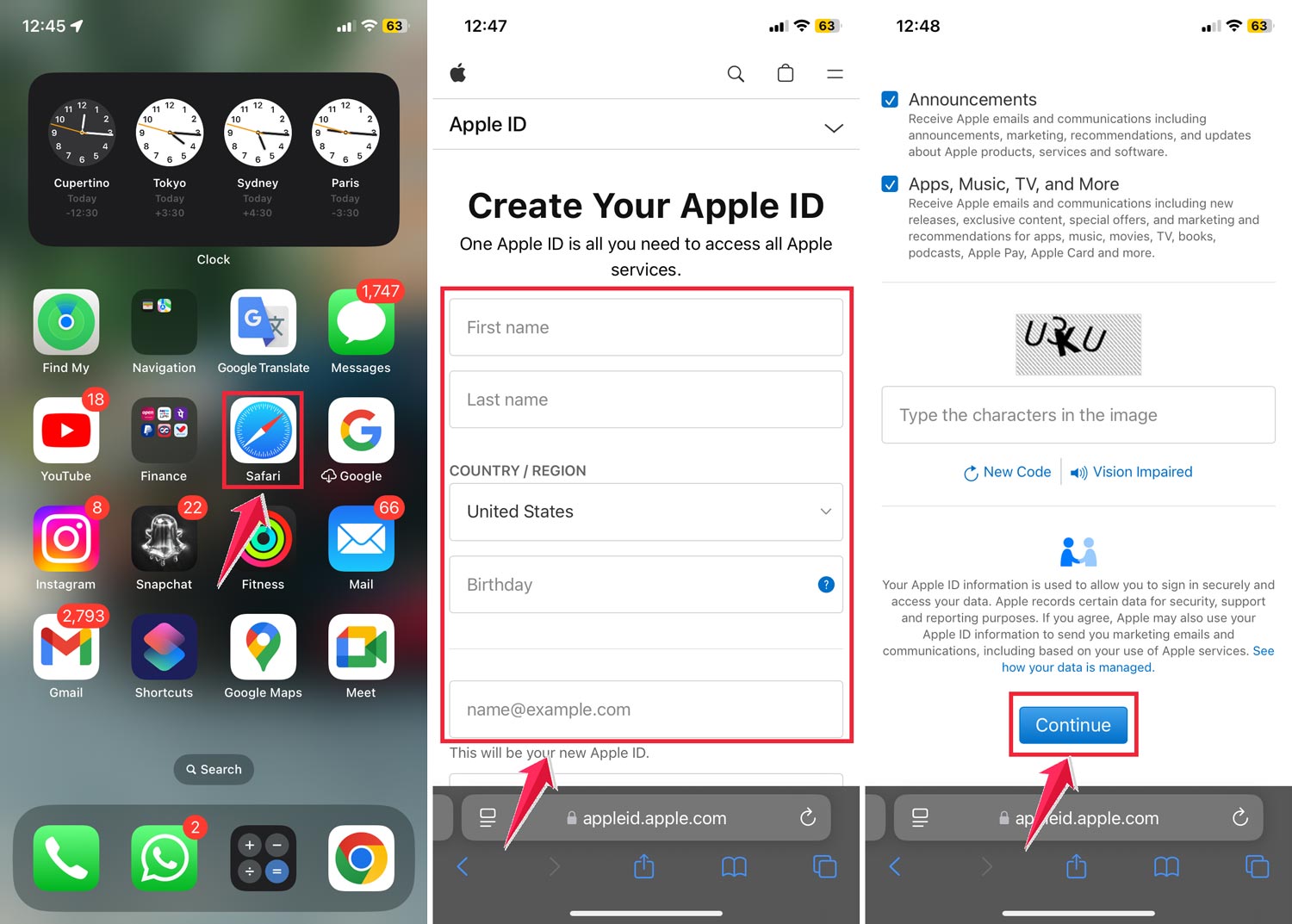
Now that you’re signed out, it’s time to create your new Apple ID. You can do this right on your iPhone using Safari or any other browser. Here’s the process:
- Open Safari and go to https://appleid.apple.com/account.
- Fill in the form with your details:
- Enter your first and last name.
- Choose your country/region.
- Enter a new email address (make sure it’s one you can access — if you’re having issues, here’s how to reset Hotmail password on iPhone).
- Create a strong password.
- Enter your phone number.
- Tap “Continue.”
- Check your email for a verification code from Apple and enter it when prompted.
- You might also receive a code on your phone. Enter this, too, if asked.
Congratulations! You’ve now created a new Apple ID.
Step 3: Sign in with your new Apple ID
Now that you have a new Apple ID, it’s time to use it:
- Go back to the App Store.
- Tap on the account icon in the top-right corner.
- Sign in with your new Apple ID.

From now on, any new app purchases you make will be linked to this new ID. Your old purchases will remain hidden on your old account.
How to hide a purchased app on your iPhone
Sometimes, you might want to keep certain app purchases private. Maybe it’s a game you’re a bit shy about or just an app you’d prefer others not to see. You can also check this guide on how to hide apps on your iPhone for extra tricks. Here’s how you can hide it:
Hide an app in a few simple steps:
- Open the App Store on your iPhone.
- Tap your profile picture in the top right corner.
- Select “Apps” under your account then tap on “My Apps”.

- Find the app you want to hide.
- Swipe left on the app and tap “Hide.”

The app will now be hidden from your visible purchases list.
How to unhide or delete hidden apps on your iPhone
If you want to unhide an app or remove it completely, here’s what you can do:
Unhide an app
- Go to your App Library by swiping left on your home screen.
- Find the hidden app.
- Press and hold the app icon (If you ever lose important icons, here’s how to restore phone icon on iPhone.)
- Select “Add to Home Screen.”
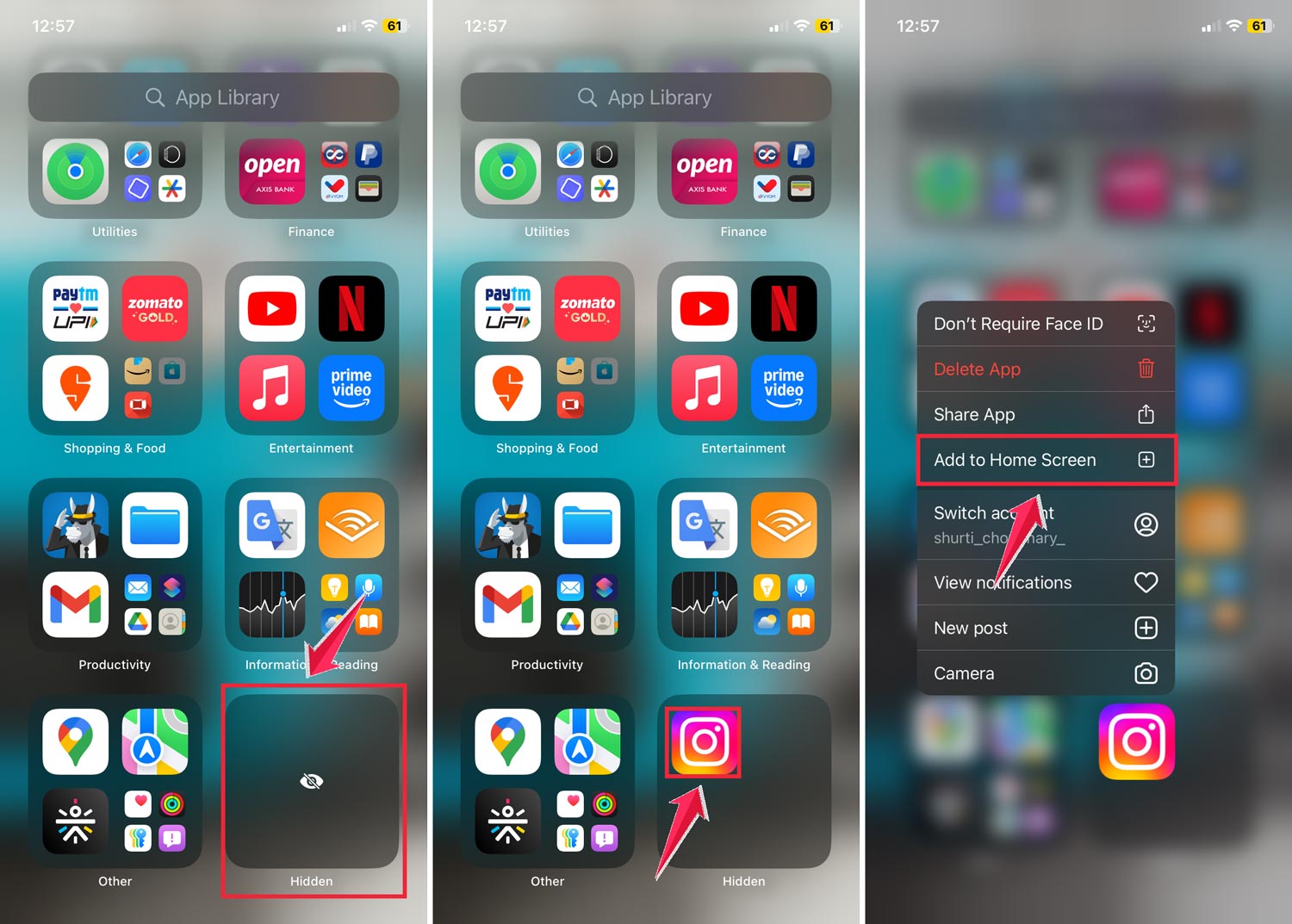
Delete an app
Delete from the App Library:
- Swipe left to access your App Library.
- Find the app you want to delete.
- Press and hold the app icon.
- Tap “Delete App.”
- Confirm by tapping “Delete.”

Remember, deleting an app removes it from your device and your purchase history. If you want to use it again in the future, you’ll need to redownload it from the App Store.
By following these steps, you can easily manage your apps, keeping your iPhone organized and your app choices private when needed.
The takeaway
Managing app purchases on your iPhone means balancing convenience with privacy.
You can’t fully delete your purchase history, but you can keep it private in friendly ways. Hiding specific apps is a simple option. If you’re looking for a fresh start, creating a new Apple ID might be a great choice.
This gives you a clean slate, but please keep in mind that it means you’ll lose your previous purchases. You can also remove apps to keep your device tidy.
Many users believe their app purchase history is permanent. You can’t change the past, but you can control your digital footprint from now on.
For improved online privacy, you might want to consider backing up your Mac to iCloud. How you manage your purchases and apps is important since your iPhone is a personal device.
You can enhance your online privacy by decluttering, changing your ID, or hiding apps. Finding the right balance is crucial.
What do you think about managing app purchases? We’d love to hear your thoughts in the comments below!