Remote management can be a useful tool, letting tech experts access your Mac from afar or allowing you to check on your computer when you’re away. But if you’re concerned about privacy and security, you might want to turn it off.
Good news – you can disable remote management easily using Mac Terminal. As someone who’s been in the software engineering field for over 25 years, I understand the importance of maintaining control over your technology. It’s just one of many ways to keep your Mac in top shape and secure.
Let’s walk through the process of turning off remote management and how you can turn it back on if needed.
To disable remote management, you’ll use a specific command in Terminal.
Don’t worry if you’re not a tech expert – I’ll guide you through each step. Ready to take control of your Mac’s remote access? Let’s get started.
How to Manage Remote Access on Your Mac
Remote management is a powerful tool for your Mac, but it’s crucial to know how to control it. Here’s a simple guide to managing remote access using Mac Terminal, whether you want to disable it for privacy or enable it when you need help.
#1 Disable Remote Management in Terminal
When you turn off remote management, you’re telling your Mac to keep things private. Follow these steps:
- Simply search and open Terminal in Spotlight. If you’re not familiar with Terminal, don’t worry – it’s just another way to control your Mac, albeit a more powerful one.
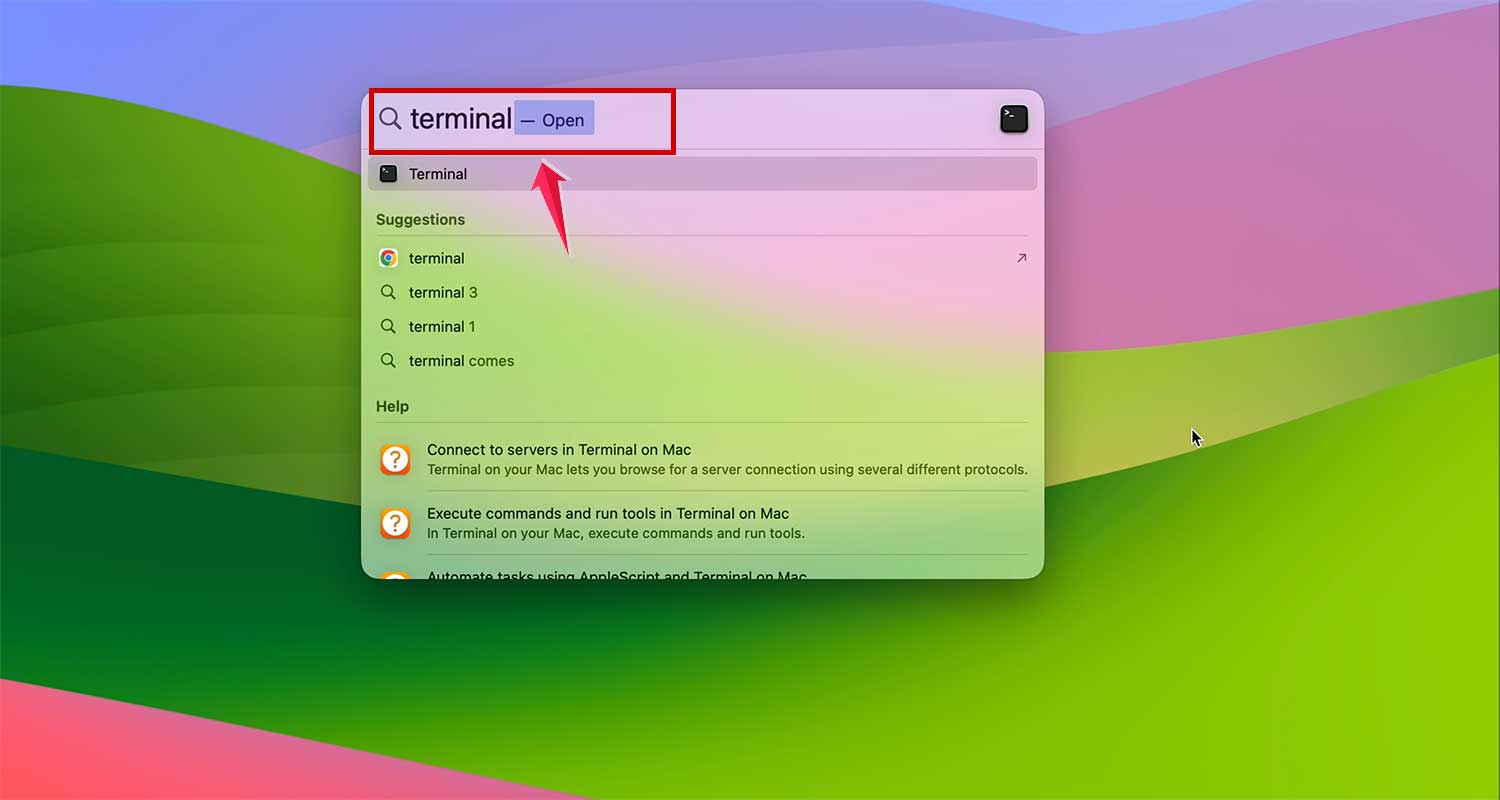
- Type this command into Terminal:
sudo /System/Library/CoreServices/RemoteManagement/ARDAgent.app/Contents/Resources/kickstart -deactivate -stop
This tells your Mac to stop and deactivate remote management. - Enter your Mac login password when prompted. This ensures only authorized users can make these changes.

After completing these steps, remote management will be turned off on your Mac, even after restarting.
#2 Enable Remote Management in Terminal
If you need to turn remote management back on, follow these steps:
- Open the Terminal application again.
- Type this command to enable remote management:
sudo/System/Library/CoreServices/RemoteManagement/ARDAgent.app/Contents/Resources/kickstart -activate - Provide your Mac login password to confirm the change.

After these steps, remote management will be active on your Mac.
Remember, you can switch between these states as needed. Always consider your current needs and security preferences when managing remote access on your Mac.
How To Manage Remote Access Without Terminal
If you’re not comfortable using Mac Terminal, don’t worry. You can easily control remote access to your Mac using the desktop settings. Here’s a simple guide to help you:
Step 1: Access System Settings. Start by clicking the Apple icon in the top left corner of your screen. From the dropdown menu, select “System Settings”. This opens up your Mac’s control center. It’s similar to how you’d manage other settings on your Mac, like notifications.
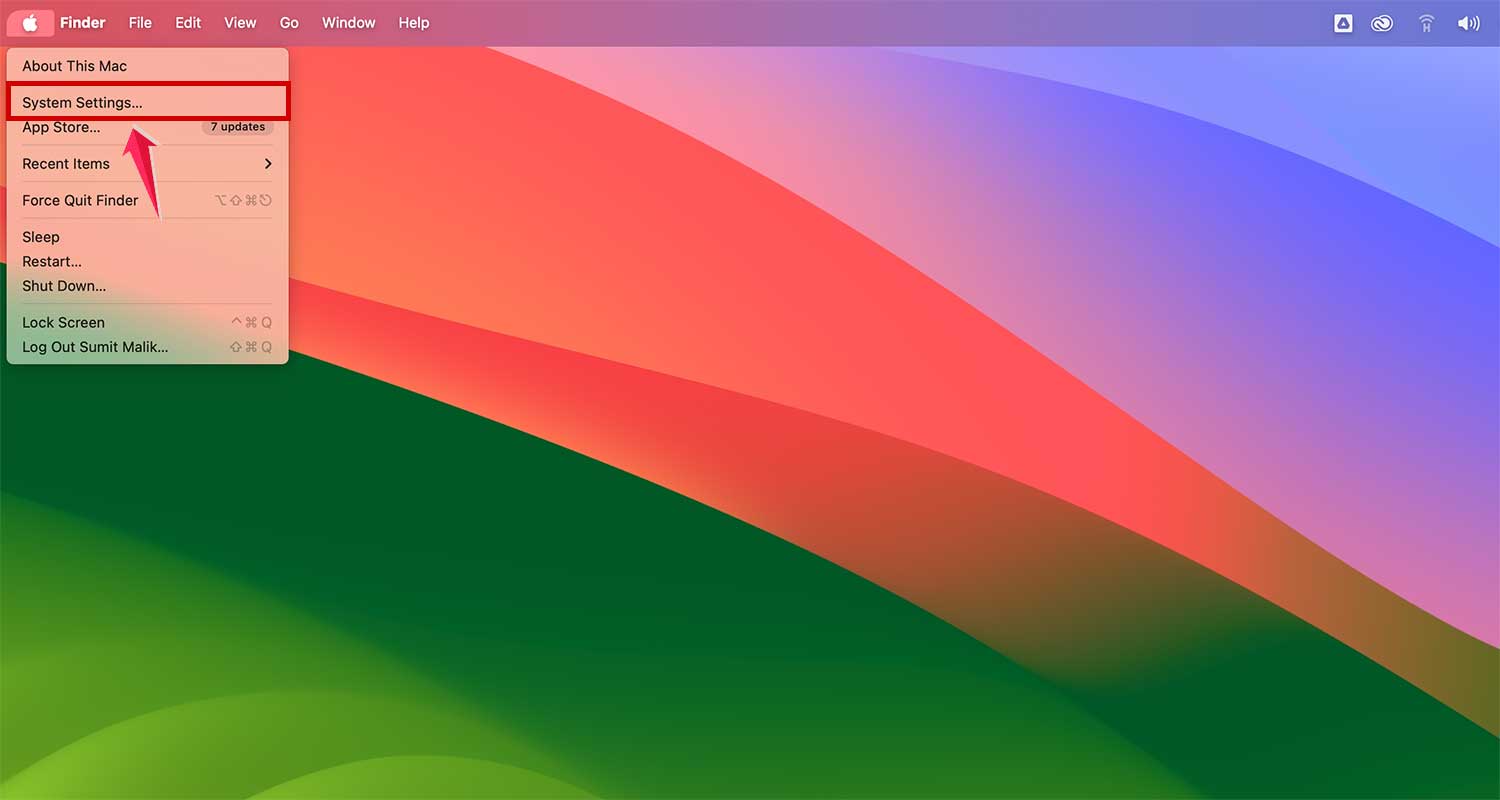
Step 2: Navigate to General Settings. In the System Settings window, Go to the “General” section. You’ll usually find this on the left side of the window. Now click on “Sharing” in options.
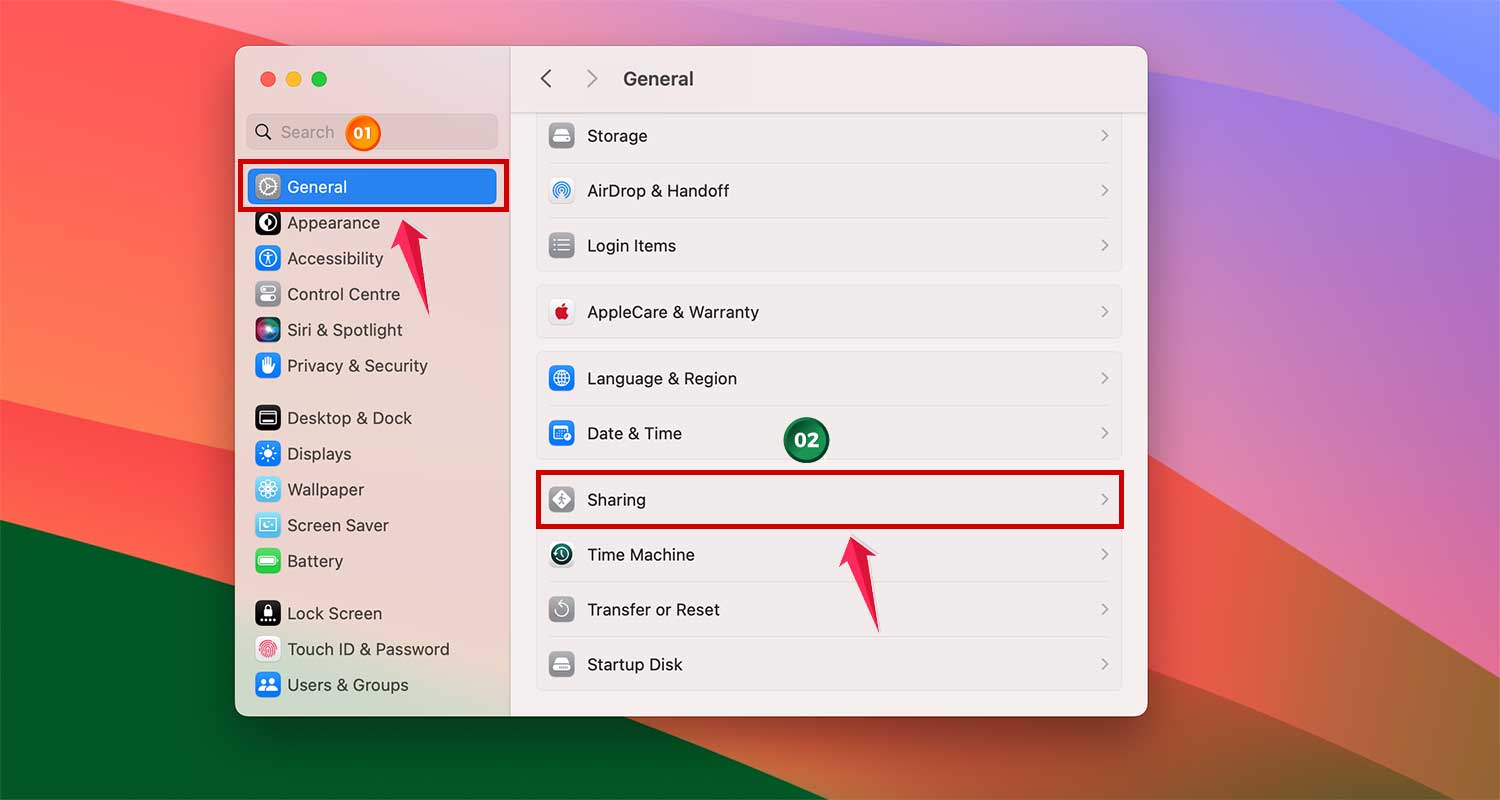
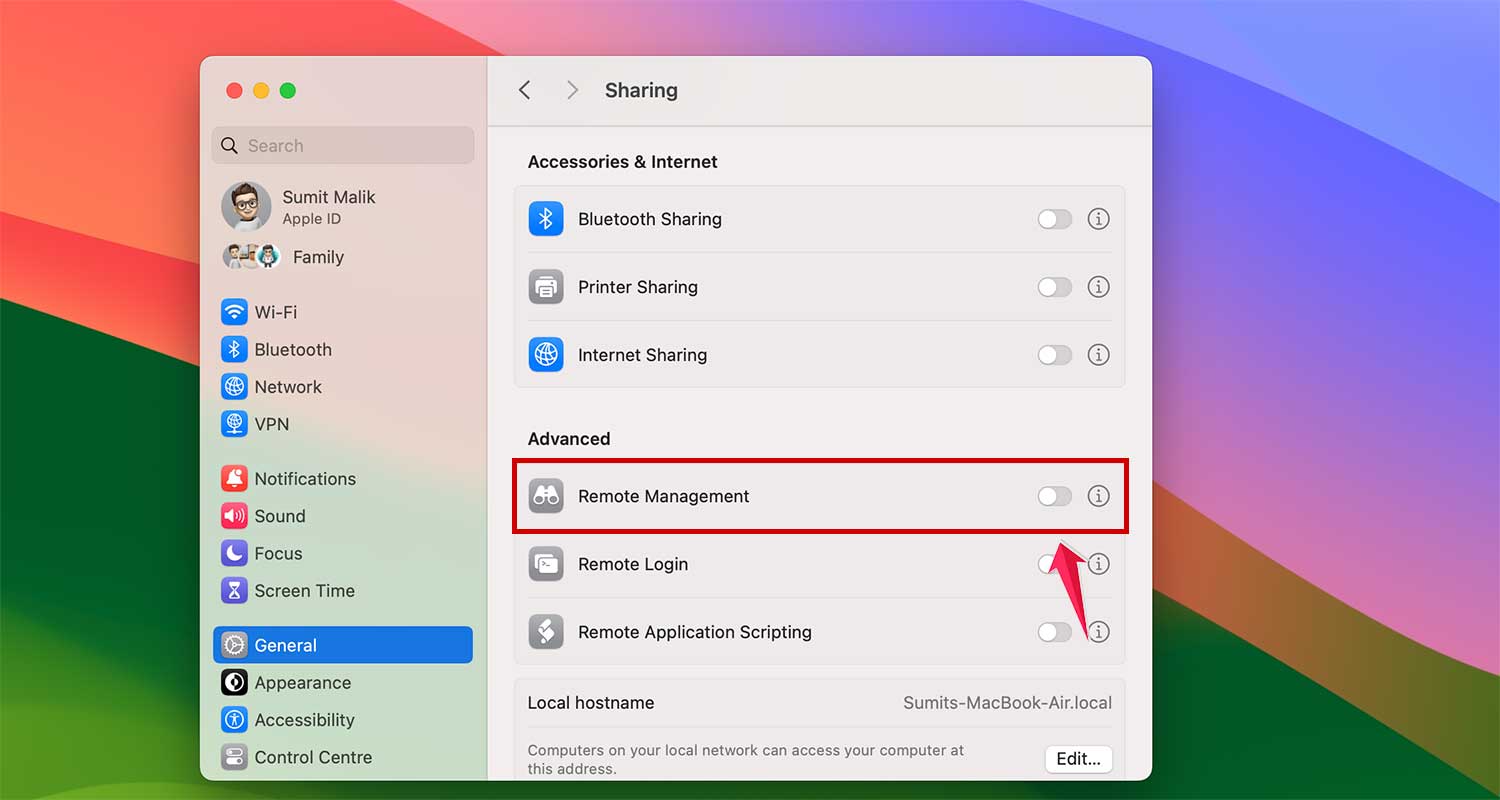
Step 3: Locate Remote Management .Within the Sharing section, search for the “Remote Management” setting. It’s under the advanced section. This is where you can control remote access to your Mac.

Step 4: Toggle Remote Management. You’ll see a switch next to Remote Management. Simply click this switch to turn remote management on or off.
Why Manage Remote Access?
Let’s talk about why managing remote access on your Mac is important. It’s all about finding the right balance between convenience and security.
When you have remote management turned on, it can be really helpful. For example, if you’re having trouble with your Mac, a tech support person can take a look without needing to be right there with you. It’s also great if you want to access your Mac from another device when you’re not at home.
But here’s the thing – leaving remote management on all the time can be a bit risky. If someone who shouldn’t have access manages to get into your Mac remotely, they could potentially see your files or change your settings. That’s not something you want, right? It’s just as important as keeping your Mac free from viruses and malware.
That’s why it’s good to know how to turn remote management on and off. This way, you’re in control. You can turn it on when you need help or want to access your Mac from somewhere else, and turn it off when you want to make sure your Mac is extra secure.
When might you want to use remote management?
Well, it’s really useful if:
- You need technical help from someone who can’t be there in person
- You want to access your files or programs on your Mac while you’re away from home
But when you’re not using it, it’s a good idea to turn it off. This helps keep your Mac more secure.
Wrapping Up
We’ve covered a lot about managing remote access on your Mac. Whether you prefer using Terminal commands or the System Settings, you now have the knowledge to control your Mac’s security.
Remember, it’s all about finding the right balance for your needs. Turn on remote management when you need help or want to access your Mac from afar, and turn it off when you want extra privacy. It’s just one part of maintaining your Mac’s overall security.
Your Mac’s security is in your hands. Feel free to adjust these settings as your needs change. Keep your Mac updated, use strong passwords, and stay in control of your technology.
What do you think about managing remote access? Have you used it before? Do you have any questions or experiences to share? I’d love to hear your thoughts in the comments below.