


Did you know that your iPhone records over 3 million data points every day about how it’s working? That’s a lot of information! This data, called iPhone analytics, is like your device’s personal diary.
Have you ever wondered why your favorite app keeps crashing or why your iPhone restarts out of the blue?
These frustrating issues can leave you scratching your head. The good news is, your iPhone is keeping track of all these problems in its analytics data.
But here’s the catch – this information can look like a jumble of code to most of us. It’s not easy to understand what all those numbers and letters mean. That’s where this article comes in handy.
We’re going to show you how to access this hidden treasure trove of information on your iPhone. You’ll learn what all that data means and how you can use it to solve common iPhone problems.
By the end of this article, you’ll be able to understand your iPhone better and maybe even fix some issues on your own. Ready to become an iPhone detective?
What’s iPhone Analytics Data
iPhone analytics data is like a digital diary your device keeps, logging everything from app crashes to system performance.
This information is invaluable for diagnosing issues and improving your iPhone experience. However, at first glance, this data can seem like an impenetrable wall of code and technical jargon.
The good news is that you don’t need to be a tech wizard to make sense of this information.
With the right approach and tools, you can unlock insights that will help you understand your iPhone better and even troubleshoot common issues.
Why should you care about iPhone analytics?
You might be thinking, “My iPhone works fine most of the time. Why should I bother with all this data stuff?” Well, let’s break it down in simple terms:
- Solve problems faster: Ever had an app that keeps crashing? iPhone analytics can help you figure out why. It’s like having a detective on your phone, pointing out the troublemakers.
- Make your iPhone run smoother: By understanding how your iPhone is performing, you can decide which apps are worth keeping and which ones might be slowing you down. It’s like spring cleaning for your phone!
- Save battery life: Tired of your battery dying too quickly? Analytics can show you which apps are the biggest battery hogs. It’s like catching energy thieves red-handed!
- Prevent future headaches: By spotting small issues early, you can stop them from becoming big problems later. Think of it as giving your iPhone a regular health check-up.
So, why should you care? Understanding your iPhone’s analytics can help you fix problems, improve performance, save battery life, and avoid future issues. It’s like having a superpower for your phone!
How to View iPhone Analytics Data
Here’s a step-by-step guide to viewing your iPhone’s analytics data:
- Open the Settings app on your iPhone.
- Scroll down and tap Privacy & Security.
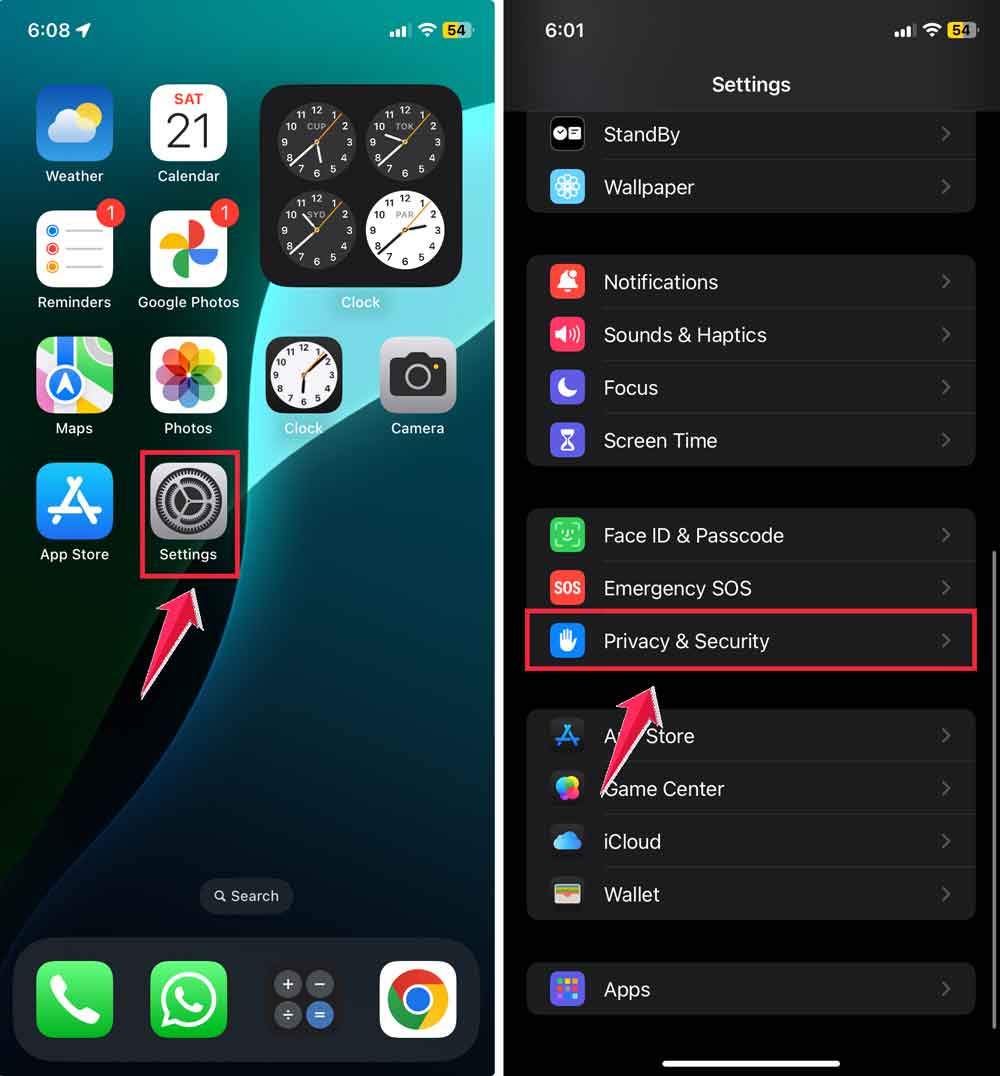
- Tap Analytics & Improvements.
- Select Analytics Data.
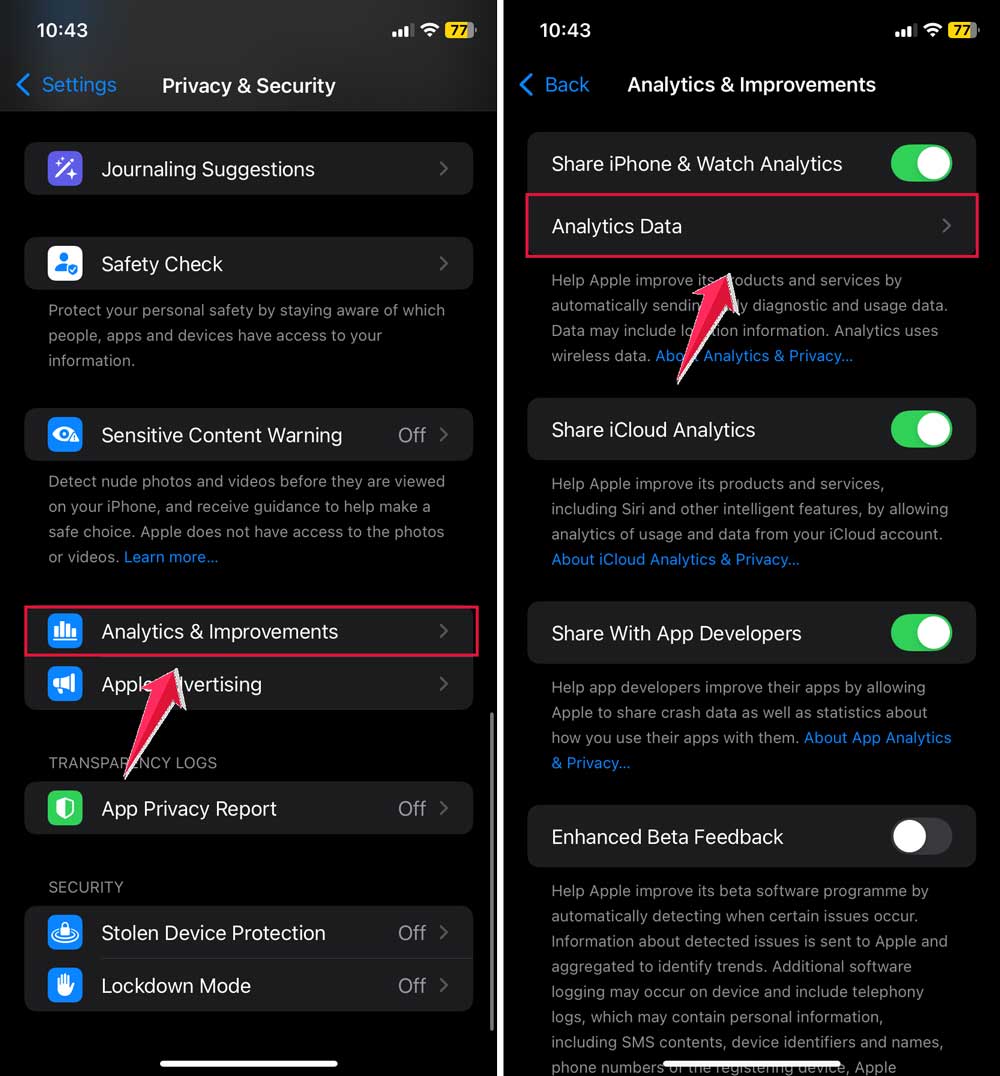
You’ll now see a list of files, each containing different types of analytics data. Don’t worry if it looks overwhelming at first. We’ll break it down for you.
How to Decode iPhone Analytics Data
There are two main approaches to interpreting your iPhone’s analytics data:
#1 Using Log Analyzer Tools
Log analyzer tools are like translators for your iPhone’s data. They take the complex information and present it in a more understandable format. One popular option is the iDevice Panic Log Analyzer.
To use a log analyzer tool:
- Open a log file from your iPhone’s Analytics Data.
- Tap the share icon in the top-right corner.
- Save the file or send it to yourself (e.g., via email).
- Upload the file to your chosen log analyzer tool.
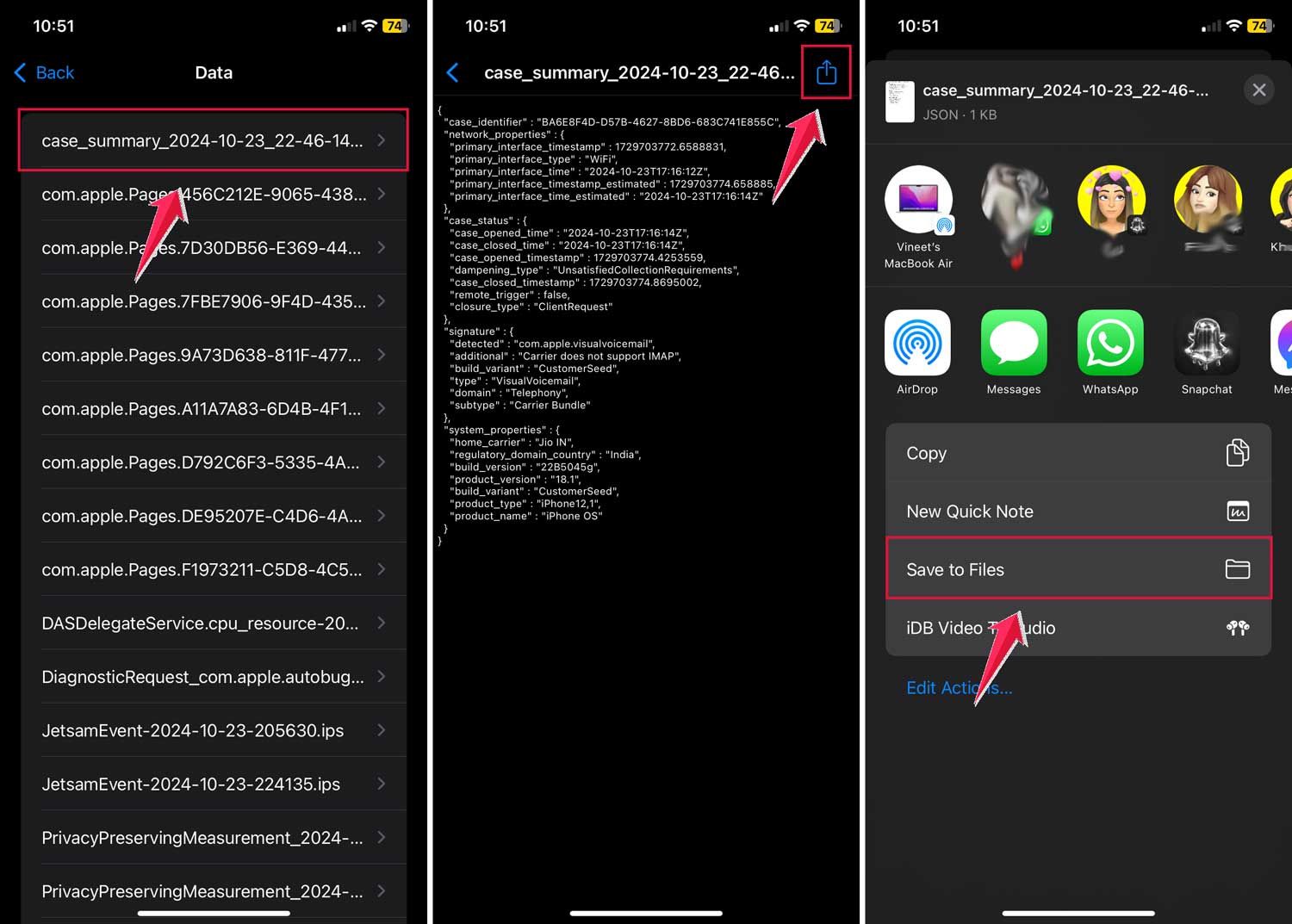
These tools can help you identify patterns, recurring issues, and potential solutions without needing to understand the technical details yourself.
#2 Consulting Apple’s Developer Documentation
For those who want to dive deeper, Apple provides detailed documentation on how to interpret analytics data. While this method requires more effort and technical knowledge, it can give you a more comprehensive understanding of your device’s performance.
Key elements to look for in the documentation include:
- JSON format: This is how much of the data is organized.
- Crash reports: These provide details about app crashes and system issues.
- Performance metrics: These show how well your device and its apps are running.
When you open your iPhone’s analytics data, you’ll see various types of files. Here’s what some of the most common ones mean:
- App crash reports: These show which apps have crashed and why.
- Hardware diagnostics: Information about your iPhone’s physical components.
- Software performance: Data on how well your iOS and apps are running.
- Battery usage: Details on which apps and processes are using the most power.
Even if you don’t understand every technical detail, there are still ways to glean useful information from your iPhone’s analytics data:
- Look for patterns: If you see an app name appearing frequently in crash reports, it might be worth updating or reinstalling that app.
- Check timestamps: This can help you correlate issues with specific events or actions on your phone.
- Note error messages: Even if you don’t understand the full message, you can often Google specific error codes for more information.
How to access hidden menus on your iPhone
Beyond the standard analytics data, your iPhone has hidden menus that provide additional information. Here are some useful codes to access these menus:
- Field test menu: Dial 3001#12345# and press call. This shows technical information about your network connection.
- IMEI number: Dial *#06# to see your phone’s unique identification number.
- Call forwarding: Dial **21# to set up call forwarding.
- Hide caller ID: Dial *#31# to hide your number when making calls.
How to use these codes
To use any of these codes:
- Open your iPhone’s Phone app
- Go to the keypad
- Type in the code exactly as shown, including the * and # symbols
- Press the call button.

Remember, these menus are designed for technical purposes. Be cautious about changing settings unless you’re sure about what you’re doing.
How to use Sysdiagnose on your iPhone
Sysdiagnose is a feature on your iPhone that collects detailed information about your device’s performance.
It’s like taking a snapshot of your iPhone’s health. Here’s how to use it:
Triggering Sysdiagnose
- Locate these buttons on your iPhone:
- Power button (also called the Side button on newer models).
- Volume up button.
- Volume down button.
- Press and hold all three buttons together for about half a second, then release.
- Your iPhone will vibrate slightly to let you know Sysdiagnose has started.

Viewing the Sysdiagnose report
After triggering Sysdiagnose, wait a few minutes for it to gather information. Then:
- Open the Settings app on your iPhone.
- Tap Privacy & Security.
- Tap Analytics & Improvements.
- Select Analytics Data.
- Scroll down the list until you find a file that starts with “sysdiagnose_“.
- Tap on this file to view the report.
You can even use Sysdiagnose to tell if iPhone is jailbroken if you’re troubleshooting unusual behavior.
What you’ll see
The Sysdiagnose report contains a lot of technical information about your iPhone’s performance. It includes details about:
- System services.
- App performance.
- Battery usage.
- Network connections.
Should you share analytics data with Apple?
When you explore your iPhone’s analytics data, you might wonder if you should share this information with Apple. Let’s break down what this means and how it affects you.
In your iPhone’s settings, you’ll find an option called “Share iPhone & Watch Analytics”.
When this is turned on, your device sends data to Apple about how you use your phone and any issues it encounters. This information helps Apple improve their products and services.
You have control over what data you share. You can choose to:
- Share iCloud usage data.
- Help improve apps by sharing data with developers.
- Contribute to Siri’s improvement.
Apple states that shared analytics data doesn’t personally identify you. They aim to protect your privacy while using the information to enhance their products.
If you want even more control, you can turn off emergency alerts on iPhone and other settings manually.
If you want to change what you’re sharing or stop sharing altogether, you can easily adjust these settings. Apple provides a guide on its website showing how to turn this feature on or off for different iOS versions.
Ultimately, the choice to share analytics data is yours. Consider the benefits of contributing to product improvements against your personal privacy preferences.
Whatever you decide, remember that you’re in control of your iPhone’s data and privacy settings.
In Conclusion
Understanding your iPhone’s analytics data might seem daunting at first, but it’s a valuable skill that can help you maintain your device’s health and solve many common issues.
Whether you choose to use log analyzer tools or dive into Apple’s documentation, you’re taking a proactive step towards being more self-sufficient with your device.
Remember, you don’t need to understand every technical detail to benefit from analytics data. Even a basic understanding can help you identify patterns, troubleshoot issues, and make informed decisions about your iPhone usage.
By familiarizing yourself with your iPhone’s analytics data, you’re not just solving current problems. You’re equipping yourself to handle future issues more effectively.
So don’t be afraid to explore your iPhone’s analytics data. You might be surprised by how much you can learn about your device and how it can improve your overall iPhone experience.












Hello,
is there an ability to find out having iphone analytics, how many times on the exact day the charger was added to the phone?
I would be grateful for the answer.
Thank you in advance.