Did you know that last year, Americans received nearly 78 billion robocalls?
It’s no wonder many iPhone users turn to apps like RoboKiller for protection. But what if you’re thinking about removing this app?
RoboKiller is a well-known app that helps block unwanted calls and texts. You may want to uninstall it for various reasons.
You might have changed to another service, or some important calls could be blocked. Whatever your reason, removing RoboKiller can be a bit tricky.
Even after you delete the app, your phone might still block certain calls or redirect others.
It’s like a security guard who doesn’t realize their shift has ended. This can cause you to miss important calls or disrupt your phone’s normal functions.
This article will show you how to completely uninstall RoboKiller from your iPhone. We’ll also help you make sure it leaves no traces.
We’re here to support you every step of the way. This will help you regain control over your calls and messages.
How to disable Robokiller features and delete it completely
Sometimes, you might want to remove an app like RoboKiller from your iPhone. Maybe you’re trying a different call-blocking service, or you just don’t need it anymore.
Whatever your reason, here’s how you can make sure RoboKiller is completely gone from your device.
You might also want to check out the best iPhone cleaner apps to tidy up your device afterward.
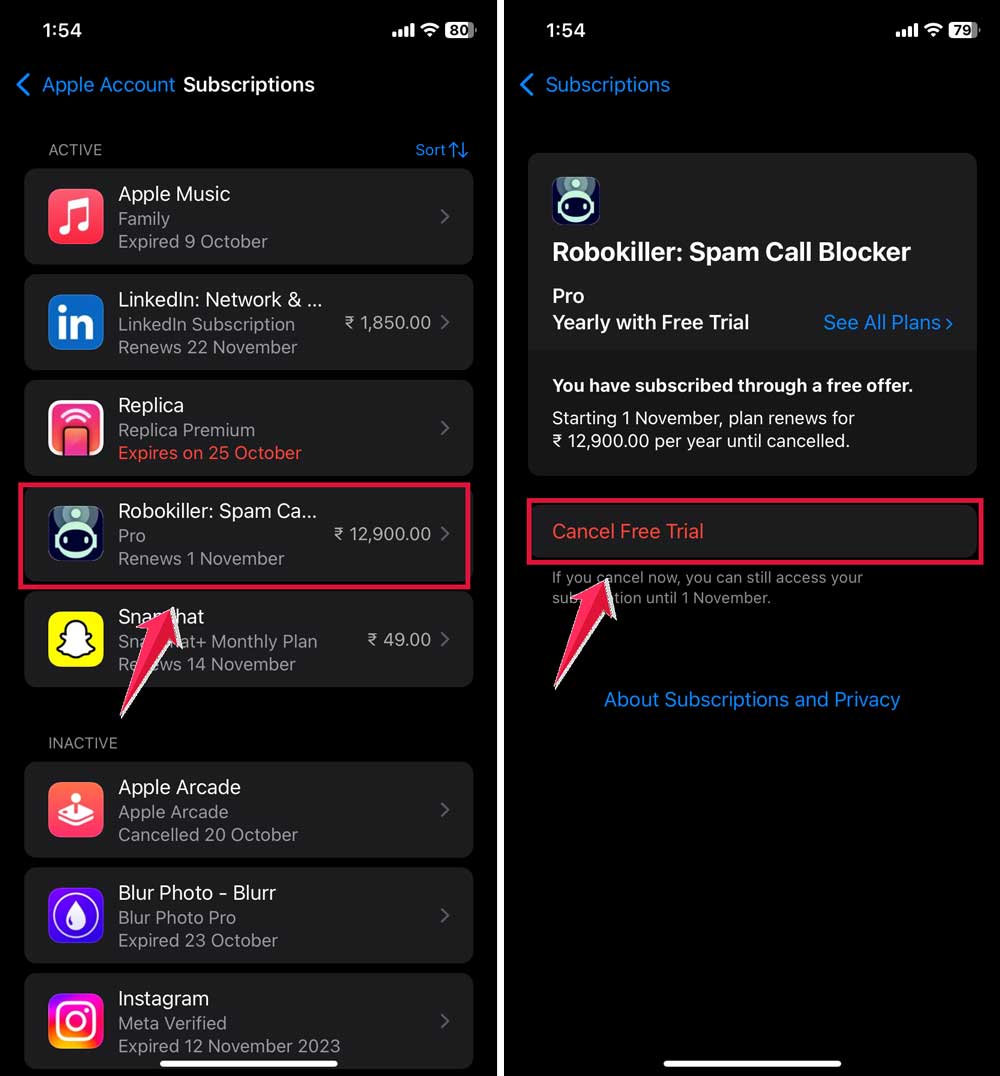
Step 1: Cancel your RoboKiller subscription
Before you delete the app, you need to stop your subscription. Here’s how:
- Open your iPhone’s “Settings”.

- Tap on your name at the top.
- Select “Subscriptions”.
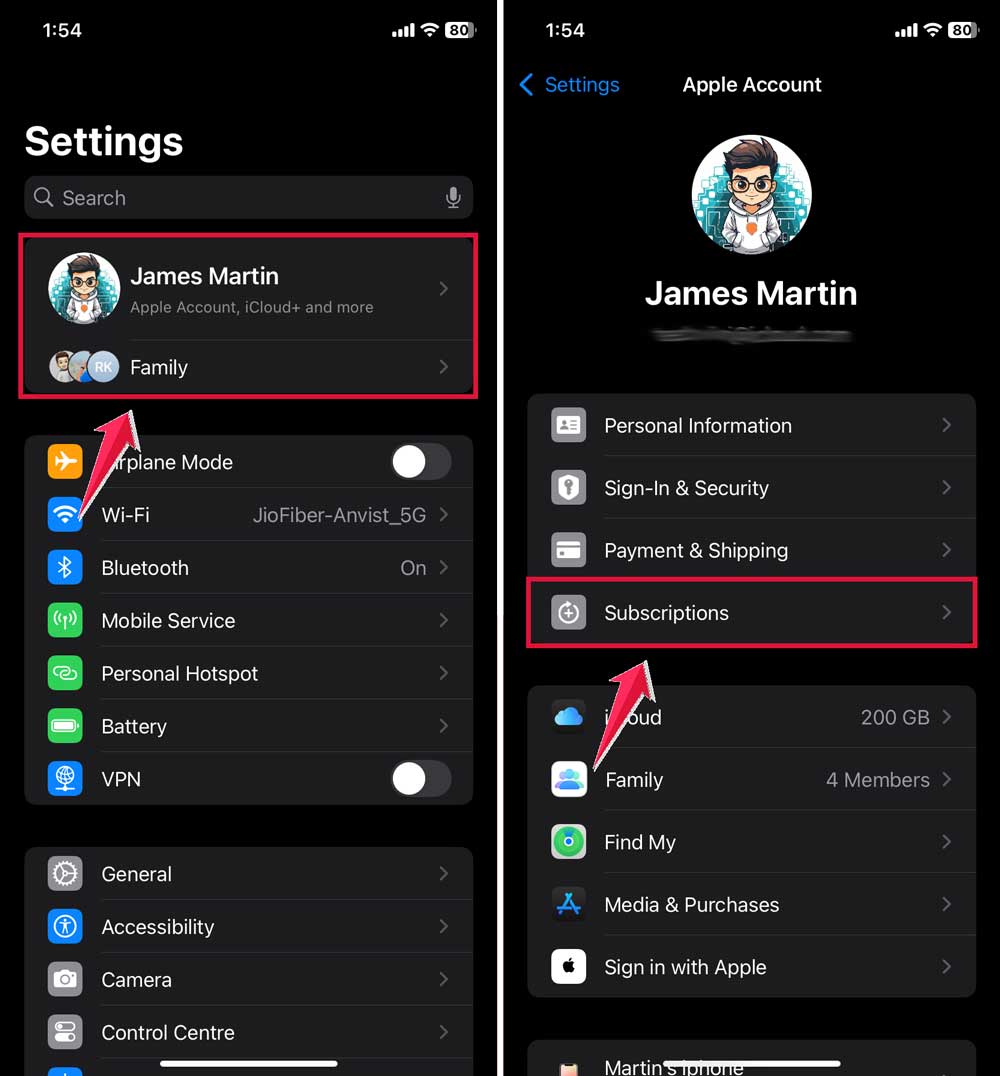
- Find “RoboKiller” in the list and tap on it.
- Choose “Cancel Subscription” and confirm your choice.
Step 2: Turn off RoboKiller’s call blocking
Even after canceling, RoboKiller might still be blocking some calls. Let’s fix that:
- Open the RoboKiller app one last time.
- Go to “More” in the app.
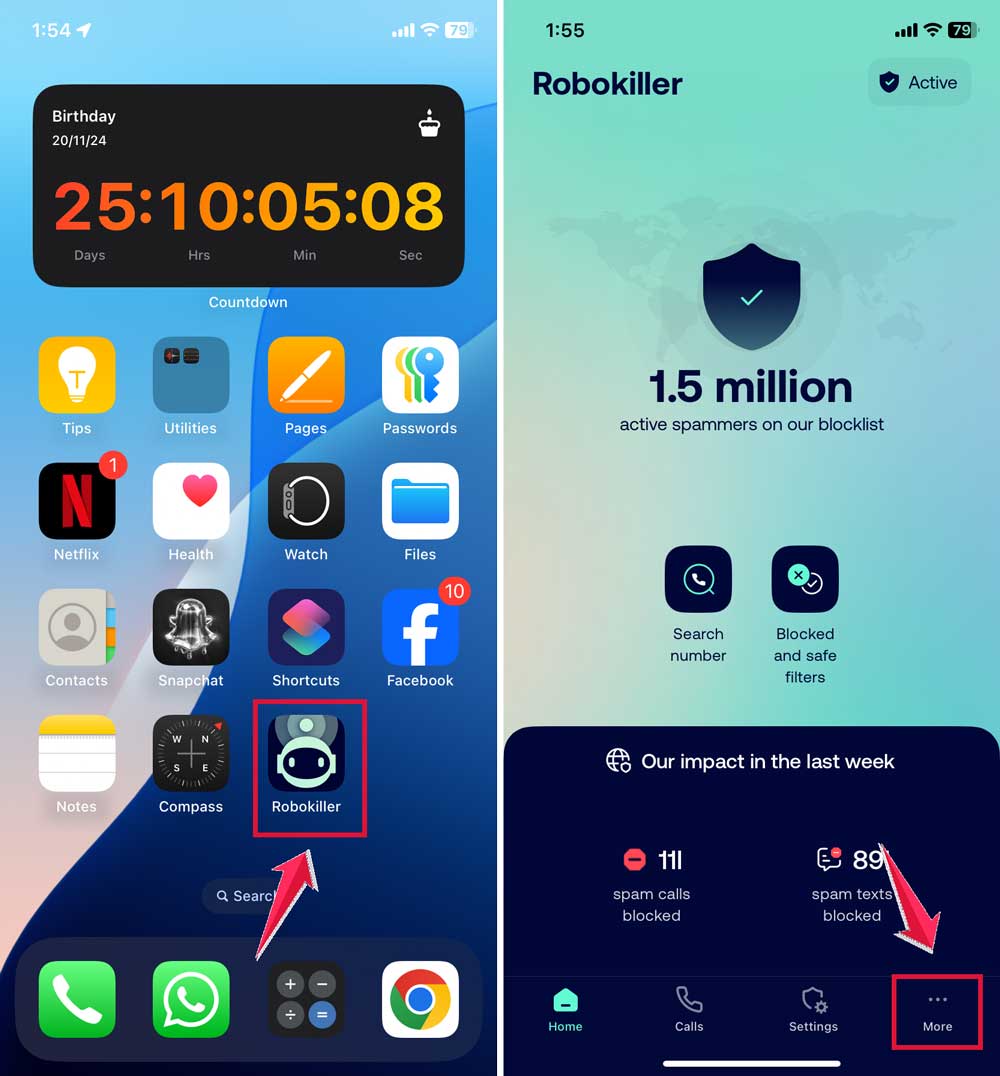
- Tap “Help and Support”.
- Select “Deactivate RoboKiller”.

Step 3: Check your call forwarding settings
Now, make sure your phone isn’t forwarding calls:
- Go back to your iPhone’s “Settings”.
- Click on Apps.
- Scroll down and tap “Phone”.
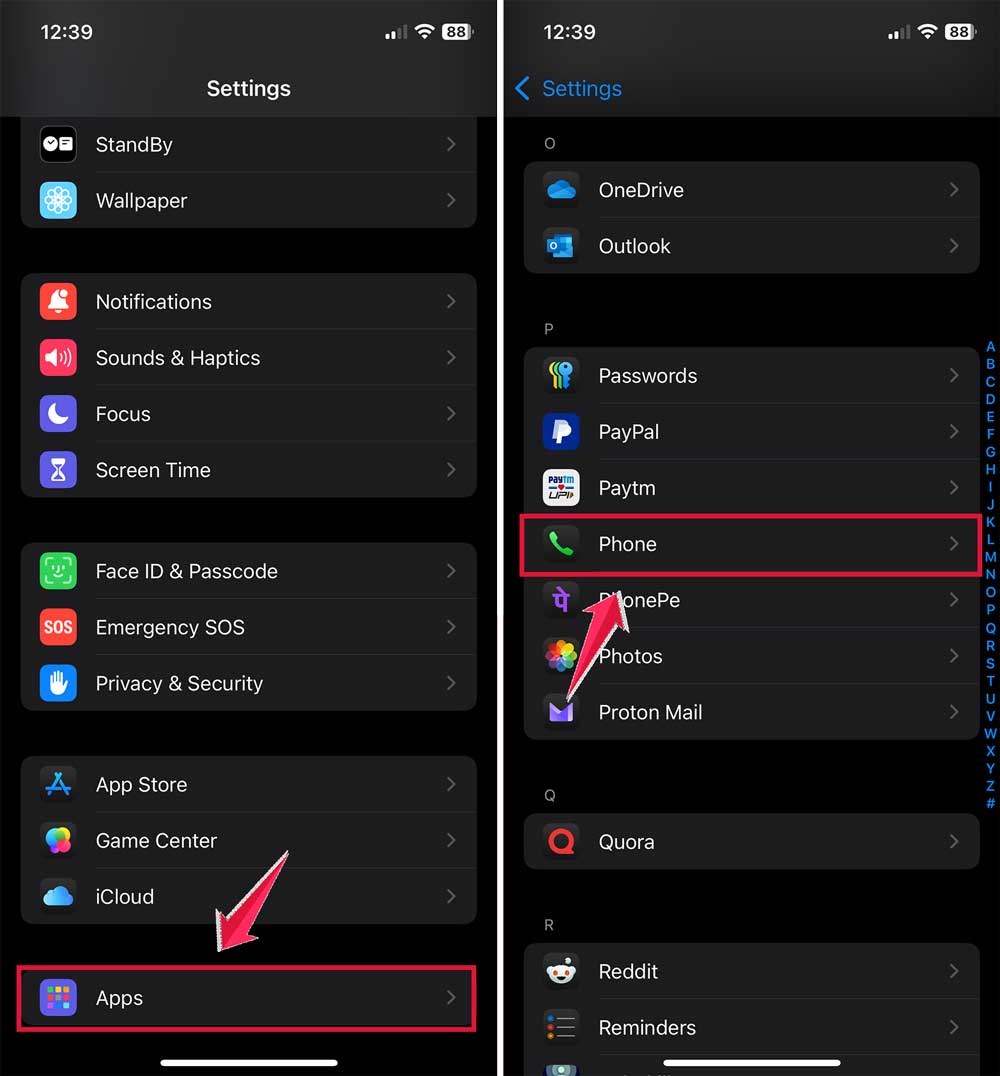
- Look for “Call Forwarding”. If it’s on, tap to turn it off.

For similar control, you can also learn how to block or allow pop-ups on iPhone via Safari settings.
Step 4: Delete the RoboKiller app
Finally, let’s remove the app from your iPhone:
- Find the RoboKiller app on your home screen.
- Press and hold the app icon until it starts to wiggle.
- Tap the “X” or “Remove” option that appears.
- Confirm that you want to delete the app.
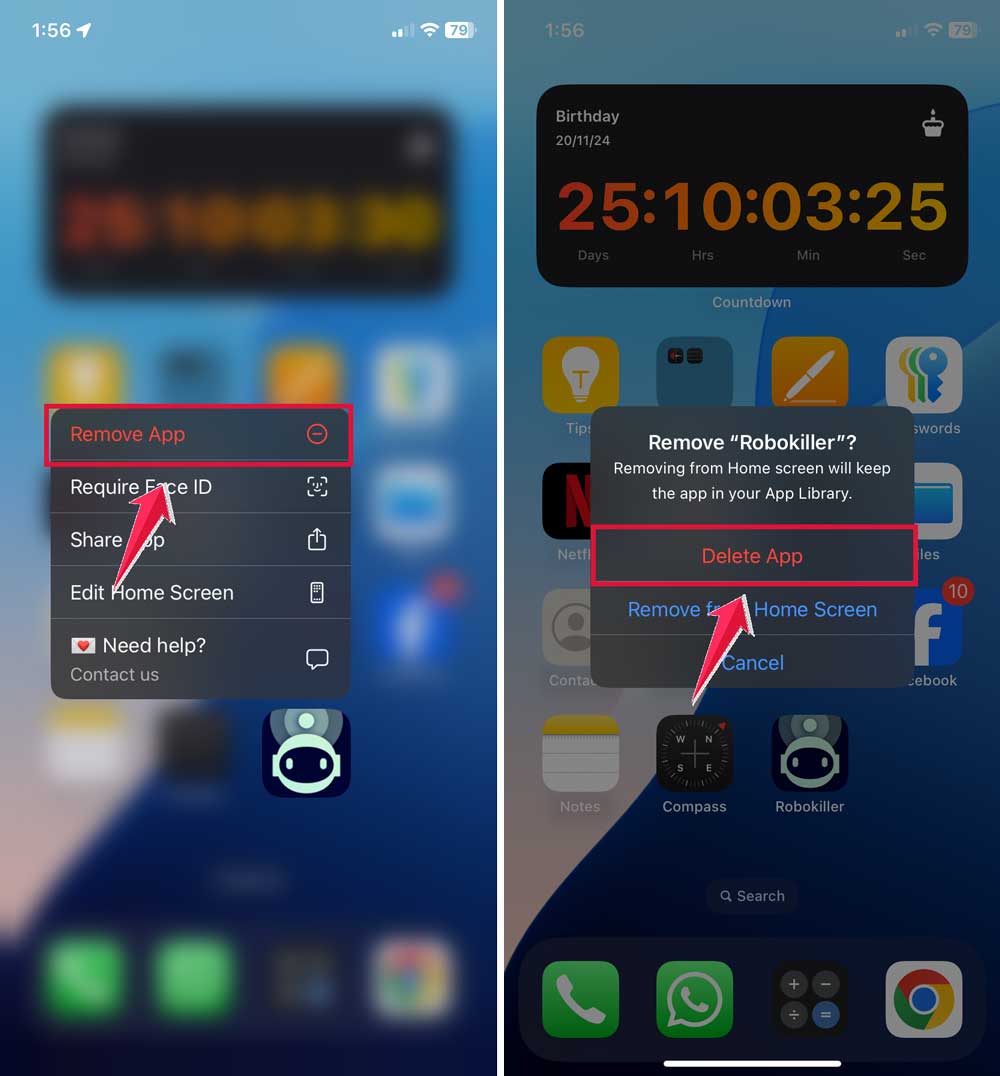
By following these steps, you’ll make sure RoboKiller is completely removed from your iPhone.
Your phone will stop blocking calls through RoboKiller, and you’ll have full control over your incoming calls again.
The Takeaway
Removing RoboKiller from your iPhone can be a bit tricky, but don’t worry! You can do it by following a few simple steps.
The main thing to keep in mind is that even after you delete the app, some features might still be active. This can lead to important calls being blocked or forwarded elsewhere.
To completely uninstall RoboKiller, here’s what you need to do. First, make sure to cancel your subscription. Then, turn off its call-blocking feature in the app.
After that, check your call forwarding settings. Finally, delete the app from your home screen. To check if RoboKiller is still running in the background after removal, do this:
It’s a common misconception that just deleting an app stops all its functions. With RoboKiller, that’s not always the case. It’s important to follow all the steps to ensure the app is fully deactivated.
Remember, you have control over your phone and its features. If you no longer want RoboKiller, you can remove it entirely.
If you still get blocked calls after deleting the app, follow these steps. Your phone should work just the way you want it to!
Now you know how to fully remove RoboKiller from your iPhone. If unwanted calls keep coming, try the iPhone’s built-in features or other apps for help.
The key is to find a solution that works for you. If you manage more than one device, you might also want to learn how to lock your child’s iPhone remotely.
Feel free to share your experience or ask any questions in the comments below!