Ever noticed your Mac’s storage is nearly full? Or perhaps you’re on the hunt for an affordable, spacious, and easy-to-use backup solution for all your essential files?
Look no further than the WD Elements external hard drive—it’s perfect for the job!
Some Mac users have encountered an issue where their WD Elements drive is read-only, meaning they can view files but can’t save or modify anything.
No need to panic if this sounds familiar! The fix is straightforward: you just need to format your WD Elements for Mac. Want to know how?
Stick with me, and I’ll guide you through each step!
Can I Use WD Elements On Mac?
Many external drives, including WD Elements, are pre-formatted with a file system called NTFS, which is ideal for Windows PCs.
Other popular drives from brands like Seagate or Samsung also use this system. The problem? NTFS and your Mac don’t exactly get along—they’re like two people who can’t understand each other’s languages!
In plain terms, if your WD Elements drive uses NTFS, your Mac can read and open files from the drive, but it hits a wall if you try to edit, delete, or add new files.
It’s essentially saying, “Nope! Can’t do that.” Sharing files between an NTFS-formatted WD Elements and a Mac? That’s a no-go as well.
Do I Need to Format WD Elements for Mac?
By reformatting—essentially “resetting” the file system—your WD Elements to one that your Mac prefers, you’ll unlock the ability to read, write, and manage files freely.
However, it’s important to remember that reformatting erases all existing data on the drive. If you have valuable files stored on it, make sure to back them up first!
If your WD Elements drive is fresh out of the box, you’re in luck—you can directly proceed with giving it a Mac-friendly makeover through formatting.
But, if you’re thinking, “I’d rather not format,” there are alternative solutions. Various tools available can enable your Mac to work seamlessly with NTFS-formatted drives.
Some of these tools are free, while others might cost a bit.
They act like translators, allowing your Mac and the NTFS-formatted WD Elements to interact smoothly, which is ideal if you frequently switch between Mac and Windows PCs.
What Things Do I Need To Keep In Mind Before Formatting?
Before you format your WD Elements, view it as a clean slate: everything on the drive will be erased.
It’s essential to back up your important files to another location first, just like you would protect valuables before moving. This ensures you can restore your data smoothly once the drive is Mac-ready.
Ensure your WD Elements connects seamlessly to your Mac. The drive is compatible with USB 2.0 and 3.0 ports. Not sure which USB port you have?
A quick check of your Mac’s serial number on Apple.com can help. If there’s a mismatch, consider using an adapter for a proper fit.
Lastly, charge your Mac. Formatting demands steady power, and any interruption could damage your data or the drive itself.
Think of it as keeping the oven on while baking—maintain a constant power supply to avoid mishaps. This careful preparation sets the stage for successful formatting.
How to Format WD Elements for Mac?
Ready to get your WD Elements formatted for Mac? Here’s a quick and comprehensive guide to do just that, whether you’re using a Mac alone or switching between a Mac and a Windows PC.
1. Format WD Elements on Mac
Mac’s Disk Utility is your all-in-one tool for drive management.
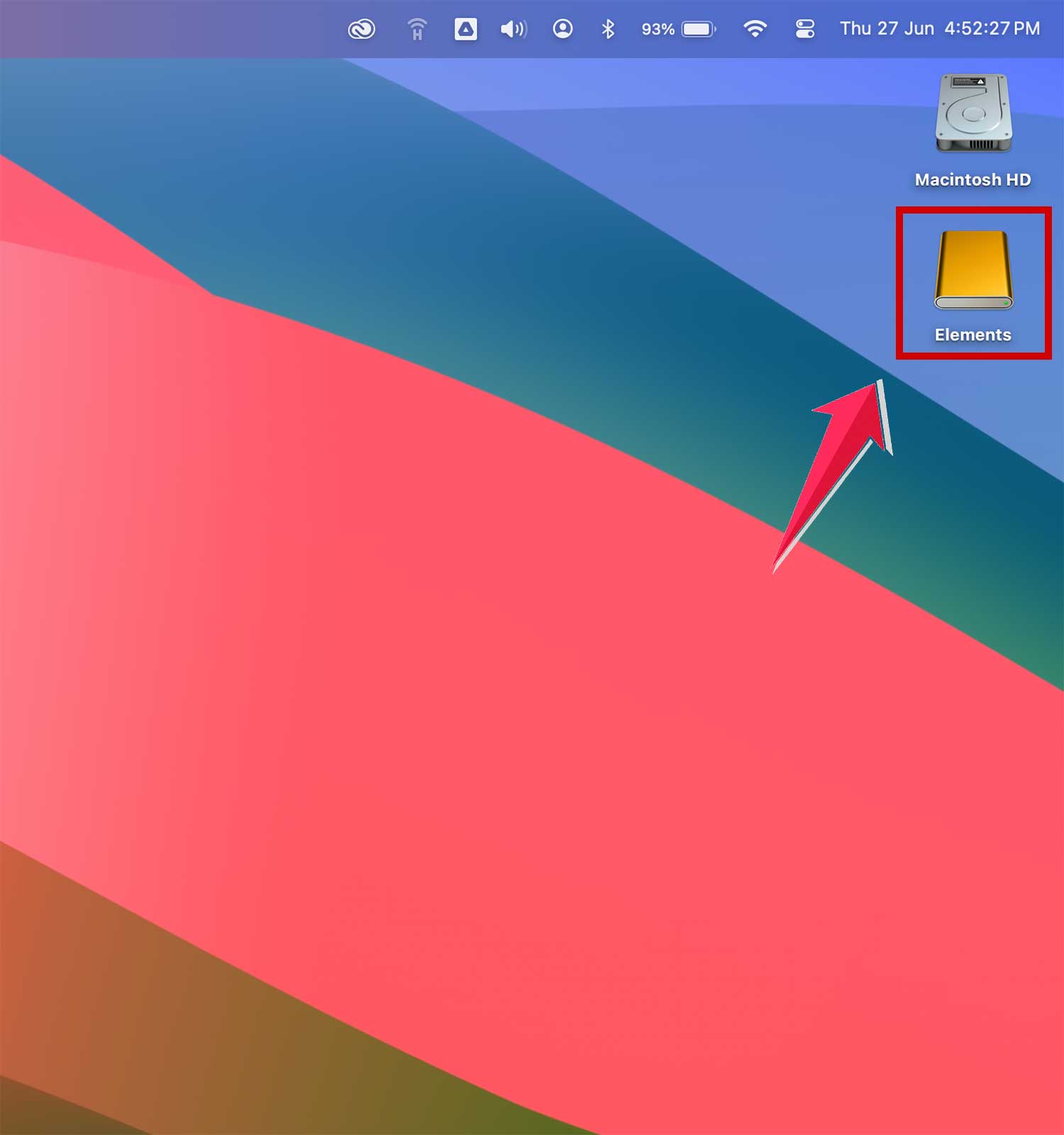
1. Connect & Check: Plug your WD Elements into your Mac. Look for its icon on the desktop. If it doesn’t appear, some troubleshooting may be needed.
2. Open the Toolbox: Go to Application → Utilities → Disk Utility.

3. Select & Erase: Find WD Elements on the left panel, select it, then click ‘Erase’.
4. Details, Details: Name your drive. Choose a format:
- For Mac only: APFS or Mac OS Extended.
- For both Mac and Windows: FAT or exFAT.
- Scheme: GUID Partition Map is standard for most Macs; select Master Boot Record for cross-platform formats, or Apple Partition Map for older Macs.
5. Execute: Click ‘Erase’ and let the formatting begin.
6. Completion: Hit ‘Done’ once finished.
This process is also applicable to other drives, like WD Easystone!
2. Format WD Elements on Windows PC
Windows features a similar utility called Disk Management for drive formatting.
1. Connect: Attach your WD Elements to your Windows PC.
2. Access the Tool: Press Windows Key + R, type ‘diskmgmt.msc’, and press Enter.
3. Prepare for Formatting: Right-click your WD Elements and choose ‘Format’.
4. Settings: For Mac compatibility, select FAT or exFAT.
5. Start Formatting: Click ‘OK’ to begin and watch the process unfold.
This guide ensures your WD Elements is formatted properly, ready for whatever task you have next!
In Conclusion To
You now know how to set up your WD Elements for Mac use. With your drive formatted the Mac way, you have the freedom to save, modify, and manage files with ease.
If you prefer not to format, consider the handy NTFS for Mac app—it’s like having a translator that ensures your Mac and NTFS drive understand each other perfectly.
Whether you choose to format or use the app, you’re all set to make the most of your WD Elements drive!