Do you have AirPods but no Bluetooth on your PC? Don’t worry! There’s an easy fix to use your wireless earbuds with your computer.
Most devices today have Bluetooth, making it simple to connect AirPods. However, if your PC is older and lacks this feature, you still have options.
A Bluetooth adapter is a small device that can help.
In this article, we’ll show you how to use the adapter to connect your AirPods to your PC. It’s simpler than you might think!
Let’s get started. Soon, you’ll be enjoying your favorite music or joining online meetings with your AirPods.
Whether you’re working, studying, or just listening to tunes, we’ll help you get your AirPods connected. Ready to learn how? Let’s dive in!
What should I do if my AirPods only support Bluetooth and my PC doesn’t have Bluetooth?
You have AirPods that require Bluetooth, but your PC doesn’t support it. No need to worry! There’s an easy solution.
Here’s how to fix it:
- Get a Bluetooth Adapter. This small device lets you use your AirPods with your PC. You can find one at most electronics stores or online.
- Connect it. After you have your adapter, plug it into a USB port on your PC. It’s as simple as plugging in a flash drive!
- Enjoy Instant Bluetooth. Just like that, your PC can now use Bluetooth! It’s like giving your computer a new ability.
Now that the adapter is set up, your PC can connect with your AirPods. It really is that simple!
Think of the Bluetooth adapter as a helpful translator. It enables your PC and AirPods to talk to each other, even if your PC couldn’t connect before.
With the Bluetooth issue sorted, you are all set to connect your AirPods.
In the next section, we will guide you on how to do that. Ready to get your AirPods working? Let’s keep going!
How to connect AirPods to a PC without Bluetooth?
Let’s break this down into two simple steps:
#1 Put Your AirPods in Pairing Mode
First, we need to get your AirPods ready to connect:
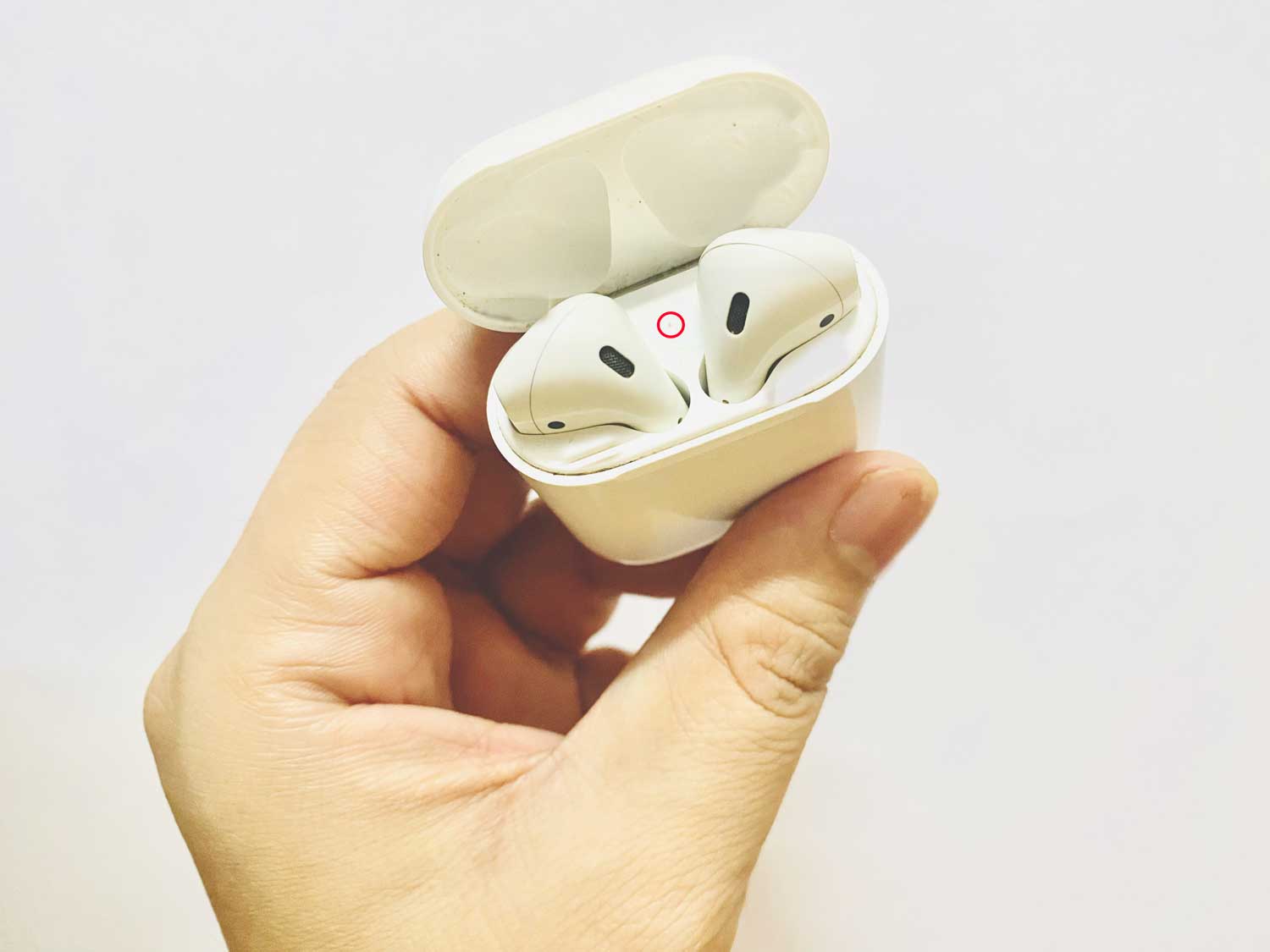
- Open the lid of your AirPods case.
- Look for a small button on the back of the case.
- Press and hold this button.

- Until you see a white light blinking. This means your AirPods are now in pairing mode and ready to connect.
#2 Connect Your Bluetooth Adapter to Your AirPods
Now, let’s get your PC and AirPods talking to each other:
- Take your Bluetooth adapter (like the Gulikit Route Air Pro) and plug it into your PC’s USB port. If your PC only has USB-C ports, use the adapter that came with your Bluetooth device.
- Find the button on your Bluetooth adapter. It might be labeled ‘A’ or ‘B’.
- Press and hold this button for about 4 seconds. You should see a white light start blinking on the adapter.
- Wait a moment. When the white light stops blinking, it means your AirPods are successfully connected!
That’s all there is to it! Your PC can now send audio to your AirPods, even without built-in Bluetooth.
How To Make Your PC Use Your AirPods For Audio
Now that you’ve connected your AirPods, let’s make sure your PC is actually sending sound to them. Here’s how:
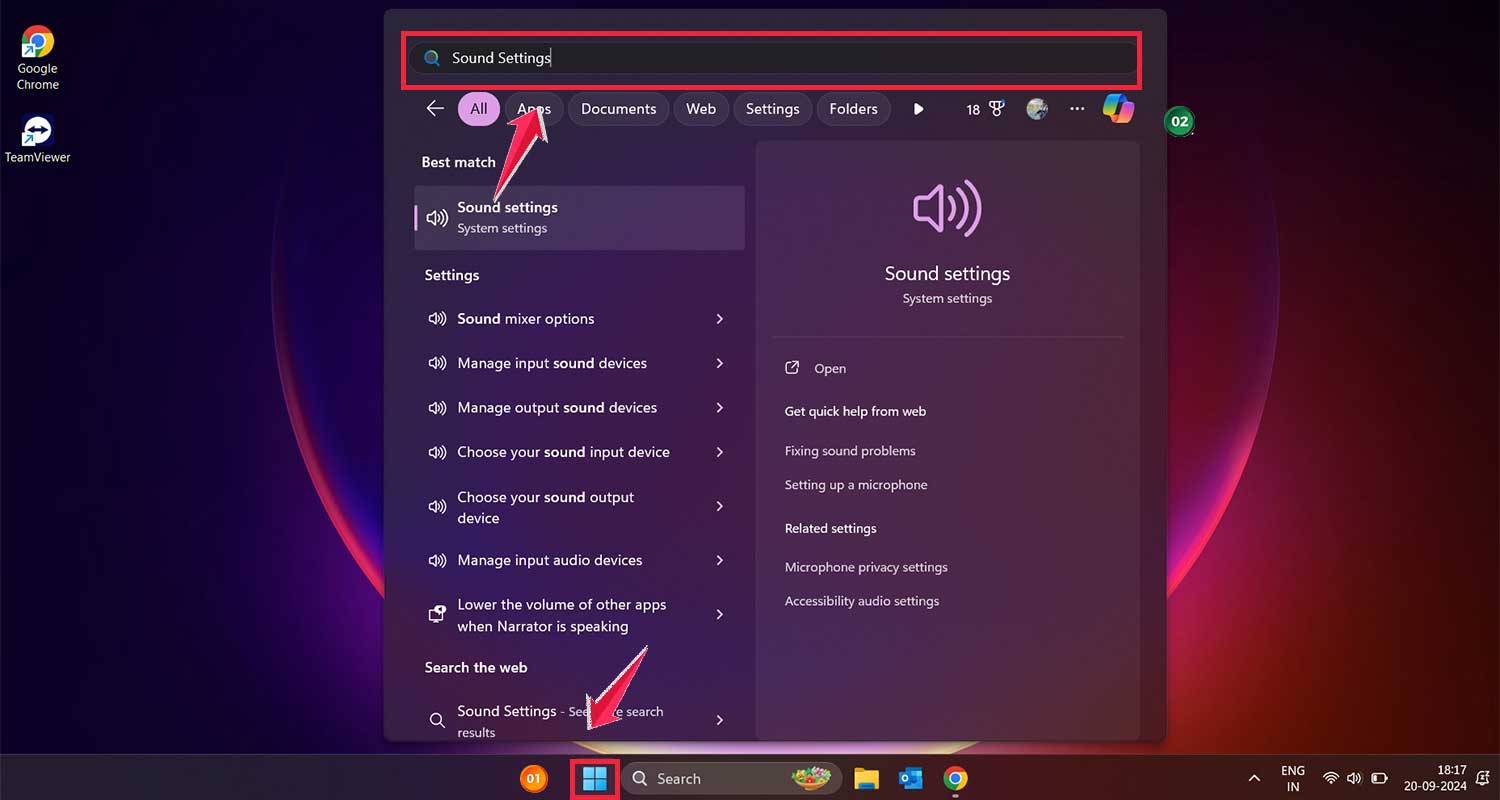
#1 Find the Sound Settings
- Click on the Start menu
- Type “Sound settings” and open it
#2 Choose Your Output Device
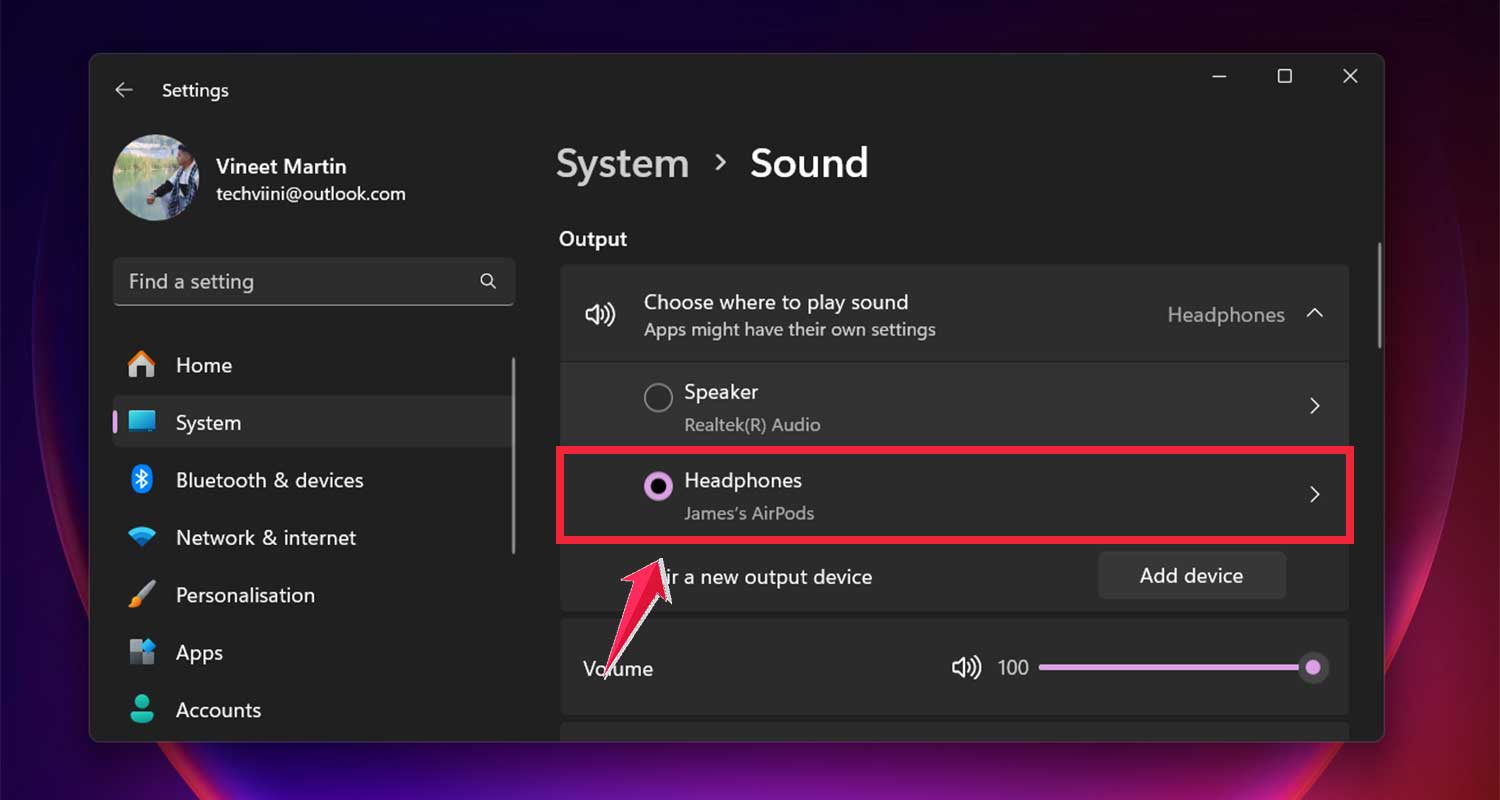
- In the Sound settings, look for “Output device”.
- Click the dropdown menu.
- Select your AirPods (they might show up as “Headphones” or with their specific name).
#3 Test the Sound
- Play some music or a video.
- If you hear it through your AirPods, great job! You’re all set.

#4 Troubleshooting
If you don’t hear anything, try these steps:
- Make sure your AirPods are charged
- Disconnect and reconnect your Bluetooth adapter
- Restart your PC and try again
#5 Setting Up the Microphone
If you want to use your AirPods for calls:
- In the same Sound settings, find “Input device”.
- Select your AirPods from the dropdown menu.

If your mic still isn’t working properly, you can troubleshoot by following these tips for fixing the AirPods microphone not working.
Remember, it might take a few seconds for your PC to recognize the AirPods each time you connect them.
Be patient, and soon you’ll be enjoying wireless audio on your PC!
Best Bluetooth Adapters for Your PC and AirPods
Looking for a Bluetooth adapter? Here are some top picks to consider:
1. Twelve South AirFly Pro
Great for those who need a 3.5mm audio jack:
- Connects two pairs of headphones at once
- Needs charging every 25 hours
- Can be used while charging
2. ASUS USB-BT500
Perfect if you want something small and reliable:
- Very compact – won’t block other USB ports
- Uses Bluetooth 5.0 for fast pairing and solid connection
- Compatible with microphones
3. Gulikit Route Air
Packed with useful features:
- Comes with USB-C to USB-A adapter for wide compatibility
- Special antenna allows 10-meter range without signal loss
- Supports dual device connections
All these adapters will help you use AirPods with your PC. Pick the one that suits you best!
Wrapping Up
There you have it! You now know how to connect your AirPods to your PC, even without built-in Bluetooth.
Technology keeps changing, so explore new solutions. With the right adapter, you can enjoy your AirPods wirelessly on any computer.
Also, remember not to let your earbuds overheat during long sessions.
Have you connected your AirPods to a PC without Bluetooth? Or do you have a favorite Bluetooth adapter we missed? We’d love to hear your experiences!
Please leave a comment below and share your thoughts. Your input can help others facing the same challenge. Let’s learn from each other and make technology work for us!