Ever needed to cross out some text while typing an email or a note on your iPhone, or maybe you wanted to send a strikethrough message to a friend on Instagram?
The possibilities are endless, right? Well, you’re in luck!
Good news! You can easily apply strikethrough right from your iPhone. And guess what?
It’s all located in the same spot where you make text bold, make text italic on iPhone, or underline. Curious to know how? Let’s dive right in and find out!
What Is The Best Way To Strikethrough Your Text?
For quick and universal strikethrough formatting, using an online strikethrough generator is your best bet. Here’s how to do it:
- Visit a Strikethrough Generator: Go to a website like Strikethrough Text Generator.
- Type Your Text: Input the text you want to apply strikethrough to.
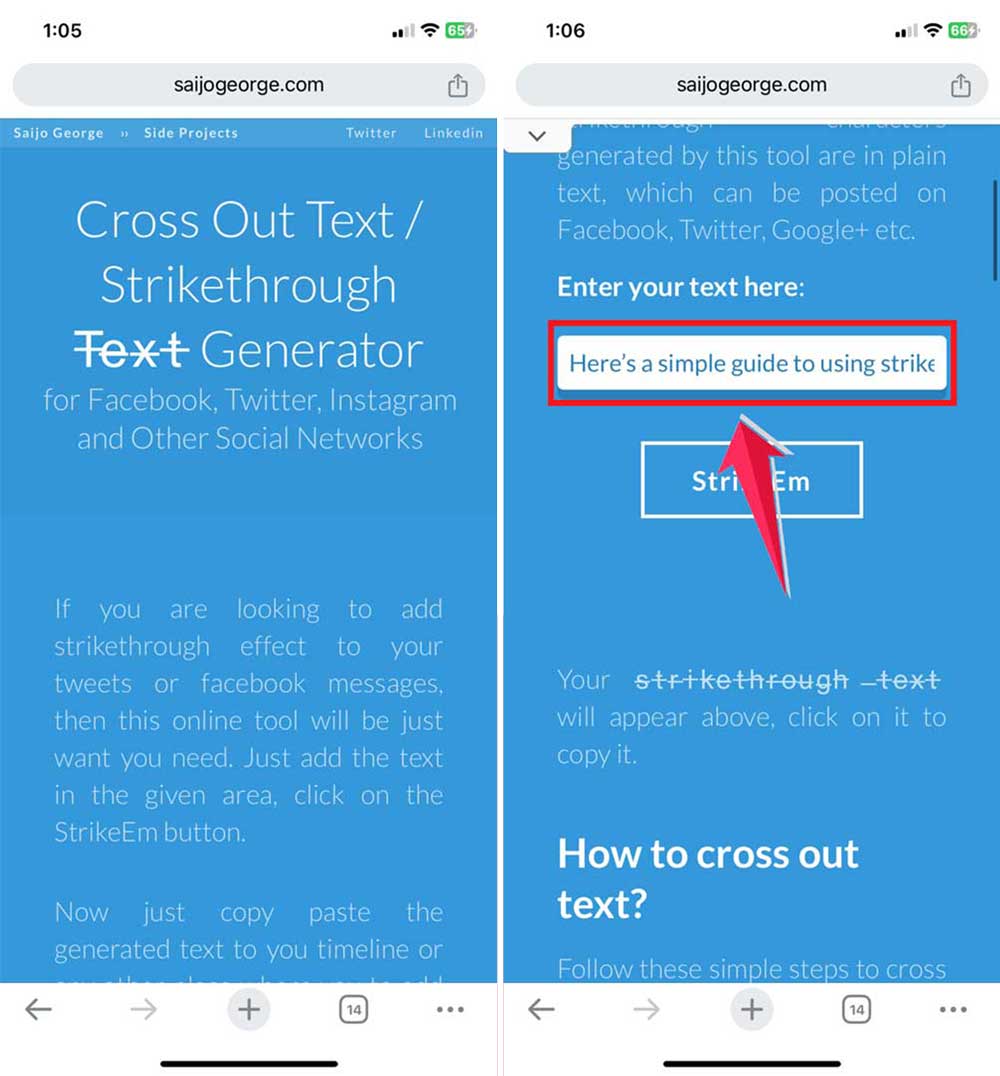
- Generate and Copy: Click to generate the strikethrough text and copy it to your clipboard.
- Paste Anywhere: Paste your formatted text into any app, like Instagram, to use it right away.
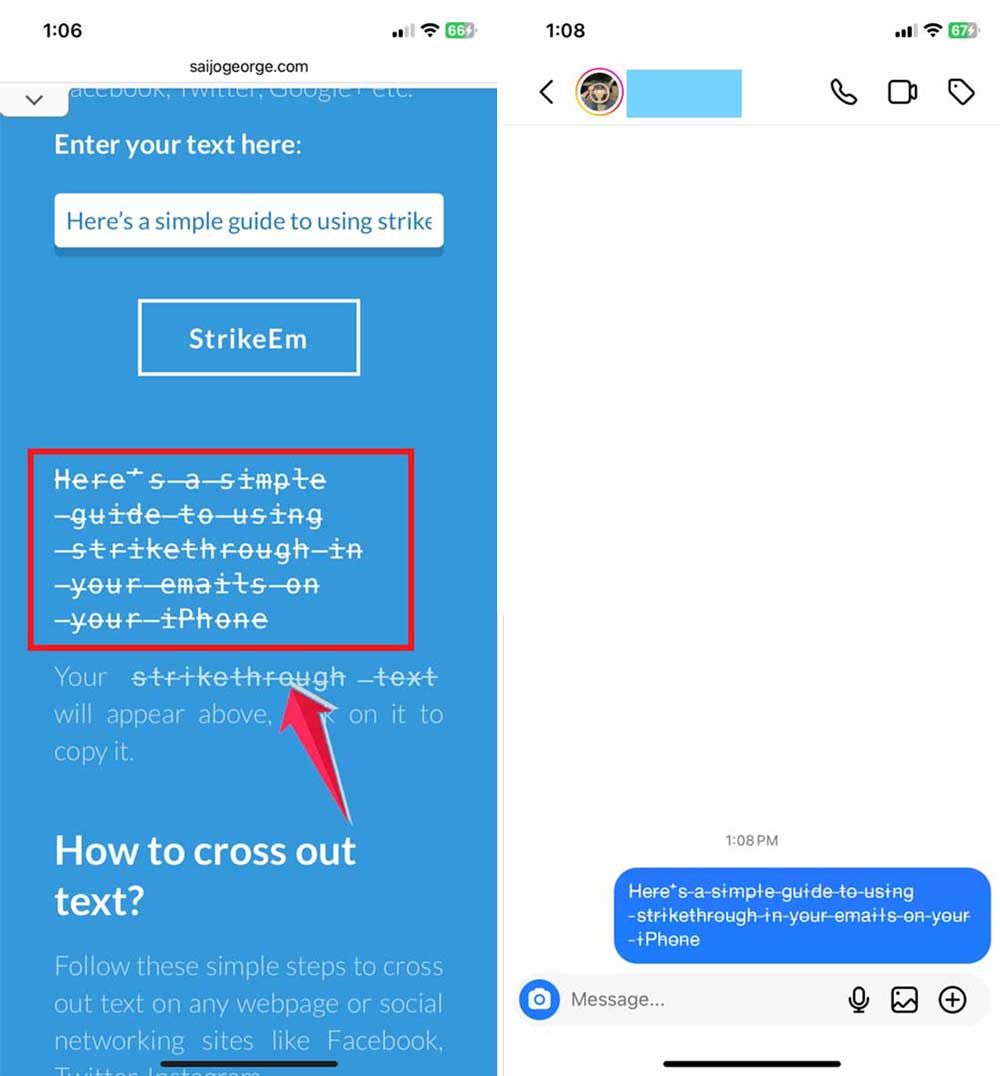
This method ensures your strikethrough text works everywhere, making it a versatile choice for any platform!
You can also get creative by learning how to make your iPhone display black and white for a unique visual look while formatting.
How to Use Strikethrough in Emails, Notes, and Instagram?
1. Strikethrough in Emails
Ever wanted to cross something out in an email? Here’s a simple guide to using strikethrough in your emails on your iPhone:
- Get Started: Open up the Mail app. It’s likely on your home screen.
- Create a New Message: Tap the little pen and paper icon to start a new email.
- Type Your Message: Just type your email as you normally would. Lay down all your thoughts.

- Select Your Text: Got a word or phrase to strike through? Double-tap it to highlight.
- Find the Formatting Options: Above your keyboard, there should be a button that looks like Aa. Tap it.
- Strikethrough Time: Look for the strikethrough icon (it looks like S̶). Tap on it, and you’ve added strikethrough to your text.

2. Strikethrough in Notes
Want to edit text in your Notes app with strikethrough? Follow these steps:
- Open Notes: Start by opening the Notes app.
- Type Anything: Just type whatever you need.
- Select the Text: Then choose the text you want to strikethrough.
- Popup Menu Will Appear: Quick Access menu will appear.
- Access More Options: Tap the right arrow next to the autofill suggestion to see more options.
- Choose Strikethrough: Select ‘Strikethrough’.
- Congrats, you’ve added strikethrough to your text.
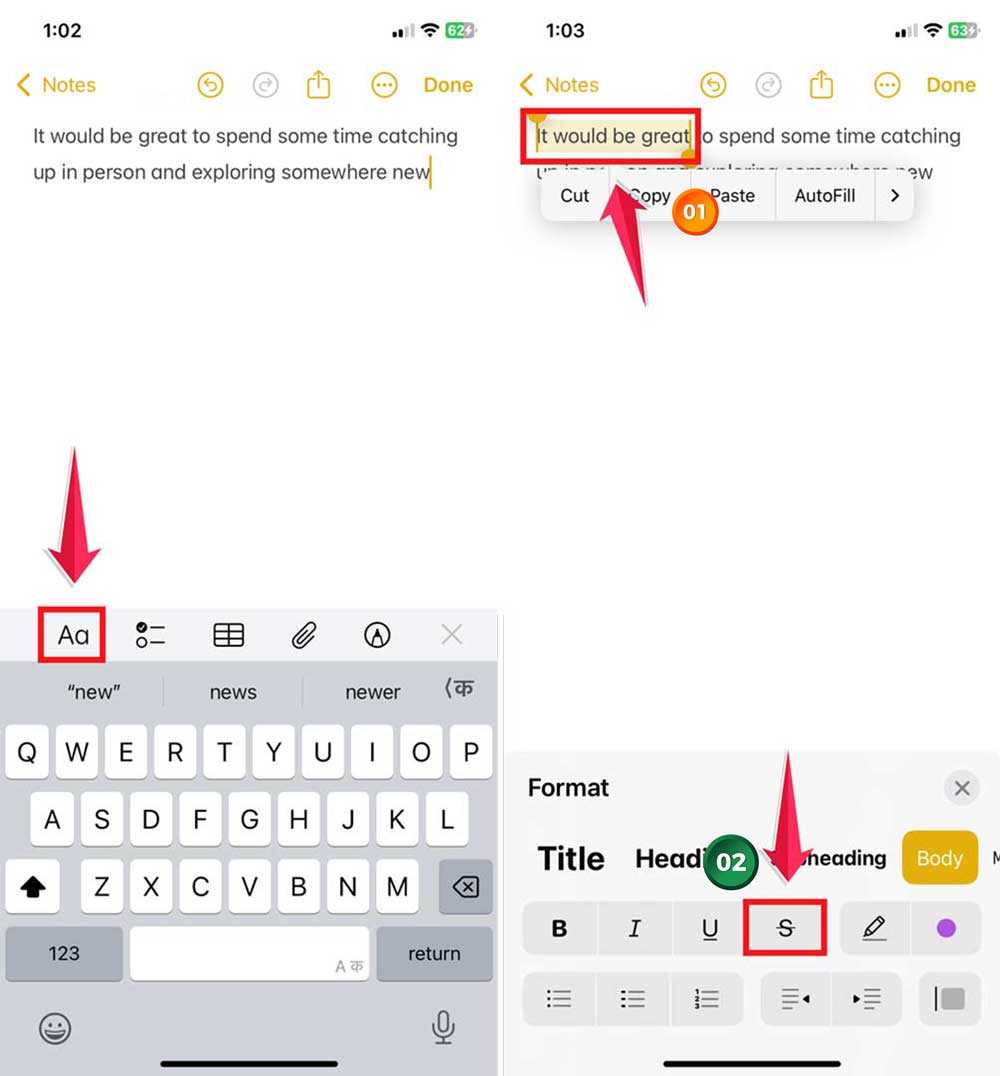
If you ever wanna undo Strikethrough, select the text again, go to options, and tap ‘Strikethrough‘ again.
3. Strikethrough in Instagram Messages
Unfortunately, Instagram doesn’t offer a direct strikethrough option. But here’s a workaround:
- Use a Strikethrough Generator: Visit a site like Strikethrough Text Generator.
- Type Your Text: Enter the text you want to strikethrough.
- Generate and Copy: Once your text is strikethrough, copy it.
- Paste in Instagram: Return to Instagram and paste your formatted text.
This workaround not only helps with Instagram but can also be useful if you want to delete messages on iPhone from both sides and manage conversations properly.
The Final Thoughts
That’s a wrap on using strikethrough on your iPhone! We’ve explored how this neat feature can spice up your texts, emails, and notes.
Strikethrough isn’t just for crossing out text. It’s a powerful way to show edits, suggestions, or progress visually.
Whether you’re tweaking a draft or highlighting changes, it’s an essential tool.
We’ve demonstrated how to use strikethrough across various apps, and it’s compatible with all recent iPhone models and iOS versions.
Now you’re equipped to enhance your communications. And maybe even clear emoji history on iPhone to keep things fresh and tidy.
So go ahead, make your messages clearer and your notes more dynamic with strikethrough. Dive in, experiment, and see how it transforms your text interactions!