Let’s be real—when your AirPods suddenly vanish from all your Apple devices, it’s frustrating. Maybe you tapped “Forget This Device” on your iPhone, thinking it would only disconnect from that one device.
But now? They’re gone from your iPad. Your Mac. Everything. It feels like they just… disappeared.
This can really mess up your day, especially if you rely on your AirPods to switch between your devices seamlessly. That’s kind of the whole point of buying them, right?
You expect them to just work—without you needing to think about it.
So, what’s going on here? Well, Apple’s ecosystem is designed to share things like your AirPods across all devices linked to your Apple ID. That’s usually great—it makes things super convenient.
But in this case, it backfires. When you “forget” your AirPods on one device, that action spreads across all your devices using the same Apple ID. Yep, it’s not just your iPhone that forgets—they all do.
But don’t stress. There are a few easy ways to fix this. And I’m going to walk you through each one. Step by step. No tech jargon. Just real help. Let’s break it all down together.
Why this happens: Let’s understand it first
Before we jump into the fixes, let’s understand why your AirPods disappear everywhere when you forget them on just one device. It’s not a glitch—it’s actually by design.
1. Apple syncs everything through your Apple ID
Apple loves to keep things connected. If you’re signed in to the same Apple ID on your iPhone, Mac, and iPad, your AirPods get synced across all of them.
So, when you connect your AirPods to one device, they automatically become available on the others.
But here’s the catch—when you “forget” them on one device, Apple thinks you want to forget them everywhere. It’s like telling your whole Apple family, “Hey, I don’t want these anymore.”
2. iCloud plays a big role
iCloud is the behind-the-scenes magic that syncs your settings across devices. That includes your Bluetooth devices. So, if you remove your AirPods from one device, iCloud spreads that change to the rest. It thinks it’s being helpful—but it’s not.
3. It’s easy to make this mistake
Honestly, it’s a simple slip-up. You might be troubleshooting a connection issue or just trying to reset your AirPods. You hit “Forget This Device” on your iPhone.
You think it’s no big deal. But then, later on, you try to use your AirPods with your Mac—and they’re gone.
The good news? Now that you understand how this works, you can fix it. And better yet, you can prevent it from happening again.
How to Fix: Forgetting AirPods on One Device Affects All? Explained
Alright. So your AirPods disappeared from all your devices. Let’s get them back. These steps are simple, and I’ll guide you through each one.
#1 Reconnect your AirPods manually
Let’s start with the easiest fix. If your AirPods are no longer showing up automatically, you can reconnect them manually on each device.
Here’s how:
- Open the Settings app on your iPhone, iPad, or Mac.
- Select Bluetooth.
- Find your AirPods in the list of available devices.
- Tap on them to reconnect.
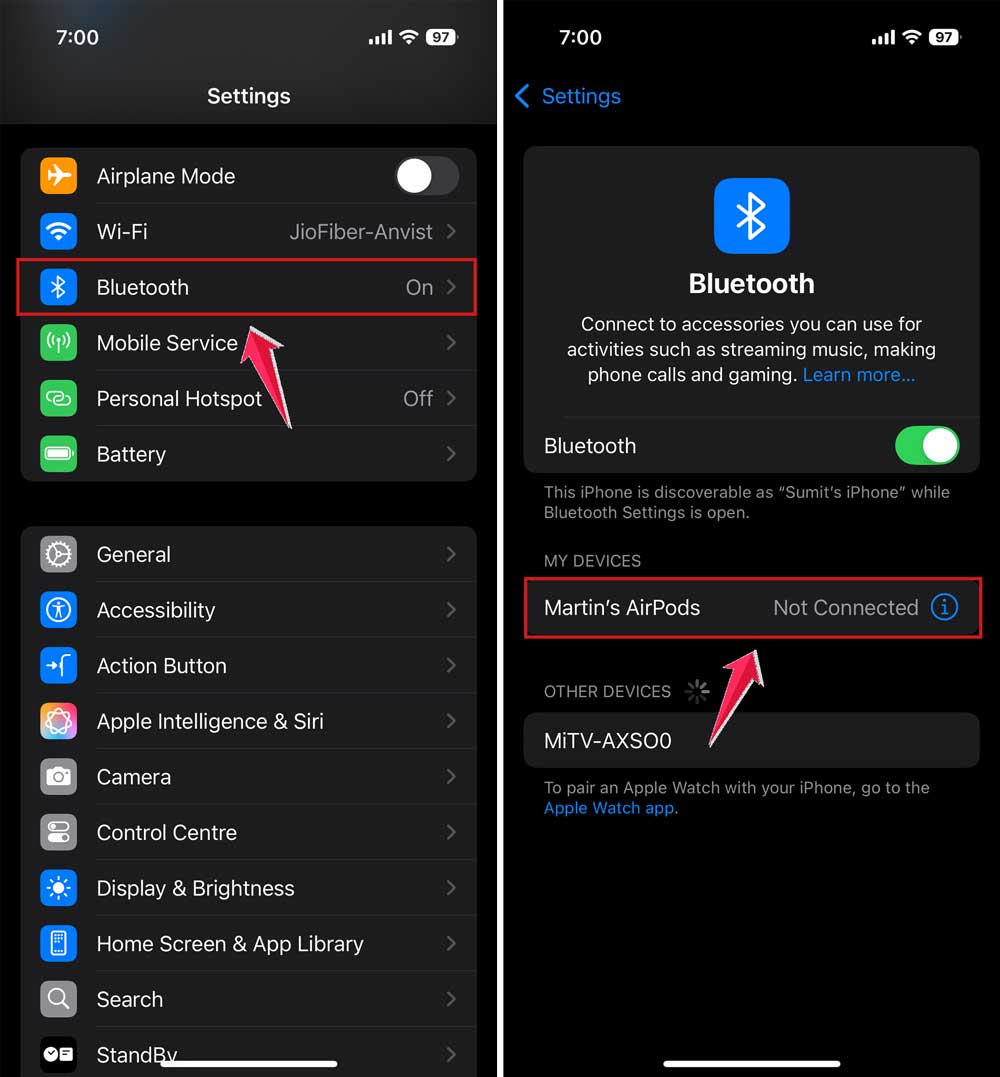
You’ll need to do this on each device where you want your AirPods to work. It takes a few minutes, but it gets the job done.
#2 Turn off iCloud syncing for Bluetooth devices
If you don’t want Apple deciding where your AirPods stay connected, you can stop iCloud from syncing this info.
Here’s what to do:
- Open the Settings app on your iPhone or iPad.
- Tap iCloud.
- Tap Manage Storage (or iCloud Drive on older iOS versions).

- Find any AirPods or Bluetooth data listed and disable syncing.
Now, when you forget your AirPods on one device, it won’t affect the rest.
#3 Reset your AirPods
If reconnecting and turning off syncing didn’t help, it’s time for a fresh start. Resetting your AirPods clears out any weird settings or glitches.
Here’s how to reset them:
- Put your AirPods in their case and leave the lid open.
- Press and hold the setup button on the back of the case.
- Keep holding until the light flashes amber, then white.
- Now, go back to your device’s Bluetooth settings and pair them again.
After the reset, your AirPods are like new. You’ll need to reconnect them to each device, but they should work smoothly now.
#4 Don’t forget to check the basics
Sometimes, the issue isn’t with syncing—it’s just a simple connection hiccup. Restart your device. Make sure Bluetooth is on. And double-check that your AirPods are charged.
It sounds basic, but these small things often fix the problem.
Extra tips to keep your AirPods working smoothly
Now that you’ve fixed the main issue, let’s make sure it doesn’t happen again. These tips will help you keep your AirPods connected and ready to go.
1. Keep your iOS updated
I know—updates can be annoying. But they really do help. Apple often fixes Bluetooth bugs and syncing issues in software updates. So, always check for the latest iOS version.
- Go to Settings > General.

- Then tap on Software Update.
- If there’s an update, download and install it.

It’s a quick step that can solve a lot of problems.
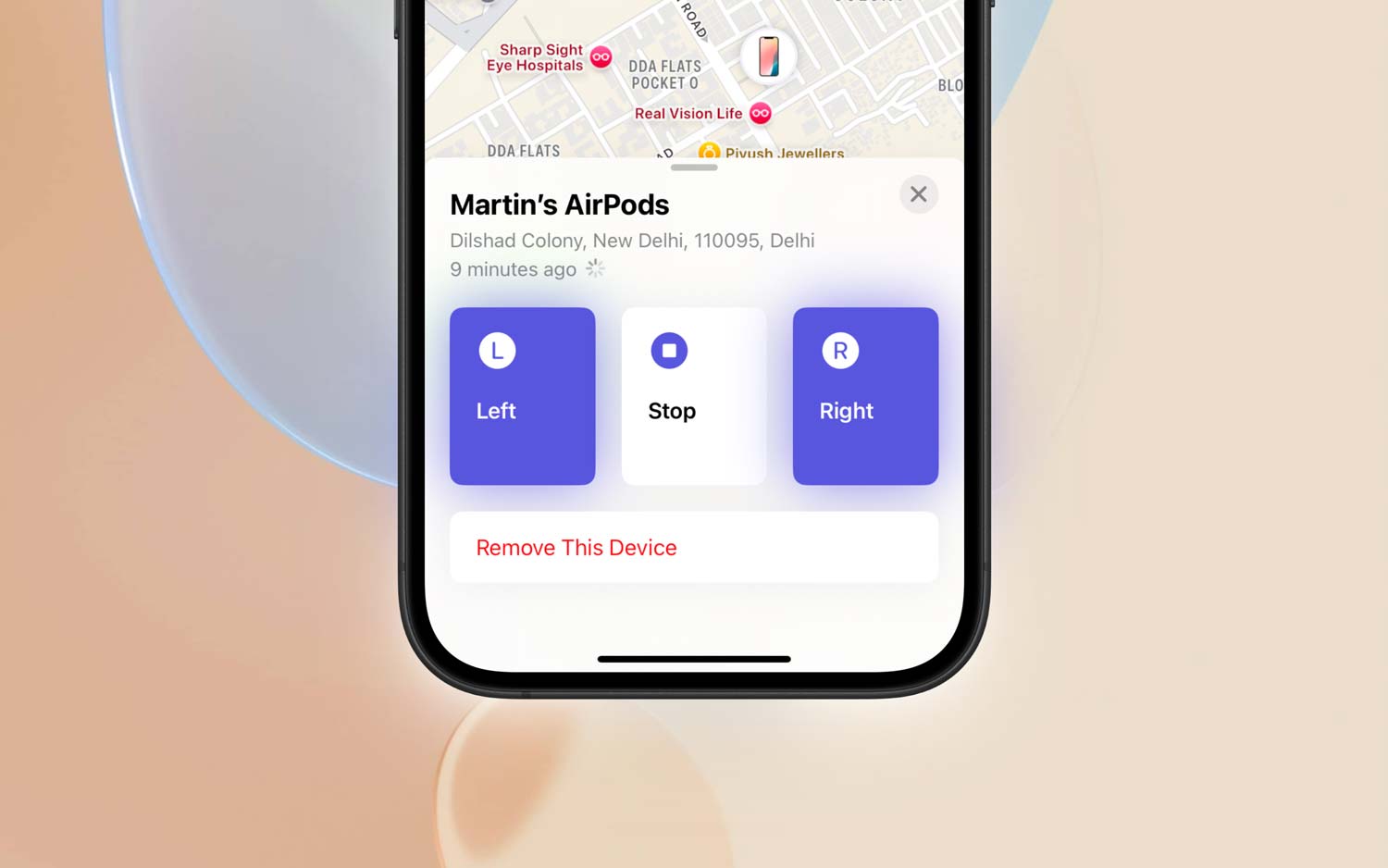
2. Use the “Find My” feature
If your AirPods ever go missing again, the “Find My” app can help you locate them. It shows you the last place they were connected.
If you don’t see your AirPods in the app, that’s a sign they’re not linked properly—and you might need to reconnect or reset them again.
3. Give your AirPods a unique name
If you’ve got a lot of Bluetooth devices, it’s easy to get confused. Rename your AirPods so you can spot them quickly.
- Go to Settings > Bluetooth.

- Tap the info icon (i) next to your AirPods.
- Select Name and type something unique.

This helps avoid mix-ups and makes reconnecting faster.
4. Clean up your Bluetooth list
Too many devices in your Bluetooth list can cause connection problems. If you see old or unused devices, remove them.
- Open Bluetooth settings.
- Tap the (i) icon next to any device you don’t use.
- Select Forget This Device.
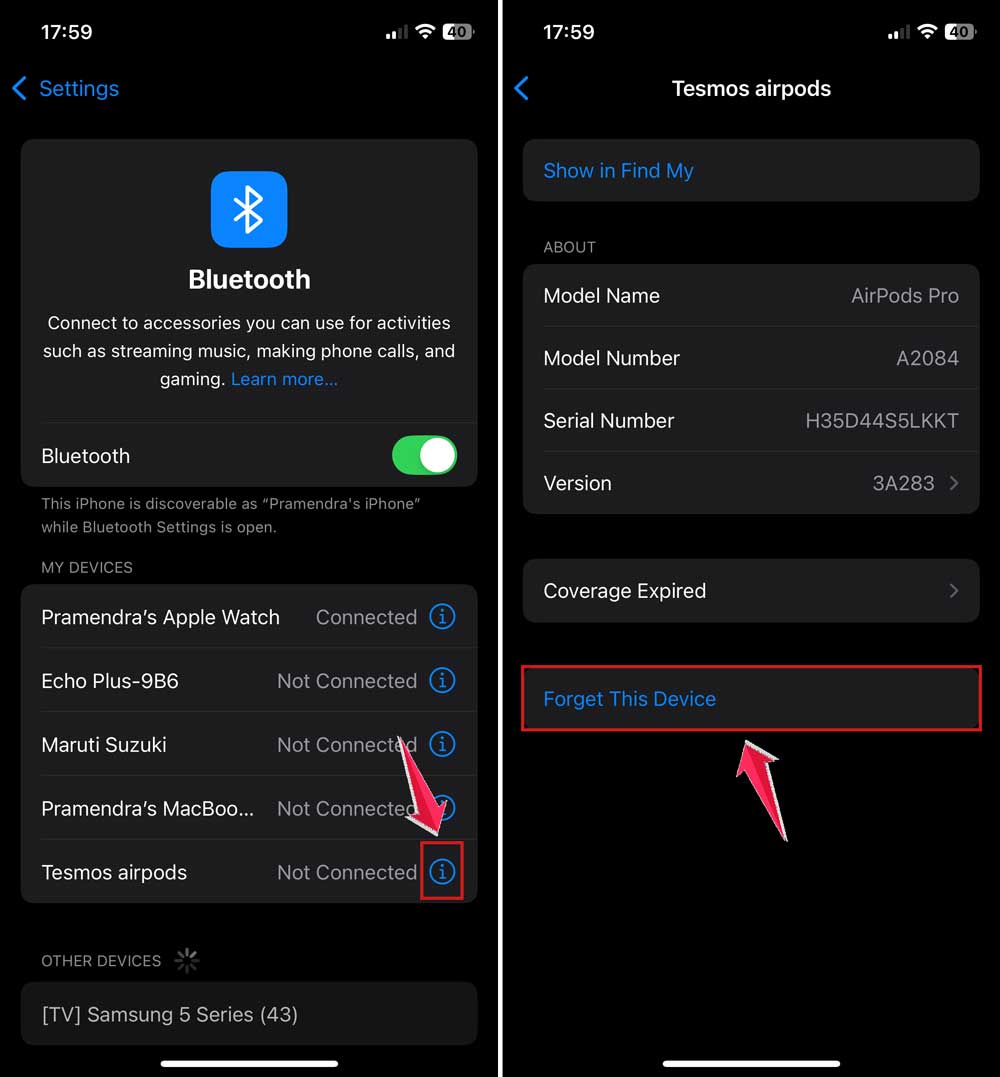
This makes it easier for your AirPods to stay connected.
5. Use a protective case
Keeping your AirPods safe helps avoid physical damage that might affect their sensors or Bluetooth connection. A simple case can go a long way in preventing issues.
The Takeaway
So, here’s what we learned: when you forget your AirPods on one Apple device, they vanish from all your connected devices. That’s because of how Apple syncs things using your Apple ID and iCloud.
But now you know how to fix it. You can reconnect your AirPods manually, turn off iCloud syncing, or reset them if needed.
And with those extra tips—like keeping your iOS updated and giving your AirPods a unique name—you’ll have fewer problems in the future.
AirPods should make your life easier, not harder. So, take a few minutes to follow these steps, and get back to enjoying your music, calls, and podcasts without hiccups.
Got questions? Or maybe your own tips to share? Drop a comment below—I’d love to hear from you!