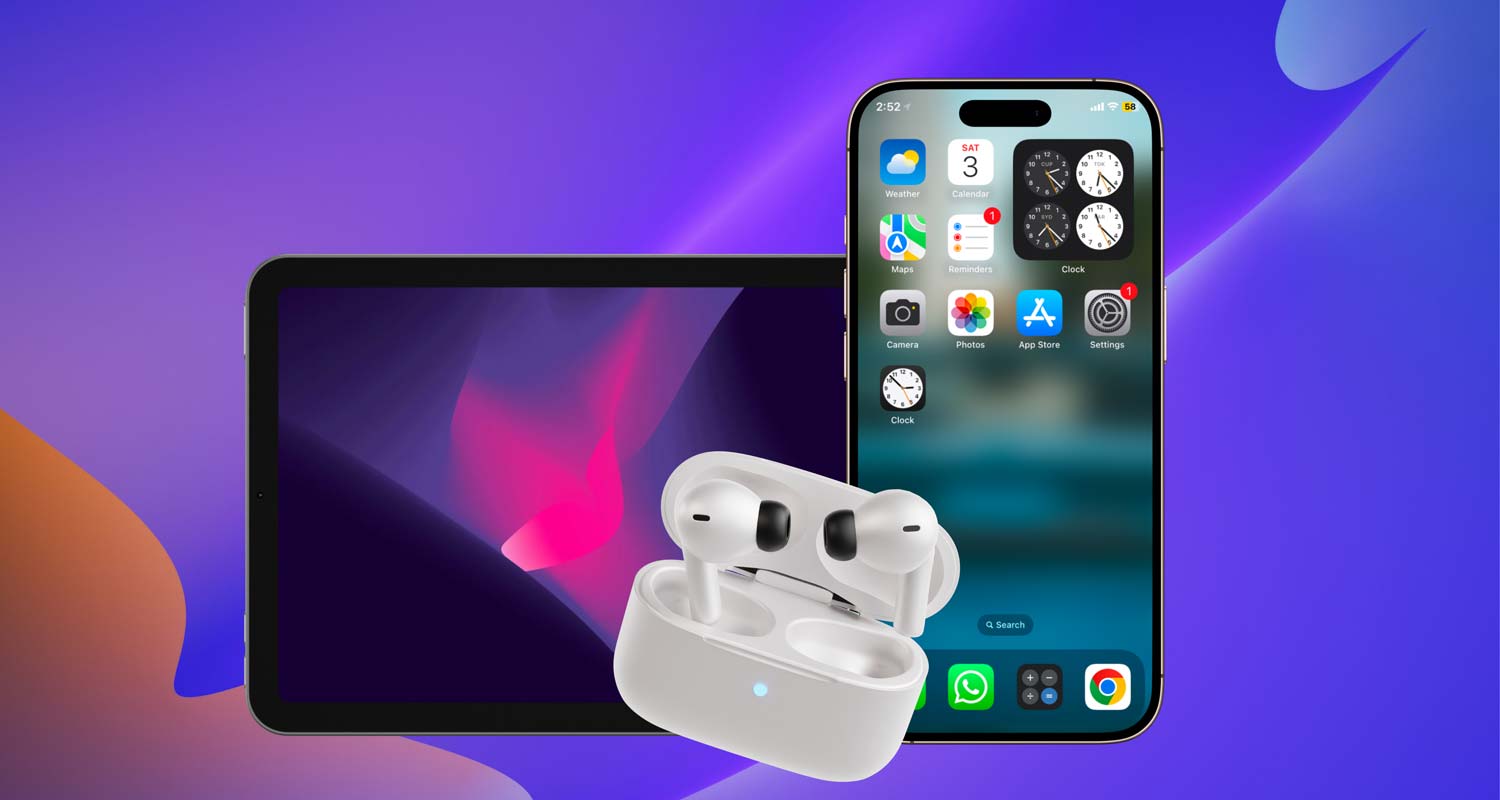
Let’s be real. Your AirPods are supposed to make life easier, right? Whether you’re commuting, working out, or just chilling, they’re like your little buddies.
But when they start playing games and don’t connect to the right device, it’s super frustrating.
You pop them in, expecting them to know what’s up. But nope. They stay connected to your iPad when you clearly want them on your iPhone.
Or worse, they try switching—and fail miserably. Yeah, I get it. Total buzzkill.
The good news? You’re not alone. And better news? It’s an easy fix. Just a few steps, and you’ll have full control. No more guessing games.
Let’s dive into it and make sure your AirPods listen to YOU.
Why your AirPods might not switch the way you want
Alright, let’s break it down. There are a few reasons why your AirPods act stubborn. Let’s go through them one by one.
1. Automatic Switching Isn’t Always Perfect
Apple made it sound amazing—your AirPods magically switching between devices. But in real life?
It’s hit or miss. Sometimes your AirPods just want to stay glued to the last device they were on. And no matter how much you tap or wait, they don’t budge. Super annoying.
2. Bluetooth Can Be a Little Moody
Bluetooth is awesome when it works. But sometimes, it just doesn’t. Maybe there’s too much interference.
Maybe your devices are confused. Either way, Bluetooth hiccups are real—and they mess with your AirPods switching perfectly.
3. Software Bugs Happen
Your iPhone or iPad might have a sneaky little bug causing all the drama. Maybe it’s a glitch in the connection system.
Maybe it’s a random bug from an old app. Either way, software issues can totally mess up how your devices talk to your AirPods.
4. Outdated iOS or iPadOS
If you’re running an old version of iOS or iPadOS, that could be the problem too. New updates often fix Bluetooth issues and AirPods bugs.
So if your devices haven’t been updated in a while, your AirPods might get confused about what to connect to.
So, now you know. It’s not you—it’s them. But don’t worry. You’re about to learn how to fix it and take full control.
How to manually switch AirPods between iPhone and iPad
Alright, let’s get you back in charge. I’ll walk you through a few simple ways to manually switch your AirPods. Pick the one that feels easiest for you!
#1: Use the Control Center
This is super quick and easy. If you want to switch in just a few taps, here’s what you do:
- Swipe down from the top-right corner of your iPhone or iPad to open the Control Center.
- Press and hold the audio control box (where your music is playing).
- A screen will pop up. Select your AirPods from the list of available devices.
And boom—you’re connected. Seriously, it’s like grabbing your morning coffee. Quick and satisfying.
#2: Connect Through Bluetooth Settings
Want a little more control? Bluetooth settings are your friend. Here’s how:
- Open the Settings app on your iPhone or iPad.
- Tap Bluetooth.
- You’ll see a list of devices. Find your AirPods and tap to connect.
It’s like opening the right tab in a browser. Once you’re there, everything just clicks.
#3: Use the Now Playing Widget
You can even switch from your home screen. It’s pretty slick:
- Swipe right from your home screen to get to the Widgets page.
- Look for the Now Playing widget.
- Tap the AirPlay icon (the triangle with circles) and choose your AirPods.
And just like that, you’re a tech ninja. Seriously, it’s that easy.
Some extra tips to keep AirPods switching smoothly
Alright, you’ve got the basics down. But what if things still feel a little off sometimes? No worries. I’ve got your back. Let’s go through a few more things you can try.
#1: Keep your devices updated
I know—updates can feel like a chore. But trust me, they matter. Updates fix bugs, improve Bluetooth, and make your AirPods behave better.
Here’s how to update:
- Open Settings on your iPhone or iPad.
- Tap General.
- Tap Software Update.
- If there’s an update available, download and install it.
Think of it like giving your phone a fresh cup of coffee. It wakes it up and keeps it running smooth.
#2: Reset your AirPods
Sometimes your AirPods just need a fresh start. Like a quick nap.
Here’s how you reset:
- Put your AirPods in their case.
- Leave the lid open.
- Press and hold the setup button on the back of the case.
- When the light flashes amber, then white, you’re good.
Now your AirPods are starting fresh, ready to listen to you again.
#3: Avoid crowded Wi-Fi spots
If you’re at a busy café or a crowded airport, your AirPods might struggle a bit. Too many signals flying around can mess with Bluetooth.
If you can, move to a quieter spot. Or at least stay closer to your iPhone or iPad.
#4: Restart your devices
It sounds simple, but it works. Restarting clears out little glitches.
Just:
- Hold the power button on your iPhone or iPad.
- Slide to power off.
- Wait a few seconds, then turn it back on.
Sometimes, that’s all it takes to get things running smooth again.
#5: Clear out old Bluetooth devices
Your iPhone or iPad might be trying to talk to too many devices at once. If you have old Bluetooth connections saved, it’s time to clean house.
Here’s how:
- Go to Settings > Bluetooth.
- Find devices you no longer use.
- Tap the “i” next to them and Forget This Device.
Now your AirPods have a clear path to connect.
Some bonus tips for even better AirPods connections
Alright, if you want to be a true AirPods master, here are a few final tips.
1. Update often for success
I get it—updates can be a pain. But they fix so many issues. Always grab that update when you see it. It’s worth it.
2. Keep your AirPods clean
A dirty case or gunky AirPods can mess with the connection. Give them a gentle clean once in a while. It keeps everything working like new.
3. Restart for a fresh start
If switching feels slow or weird, restart your iPhone or iPad. It’s quick and often fixes the problem.
4. Stay close for best connection
AirPods work best when your devices are nearby. If you’re too far away, the connection can get weak. Keep your iPhone and iPad close when switching.
5. Scan for and remove other devices
Old Bluetooth devices hanging around can confuse your iPhone or iPad. Clear them out if you don’t use them anymore.
The takeaway
Here’s the deal: when your AirPods don’t switch the way you want, it’s super frustrating. But now, you know how to fix it.
Using simple tricks like the Control Center or Bluetooth settings, you’re back in control.
Remember, it’s not just about restarting. Keeping your devices updated, cleaning your AirPods, and clearing old connections can make a big difference.
Try these steps and watch the magic happen. Got any questions? Or maybe your own trick to share? Drop a comment below—I’d love to hear from you!