Let’s be honest—there’s nothing more frustrating than when your iPad screen just won’t rotate. You’re lying on the couch, trying to watch a video or scroll through a webpage, and the screen is stuck in one position.
It’s not turning. It’s just… stuck. And to make things worse, the auto-rotate option is greyed out. You tap it, but nothing happens.
So, what’s going on? Don’t worry—you’re not the only one facing this. There are a few reasons why this happens, and most of them are easy to fix. Sometimes, it’s a small software issue.
Other times, a setting might’ve been changed by accident. Maybe your iPad needs an update, or the sensors are just acting up. In rare cases, it could be a hardware problem, especially if the device was dropped.
But here’s the good news—most of the time, it’s something simple. Yes, really. You don’t need to be a tech expert to sort this out.
I’ll walk you through each possible reason and show you how to fix it. Step by step. Let’s get that screen flipping like it should.
Why auto-rotate stops working on iPad
Let’s break it down a bit. If your iPad isn’t rotating, it’s usually because of one of these common problems. I’ll explain each one in plain English so you know what’s going on.
1. Software bugs can mess things up
Sometimes, your iPad just needs a break. When it’s been running too long or after a recent update, small software bugs can sneak in. These bugs can mess with features like auto-rotate. It may seem random, but it happens more than you might think.
2. Rotation lock might be on
This one’s easy to miss. If the rotation lock is turned on in your Control Center, your screen won’t rotate—no matter what. It’s a super common mistake, and thankfully, it’s just as easy to fix. We’ll go over that below.
3. Hardware issues can stop rotation
Your iPad relies on internal sensors to know when to rotate. If those sensors get damaged—maybe from a fall or bump—they might stop working. This doesn’t mean your iPad is broken forever, but it could need a closer look.
4. Outdated iOS can cause problems
Using an older version of iOS? That could be the issue. Apple releases updates to fix bugs and improve performance. If you haven’t updated in a while, your iPad might be struggling with features like auto-rotate.
Now that you know what could be causing the problem, let’s fix it together.
Auto-Rotate greyed out on iPad? Try these fixes
Okay, time to roll up our sleeves. I’m going to walk you through each fix one by one. These are simple and won’t take long. Let’s get that screen turning again.
#1: Check the Rotate Lock setting
This is the first thing you should check. If the rotate lock is on, your screen won’t move at all.
Here’s how to check it:
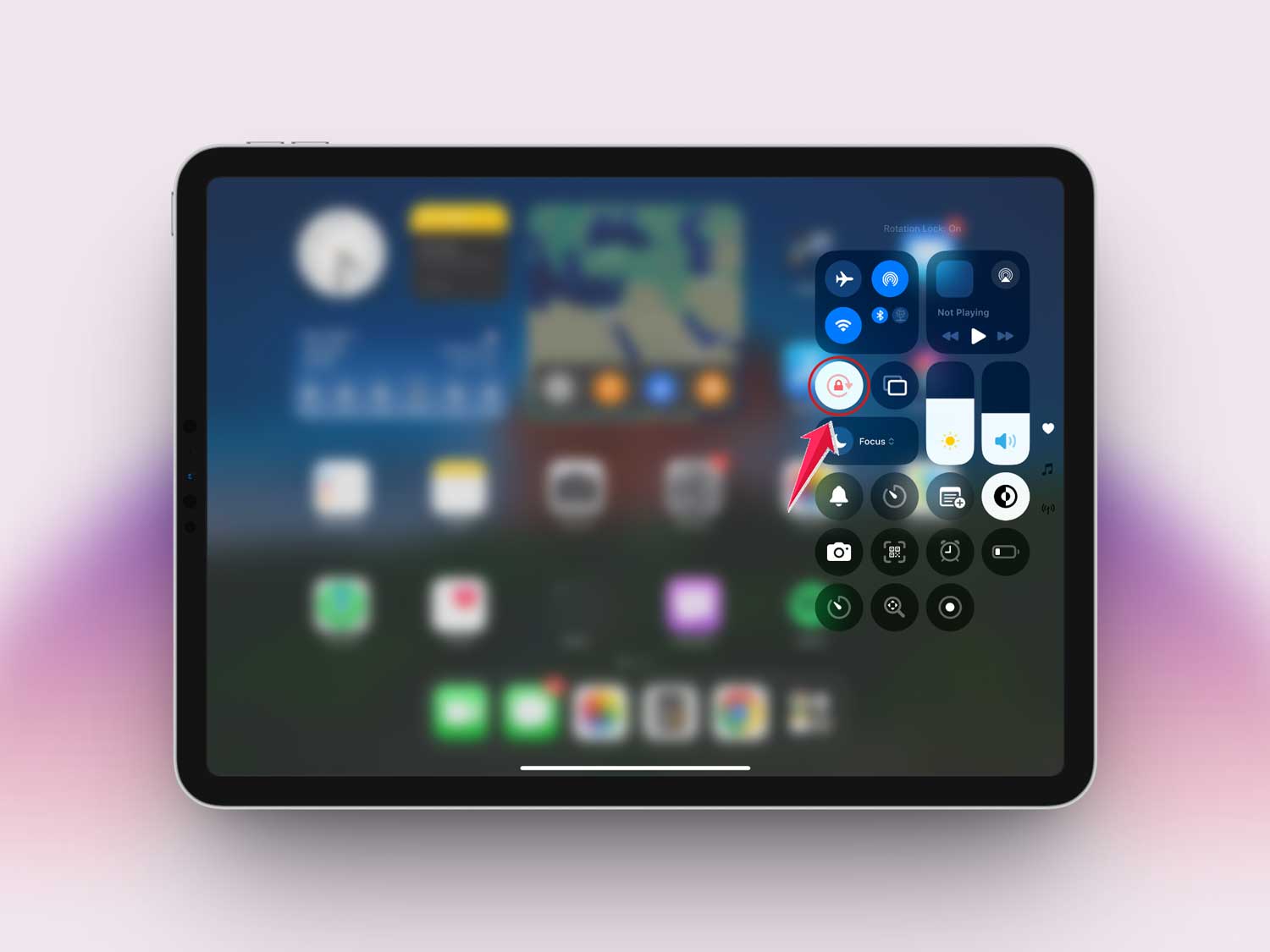
- Swipe down from the top-right corner of your screen to open the Control Center.

- Look for the lock icon with a circular arrow around it.
- If it’s highlighted, tap it once to turn it off.
Try rotating your screen again. If it still won’t move, let’s try the next step.
#2: Restart your iPad
You’d be surprised how often a quick restart solves everything. It clears out little bugs and gives your iPad a fresh start.
Here’s how to restart:
- Press and hold the Power button until the “slide to power off” screen shows up.
- Slide to turn off your iPad.
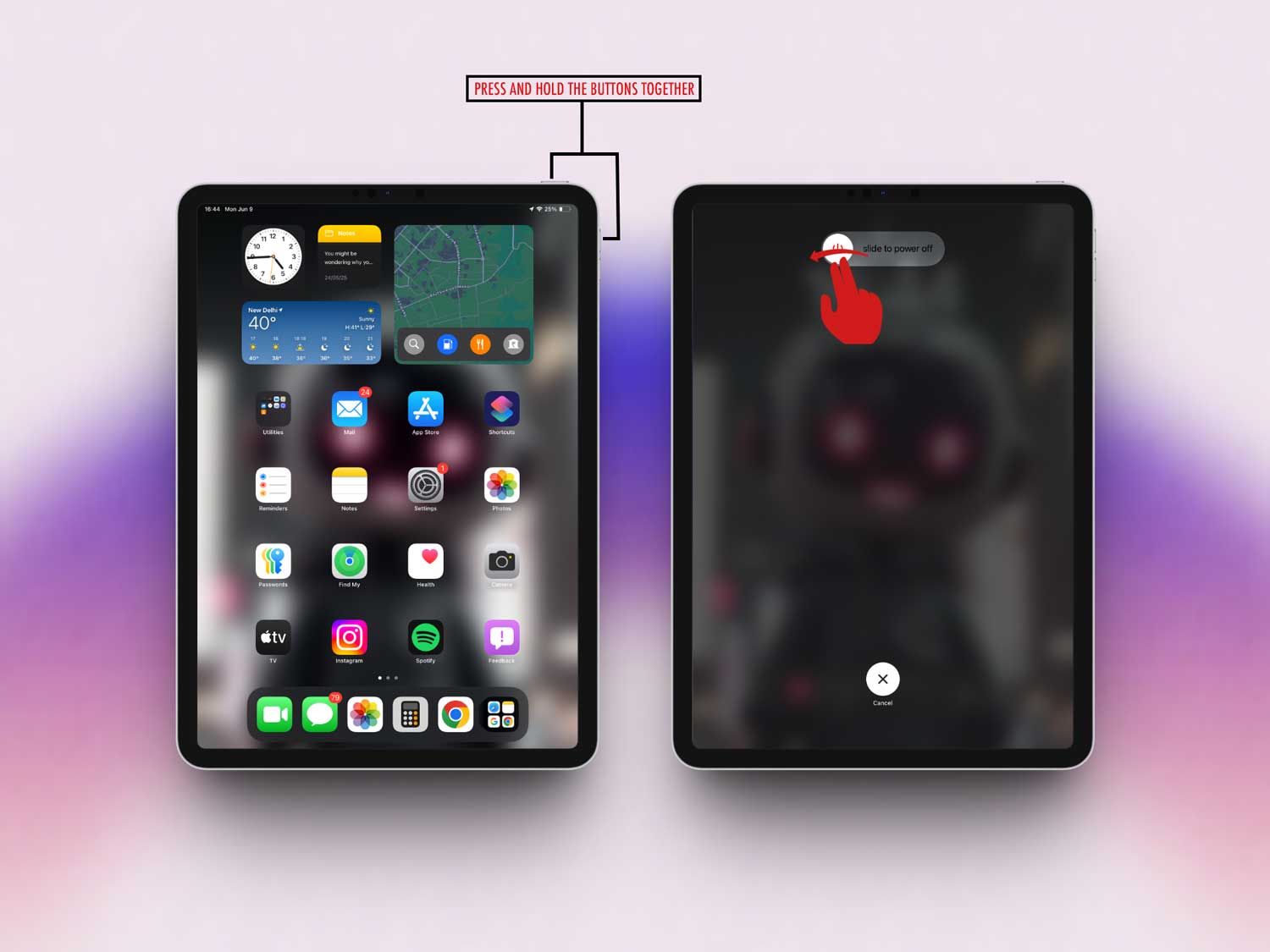
- Wait a few seconds, then press and hold the Power button again until the Apple logo appears.

Now, check if the screen rotates. If not, don’t worry—we’re just getting started.
#3: Update your iPad’s iOS
If your iPad is running an older version of iOS, it might be glitching. Updating can fix bugs and improve features like auto-rotate.
Here’s how to check for updates:
- Open the Settings app.

- Tap General.
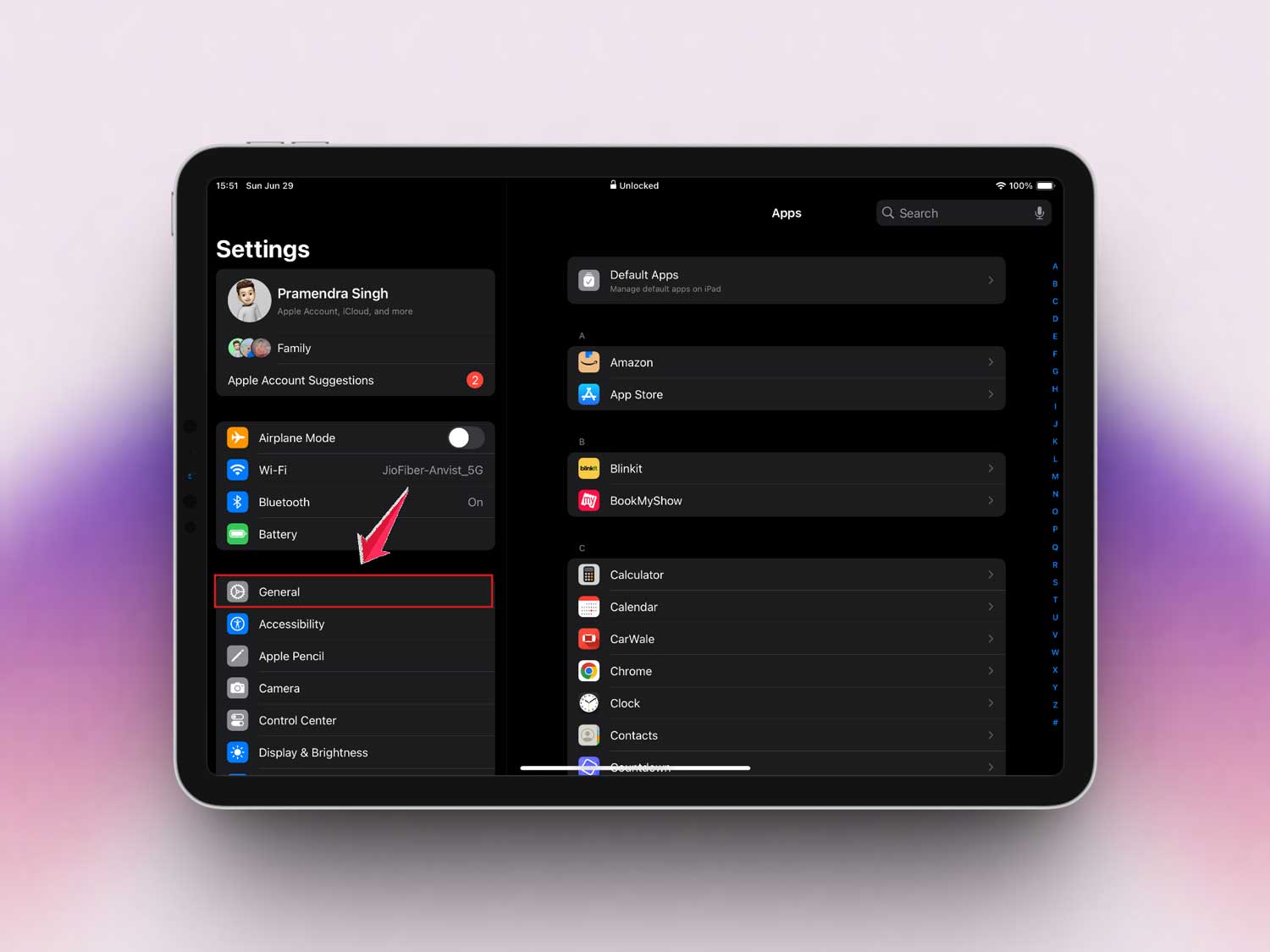
- Then Software Update.

- If there’s an update available, tap Update Now.
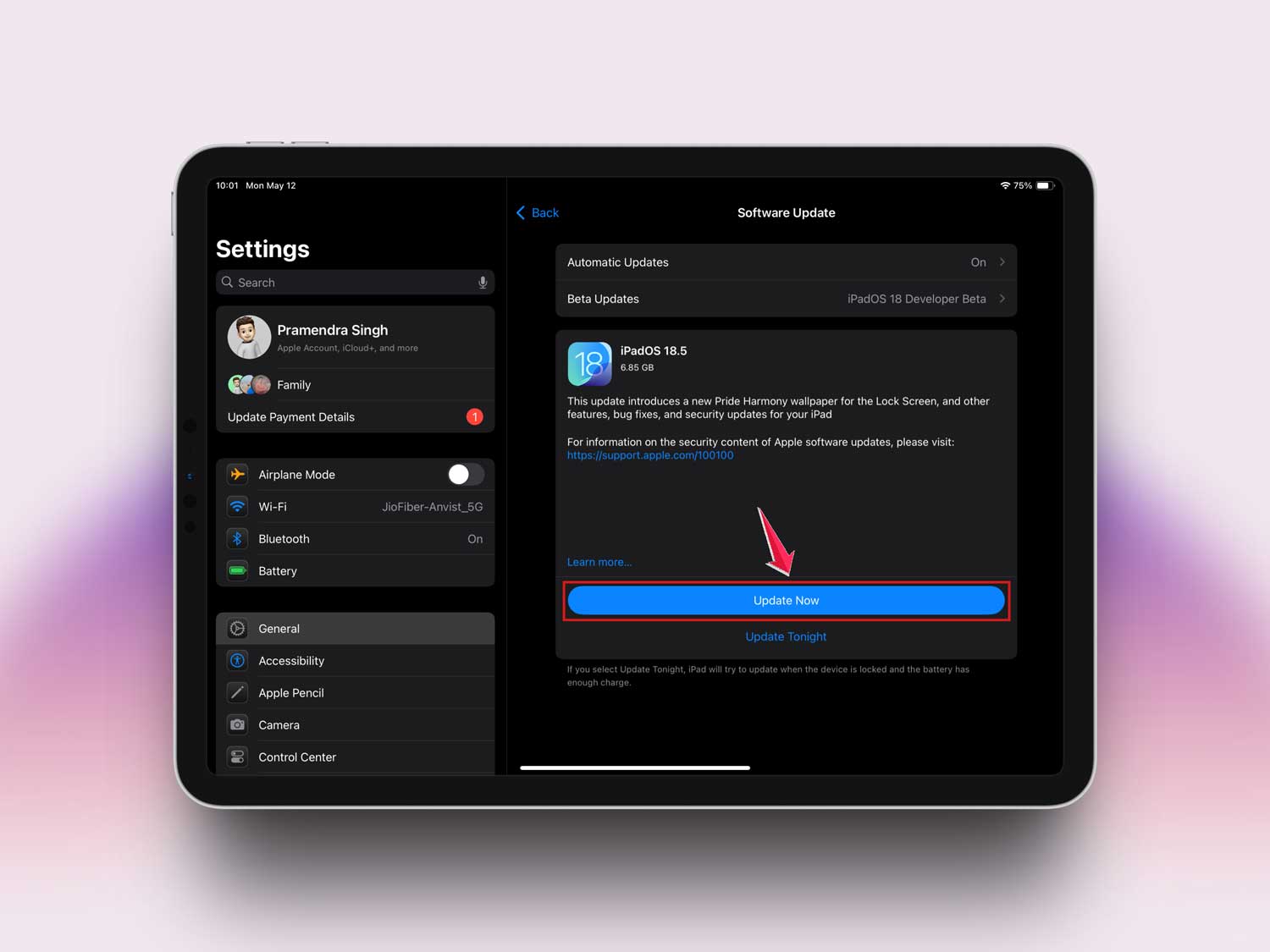
Let the update finish, then try rotating your screen again. Still stuck? Keep going.
#4: Reset all settings
This won’t delete your photos or apps—it just resets your preferences. It’s useful when something deep in the settings is causing trouble.
Here’s how to do it:
- Go to Settings.
- Tap General.
- Then, Transfer or Reset iPad.

- Tap Reset.

- Then choose Reset All Settings.

Your iPad will restart after the reset. Try rotating the screen again.
#5: Check for physical damage
If your iPad took a fall recently, the sensors responsible for rotation might be damaged. Let’s do a quick check.
- Look for any dents or cracks around the corners and near the volume buttons.
- If you’re using a case, remove it to make sure it’s not blocking the sensors.
If everything looks fine but the screen still won’t rotate, you might want to contact Apple Support.
#6: Test using apps that support rotation
Not every app rotates. Some are just built that way. So before you panic, open an app like Safari or YouTube and see if the screen rotates there.
If it works in those apps, the problem might be with the app you were using before. If it still doesn’t rotate, keep going.
#7: Free up storage space
Low storage can make your iPad act weird. If your device is full, it might struggle to run properly.
Try this:
- Delete old apps you don’t use anymore.
- Remove duplicate or blurry photos.
- Clear out large files or downloads.
Once you’ve cleared some space, restart your iPad and try rotating again.
#8: Calibrate the sensors
Sometimes the internal sensors just need a little nudge to get back on track.
Try this:
- Place your iPad on a flat surface.
- Slowly rotate it from portrait to landscape and back a few times.
- Do this gently and hold each position for a second or two.
This can help the sensors recalibrate themselves.
#9: Backup and restore your iPad
This is a bit more advanced, but it can clear out any deep software bugs.
Here’s the process:
- Back up your iPad using iCloud or iTunes.
- Do a factory reset to erase everything.
- Restore your backup during setup.
This gives your iPad a clean slate while keeping your data safe.
#10: Contact Apple Support
If nothing else works, it’s time to reach out for help.
You can:
- Visit an Apple Store.
- Use the Apple Support app.
- Chat with a rep online via Apple’s website.
They’ll run diagnostics and let you know if it’s a hardware issue.
The Takeaway
So, your iPad won’t rotate, and the auto-rotate icon is greyed out? Yeah, that can be super frustrating. But here’s the thing—most of the time, it’s not a big deal.
A simple check of the rotate lock, a quick restart, or updating your iOS can get things working again.
We’ve gone through everything—from checking settings to testing apps, clearing space, and even doing a full reset. The good news? You’ve got options. And most of them are easy.
Just remember, you’re not alone in this. These kinds of glitches happen to everyone, and there’s always a fix. If nothing works, Apple Support is just a few clicks away.
Now it’s your turn—I’d love to hear how it went for you. Did one of these fixes solve your problem? Still stuck? Drop a comment below and let’s talk about it.