You just downloaded an app everyone’s talking about. You’re excited, ready to open it, and then—bam!
Your iPad throws up that annoying message: “Not compatible with this device.” Ugh, right?
That can be super frustrating. But hey, you’re not the only one dealing with this. It happens to a lot of people.
Sometimes, it’s just a small thing getting in the way. Maybe your iPad’s software is a bit behind. Or maybe your iPad is just an older model that can’t handle the newest app features.
It could even be that the app isn’t available in your region. Yep, that’s a thing too. And once in a while, app developers change something that stops it from working on certain devices.
But here’s the good news—you don’t need to give up. Most of the time, there’s a simple fix. You don’t need to be a tech expert to try these out.
I’m going to walk you through what’s going wrong and how you can fix it, step by step. By the end, you’ll be back to using your iPad the way you want. Let’s get into it.
Why Your iPad Says “Not Compatible” and What That Means
Let’s break this down together. First off, the most common reason is your iOS version. Apps often need the latest software to run properly.
If you haven’t updated your iPad in a while, that could be the issue. Developers build apps with new features that only newer iOS versions can support.
Next is your iPad’s hardware. Older iPads are great, but they can’t always keep up with new app demands. Some apps need more power, more memory, or newer chips to work. If your iPad is a few years old, it might just be showing its age.
Then there’s the region issue. Some apps aren’t available in every country. It’s frustrating, but it’s not your fault. It just means the app hasn’t been released in your area yet—or maybe it was removed for some reason.
And finally, app updates can also cause problems. Sometimes, an app that used to work fine suddenly stops being compatible after an update. That’s because the new version might only support newer devices or iOS versions.
So, what can you do? Don’t worry. We’re going to look at each of these issues and fix them one by one. You’ve got this—let’s go.
App Not Compatible With This iPad? Try These Fixes
Alright, time to roll up our sleeves. These fixes are simple, and I’ll guide you through each one. We’ll start with the easiest and most common ones.
#1 Check Your iOS Version
This is the first thing you should do. If your iPad isn’t running the latest version of iOS it supports, that alone could be the problem.
Here’s how you check:
- Open the Settings app.

- Tap on General.
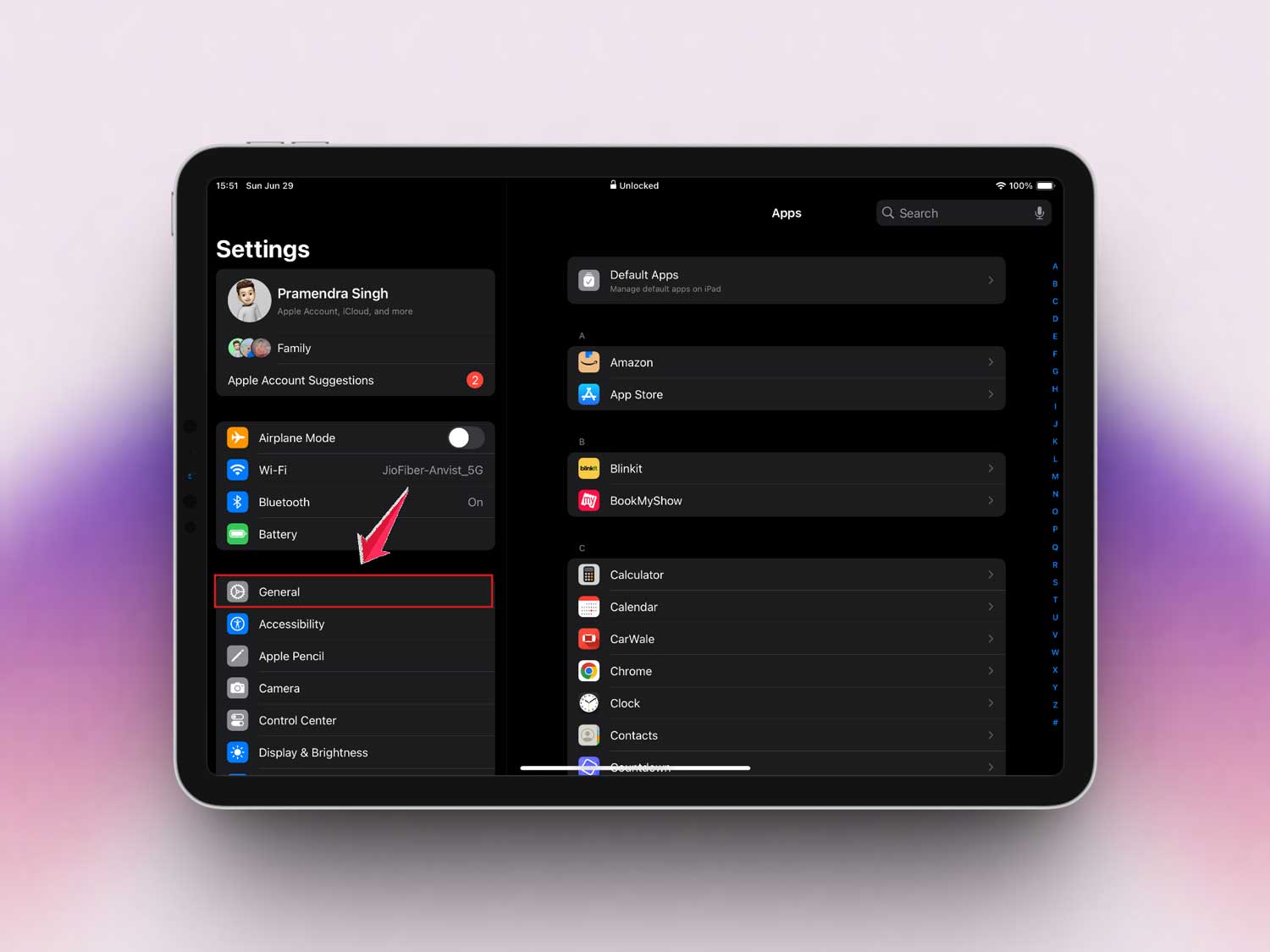
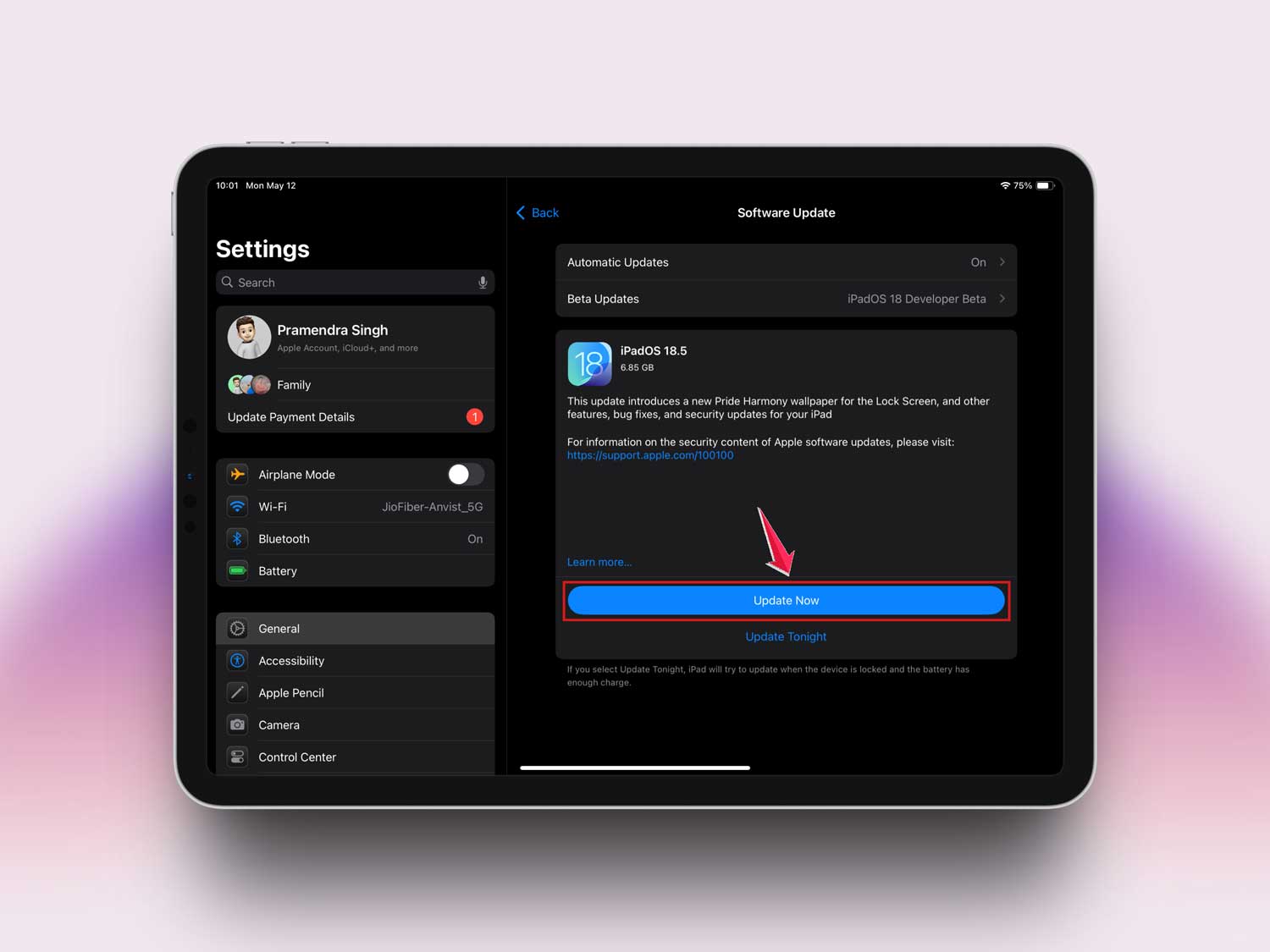
- Then tap Software Update.

If you see an update available, go ahead and install it. It might take a few minutes, but it’s worth it. Newer iOS versions can make apps work that didn’t before.
#2 Update Your iPad
If your iPad is really old, it might not support the latest iOS. But if it does and you haven’t updated in a while, this could help a lot.
To update:
- Go to Settings.
- Tap General.
- Then choose Software Update.
- If you see an option to update, tap it and let the device do its thing. Make sure your iPad is plugged in and connected to Wi-Fi.
#3 Re-check App Requirements
Sometimes it’s not your iPad—it’s the app. Maybe the app needs iOS 16, but your iPad only goes up to iOS 14. That’s something to check.
Here’s what to do:
- Open the App Store.
- Search for the app you want.
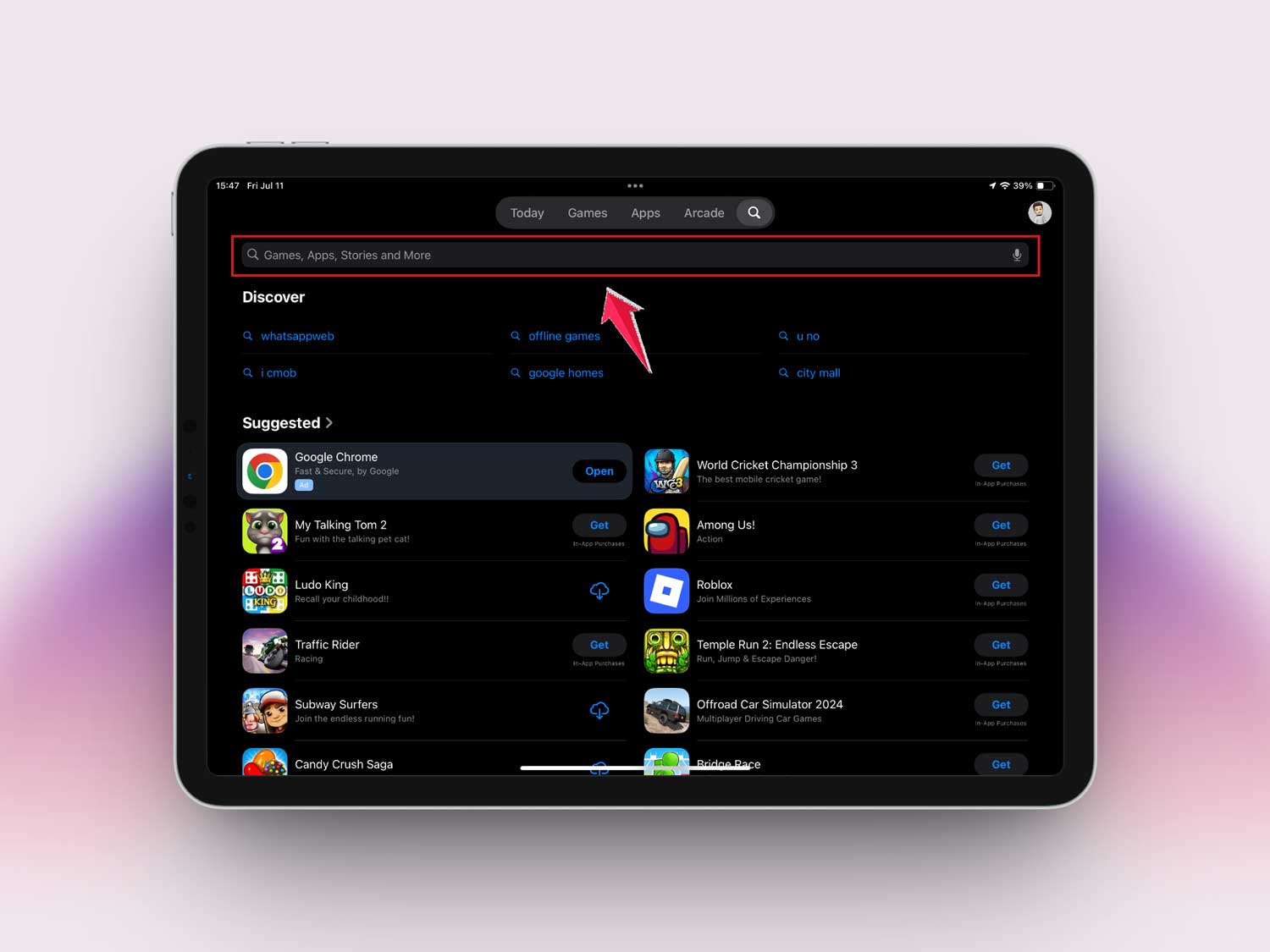
- Scroll down to the Information or Compatibility section.

Check what version of iOS the app needs. If your iPad doesn’t support that version, you might have to look for an alternative app that does the same thing.
#4 Restart Your iPad
This might sound too easy, but trust me, it works more often than you’d think. A quick restart can clear small bugs that stop apps from working.
To restart:
- Hold down the Power button.
- When you see “slide to power off”, swipe it.
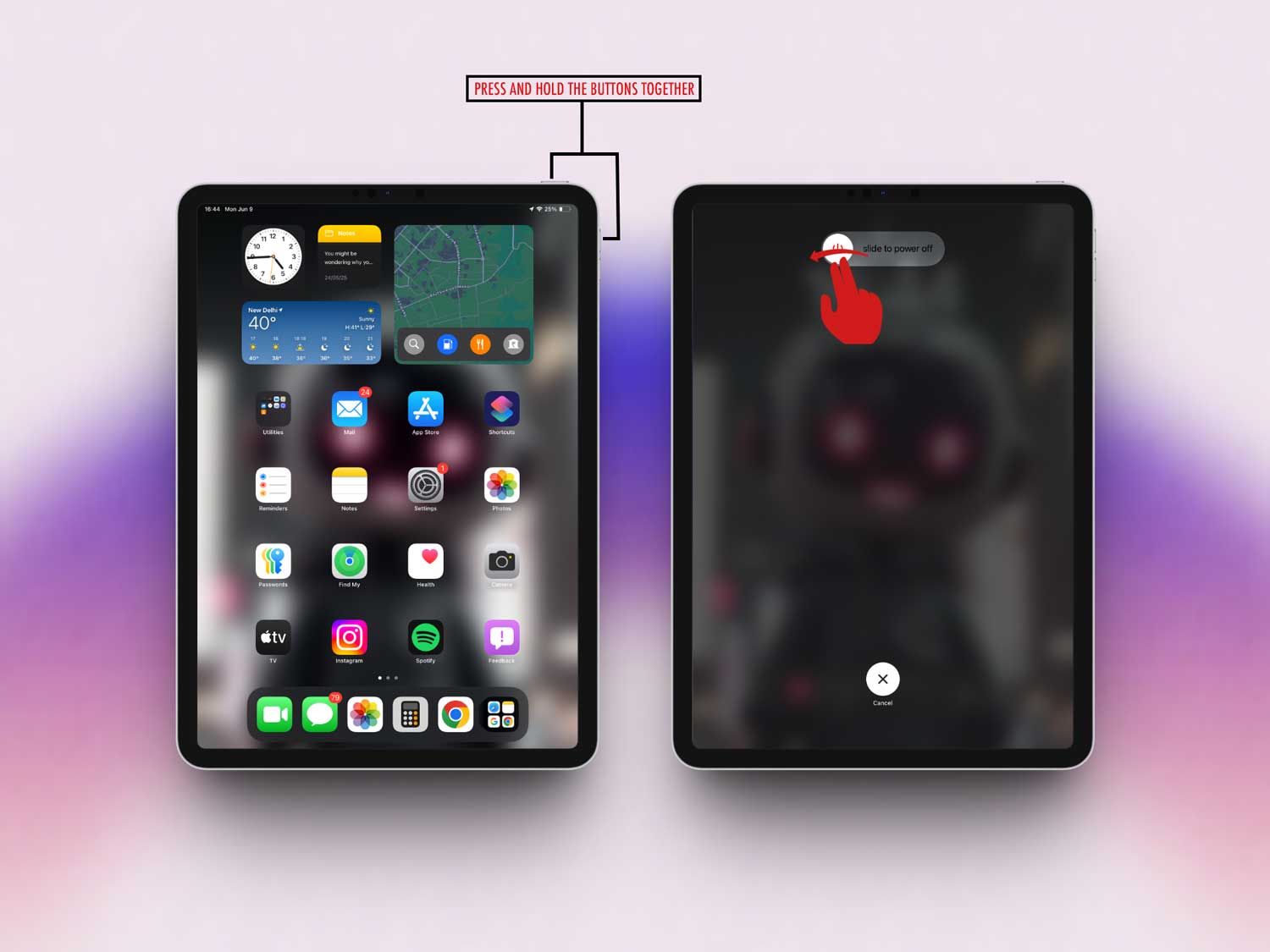
- Wait a few seconds, then press the Power button again to turn it back on.

It’s like giving your iPad a little reset. Try the app again after restarting.
#5 Contact the App Developer
If nothing else works, it’s time to reach out to the people who made the app. They might have a version that works for your iPad or they can tell you if support was dropped recently.
To contact them:
- Open the App Store.
- Go to the app’s page.
- Scroll down and find the Developer Website or Support link.

Send them a short message. Be polite and explain what’s happening. They usually reply with helpful info.
Some Extra Tips Just for You
These extra ideas can also help, especially if you’re still stuck.
1. Keep Your Wi-Fi Strong
A weak internet connection can mess up downloads or updates. Move closer to your router or try switching networks. Make sure your signal is solid.
2. Free Up Some Space
If your iPad is low on storage, it can cause issues. Try deleting unused apps, old photos, or large files. Your iPad needs breathing room to install and run new apps.
3. Use a VPN If Needed
If the app isn’t available in your country, a VPN might help. Use a trusted one to change your location and try downloading the app again. Just be careful—only use safe and well-known VPN services.
4. Clear App Cache
Some apps store a lot of data over time. Clearing the cache can fix bugs and make things run smoother.
To do this:
- Go to Settings.
- Tap General > iPad Storage.
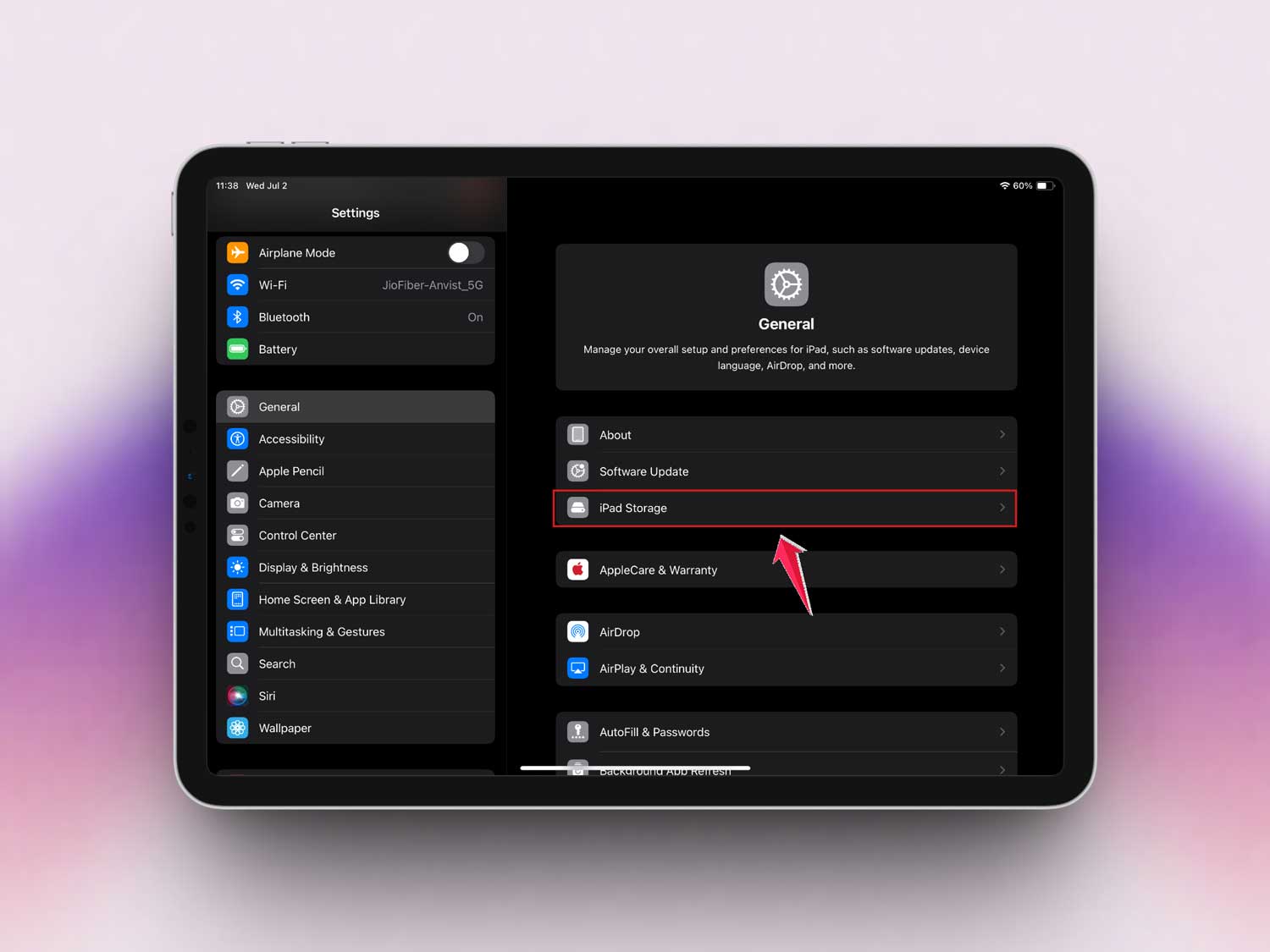
- Find the app and tap it. If there’s an option to Clear Cache, use it.
5. Watch for Developer Updates
Developers often fix issues in newer versions. Follow their social media or check their website to see if a fix is coming soon.
The Takeaway
Getting that “Not Compatible” message on your iPad is frustrating, but it’s usually fixable. Most of the time, it’s just a matter of keeping your iOS up to date, checking the app’s requirements, or doing a quick restart.
You don’t always need to rush out and buy a new iPad.
And if your iPad is older and just can’t run certain apps, that’s okay too. There are often alternative apps that do the same thing. Or maybe it’s time for an upgrade—but only if you really need it.
What matters most is that you now know what to do. Try these steps, take your time, and don’t stress. I’m here to help, and you’ve got this.
Still stuck? Drop a comment and let’s figure it out together.