Ever sat down, ready to listen to music or hop on a call, only to find your AirPods just won’t connect to your Mac? Yeah, that can be really frustrating.
You’re not alone though—this happens to a lot of people. And the good news? Most of the time, it’s nothing serious.
So, what’s going on here? Well, it could be a small Bluetooth glitch. Or maybe your macOS needs an update. Sometimes, the audio settings on your Mac just aren’t picking the AirPods right. And if you’ve got a bunch of other devices nearby, they might be getting in the way too.
Why does this matter? Because we all rely on our AirPods for music, calls, and meetings. If they’re not working, it can really mess up your day. But don’t worry—we’re going to walk through this together, step by step.
By the time you finish reading this, your AirPods should be back to working just fine with your Mac. Let’s jump in and fix this.
What’s causing the connection problem?
1. Bluetooth might be acting up
Sometimes, Bluetooth just stops working the way it should. It might be on, but your Mac doesn’t see your AirPods. Or it tries to connect but just won’t.
Try turning Bluetooth off and back on. It’s a simple move, but it works more often than you’d think.
2. Your Mac software might be outdated
If your Mac isn’t running the latest version of macOS, it might be the reason your AirPods aren’t connecting. Updates often come with important bug fixes, including ones that deal with Bluetooth.
3. Your audio settings could be wrong
Sometimes your Mac is connected to the AirPods, but still plays sound through the speakers. That’s usually because the output device isn’t set to AirPods. You’ll want to double-check that.
4. Other devices might be interfering
Got a lot of Bluetooth devices nearby? That can confuse your Mac. If your iPhone or another device is trying to connect to your AirPods at the same time, it might block your Mac from doing it.
Try turning off Bluetooth on nearby phones, tablets, or other computers and see if that helps.
How to fix your AirPods not connecting to Mac
Alright, now that we know what might be causing the problem, let’s go step by step and fix it. Don’t rush—take each step one at a time, and see what works for you.
#1 Check your Bluetooth settings
Let’s start with the basics. Bluetooth might just need a little nudge.
Here’s how you can check:
- Click the Bluetooth icon on the top-right of your Mac screen.

- Make sure Bluetooth is turned ON.

- Look for your AirPods in the list of devices.
- If you see them, click on it to Connect.

- Now go to System Settings > Sound.
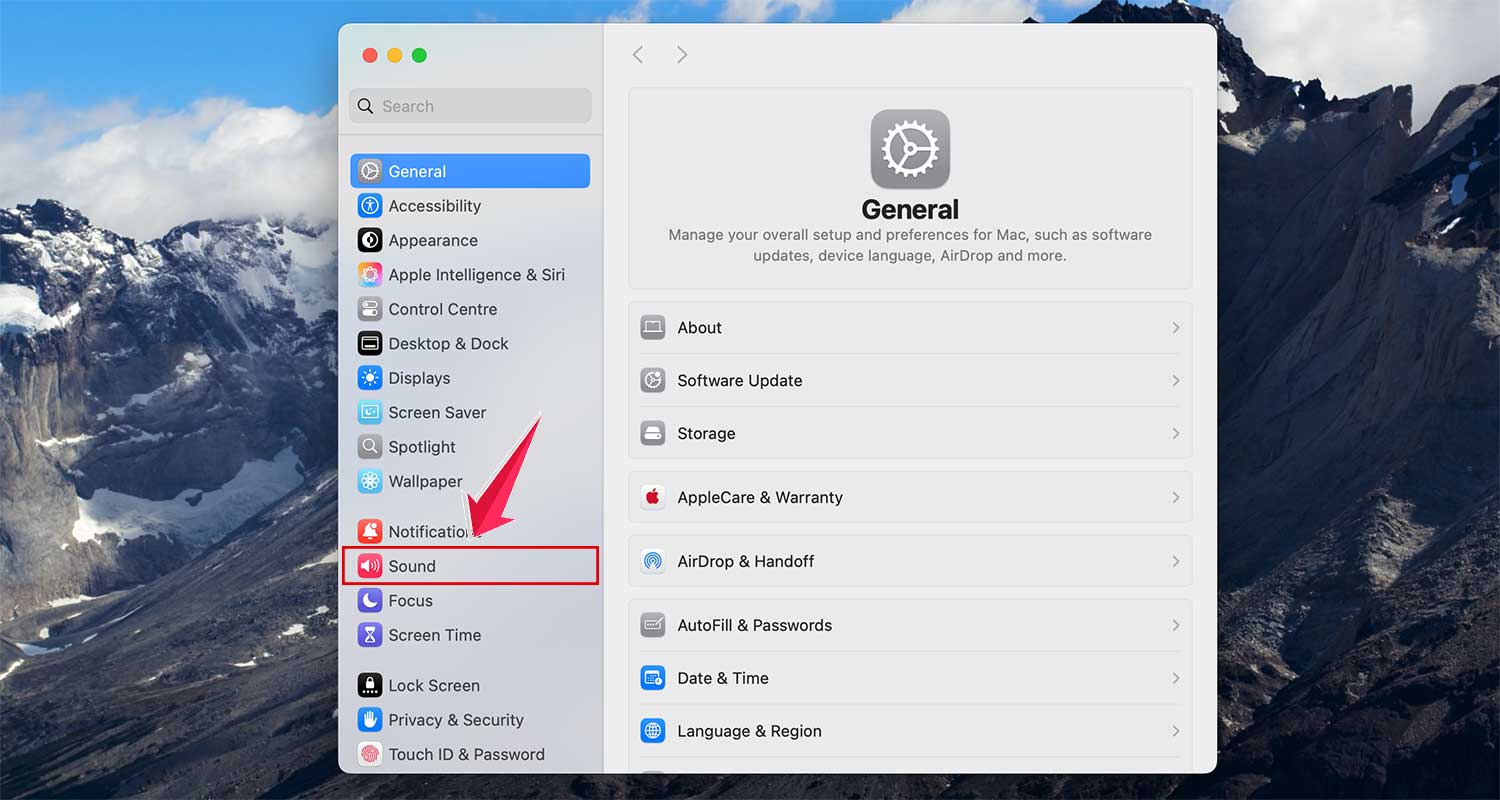
- Make sure your AirPods are selected as the Output Device.

Still not showing up? Turn Bluetooth off, wait five seconds, and turn it on again. That quick reset might do the trick.
#2 Update your macOS
Updates aren’t just for new features—they fix problems too. If your Mac is behind on updates, it could be causing Bluetooth issues.
Follow these steps:
- Click on the Apple menu at the top-left of your screen.
- Go to System Settings.

- Select General > Software Update.

- If an update is available, click Upgrade Now.

After the update, restart your Mac and try connecting your AirPods again.
#3 Reset your AirPods
Still no luck? Let’s reset the AirPods completely. This clears out any old or broken connections.
Here’s what you do:
- Click on Bluetooth in System Settings on Mac.
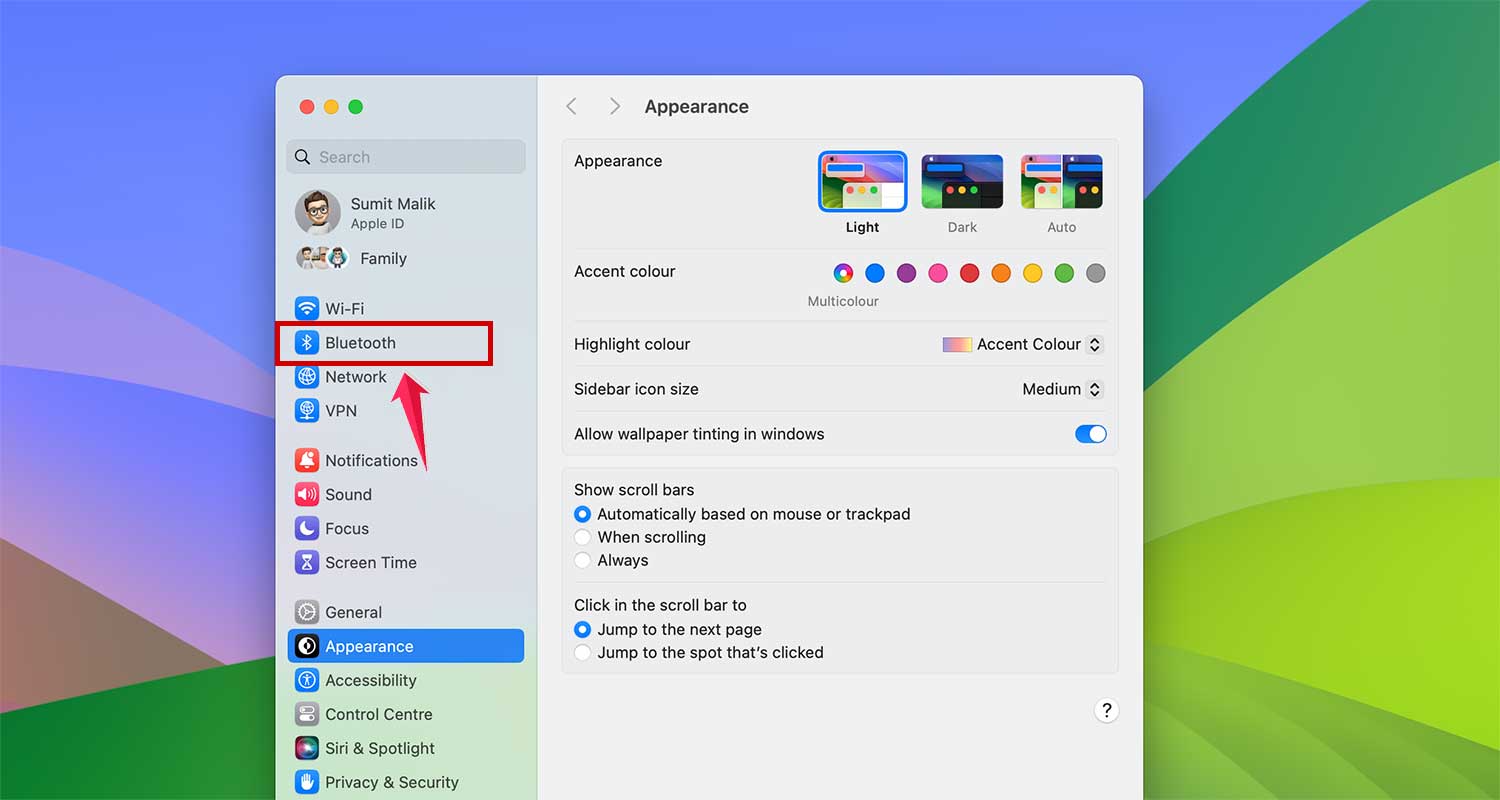
- Find your AirPods and click on the “i” button.

- Now choose Forget This Device.

- Put both AirPods in the case and keep the lid open.
- Press and hold the button on the back of the case until the light turns flashing white.
Now try pairing them again from your Mac’s Bluetooth settings.
#4 Restart your Mac
Sometimes, your Mac just needs a quick break. Restarting can help clear out any temporary bugs.
- Click the Apple menu in the top-left corner.
- Select Restart.

Once it boots back up, try reconnecting your AirPods.
#5 Turn off other nearby Bluetooth devices
If you’ve got a lot of gadgets with Bluetooth turned on, they could be getting in the way. Your AirPods might be trying to connect to your iPhone or iPad instead.
Here’s what you can do:
- Turn off Bluetooth on other nearby devices.
- You can also disconnect AirPods from those devices manually if needed.
This gives your Mac a better chance to connect without interference.
Need more help? Try these extra tips
Okay, if you’re still having trouble or just want to make your AirPods experience smoother, here are some helpful tricks.
#1 Clean your AirPods
Yes, dirt can actually mess with the connection. If your AirPods are dirty, the sensors might not work properly.
Use a soft, lint-free cloth to wipe them down gently. Avoid using any liquids or sharp tools.
#2 Check battery levels
Low battery? That could be the issue too.
Make sure both your AirPods and your Mac have enough charge. If either one is low, try charging them before connecting again.
#3 Try one AirPod at a time
This might sound weird, but it sometimes works.
Take one AirPod out of the case and try connecting with just that one. If it works, add the second one. It’s not perfect, but it’s a clever little workaround.
#4 Manually choose AirPods as the output
Sometimes your Mac connects, but still doesn’t play sound through the AirPods.
Here’s how to fix that:
- Click the Apple menu > System Settings.
- Go to Sound.
- Select your AirPods under Output from the list.
Now your Mac knows to send the sound straight to your AirPods.
#5 Reset your Mac’s Bluetooth module (Advanced)
Only try this if nothing else worked. This resets all Bluetooth connections on your Mac.
- Press and hold Shift + Option and click the Bluetooth icon in the menu bar.
- Choose Reset the Bluetooth Module.
- Restart your Mac.
Then try pairing your AirPods again like it’s the first time.
The Takeaway
When your AirPods won’t connect to your Mac, it isn’t very pleasant—we get it. But most of the time, it’s something simple like Bluetooth being off, software needing an update, or too many devices nearby.
Now that you’ve got all these fixes and tips, you’re fully armed to handle the problem. Start with the easy stuff. Restart your Mac.
Check the settings. Reset the AirPods if needed. And if nothing works, hey, that’s what Apple Support is for.
Give these fixes a try and see how it goes. If it worked for you, great! And if you’ve got questions or want to share your experience, drop a comment below. We’d love to hear from you.