Did you know that over 85% of video viewers watch content with subtitles at least some of the time? That’s a lot of people relying on those little words at the bottom of their screens!
When you’re trying to enjoy your favorite shows or movies using AirPlay, it can be frustrating when the subtitles don’t show up.
This problem often occurs because of compatibility issues between different devices or settings that aren’t quite right. It’s a common hiccup in the otherwise seamless world of streaming.
Subtitles are more than just a convenience. They’re essential for many viewers.
Whether you’re watching foreign language content, need assistance with hearing, or just prefer to read along, missing subtitles can really put a damper on your viewing experience.
Don’t worry, though. In this article, you’ll learn several simple ways to fix this issue. We’ll walk you through some easy steps to get those subtitles back on your screen where they belong.
Why your subtitles might be hiding during AirPlay

When you’re trying to enjoy your favorite show with AirPlay, it can be frustrating when the subtitles decide to play hide and seek. Let’s look at some reasons why this might happen:
1. Subtitle settings are turned off. Sometimes, the simplest explanation is the right one. Your subtitles might be invisible because they’re turned off in your settings. It’s an easy thing to overlook, but it’s often the culprit.
2. Closed captioning is switched off. Closed captioning (CC) or Subtitles for the Deaf and Hard of Hearing (SDH) might be switched off on your device. If these settings are disabled, your subtitles won’t show up.
3. Subtitle format doesn’t match. Think of it like a puzzle piece that won’t fit. This often happens if you’re trying to AirPlay Google Photos to TV with custom subtitles.
4. Using custom subtitles instead of built-in ones. If you’re trying to use your own subtitles instead of the ones that come with the show, you might run into problems. AirPlay sometimes has trouble with these custom subtitles.
5. Outdated software. Just like your phone needs updates to work properly, so do your AirPlay devices. If your software is out of date, it might not display subtitles correctly.
Understanding these potential issues is the first step to solving your subtitle problem.
How to fix subtitles that don’t show up when you AirPlay
Let’s now walk through some easy solutions to get your subtitles back on screen.
1. Turn on subtitles
Let’s start with the simplest fix:
- On your iPhone, iPad, or Mac, make sure subtitles are turned on.
- If they’re already on, try turning them off and on again.
- Check if this solved the problem.

2. Enable closed captions
If that didn’t work, let’s make sure your device is set up to show closed captions:
For iPhone/iPad:
- Go to Settings > Accessibility.

- Scroll to Subtitles & Captioning.
- Turn on Closed Captions + SDH.
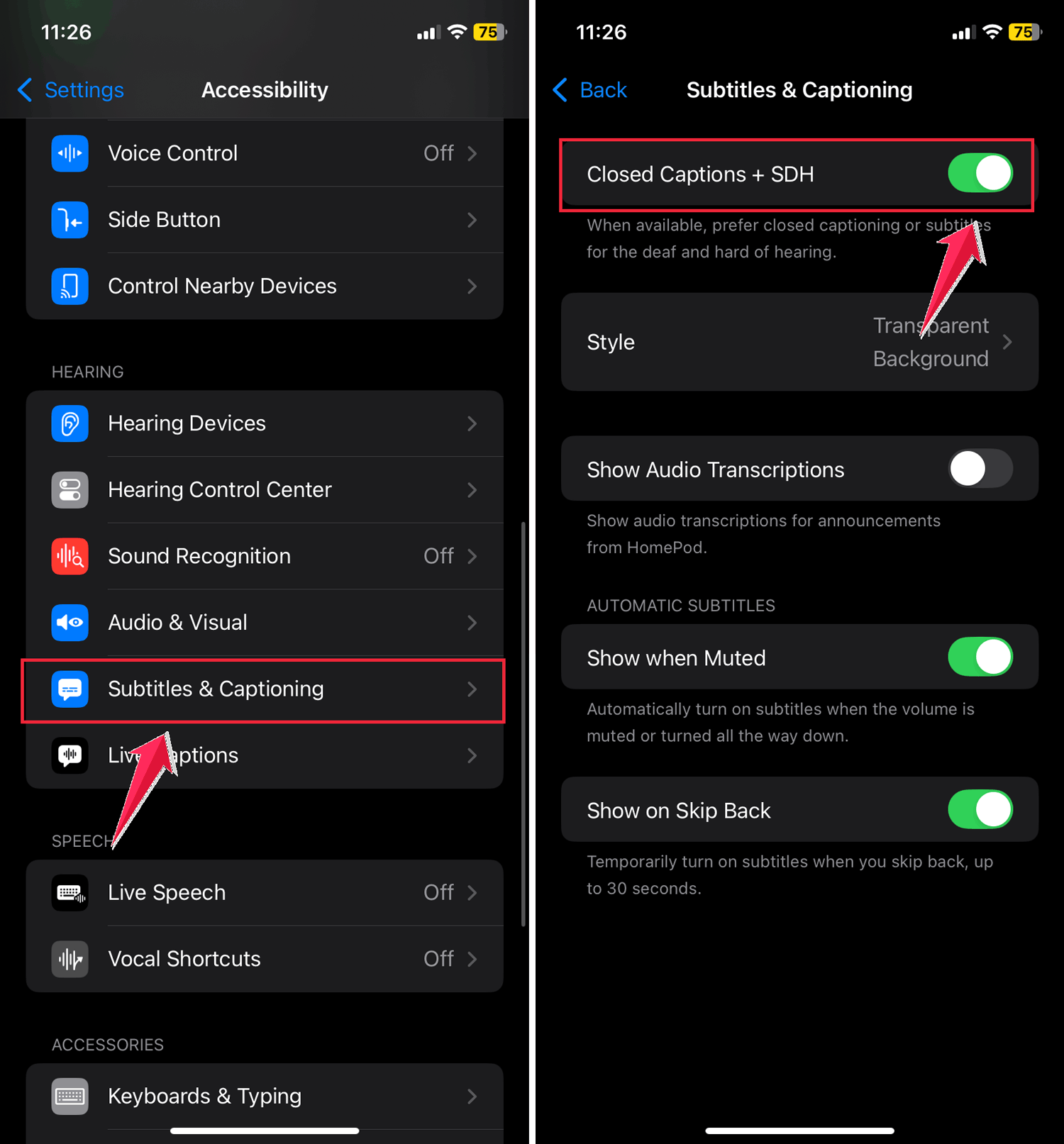
You can also customize how your subtitles look by tapping Style.
For Mac:
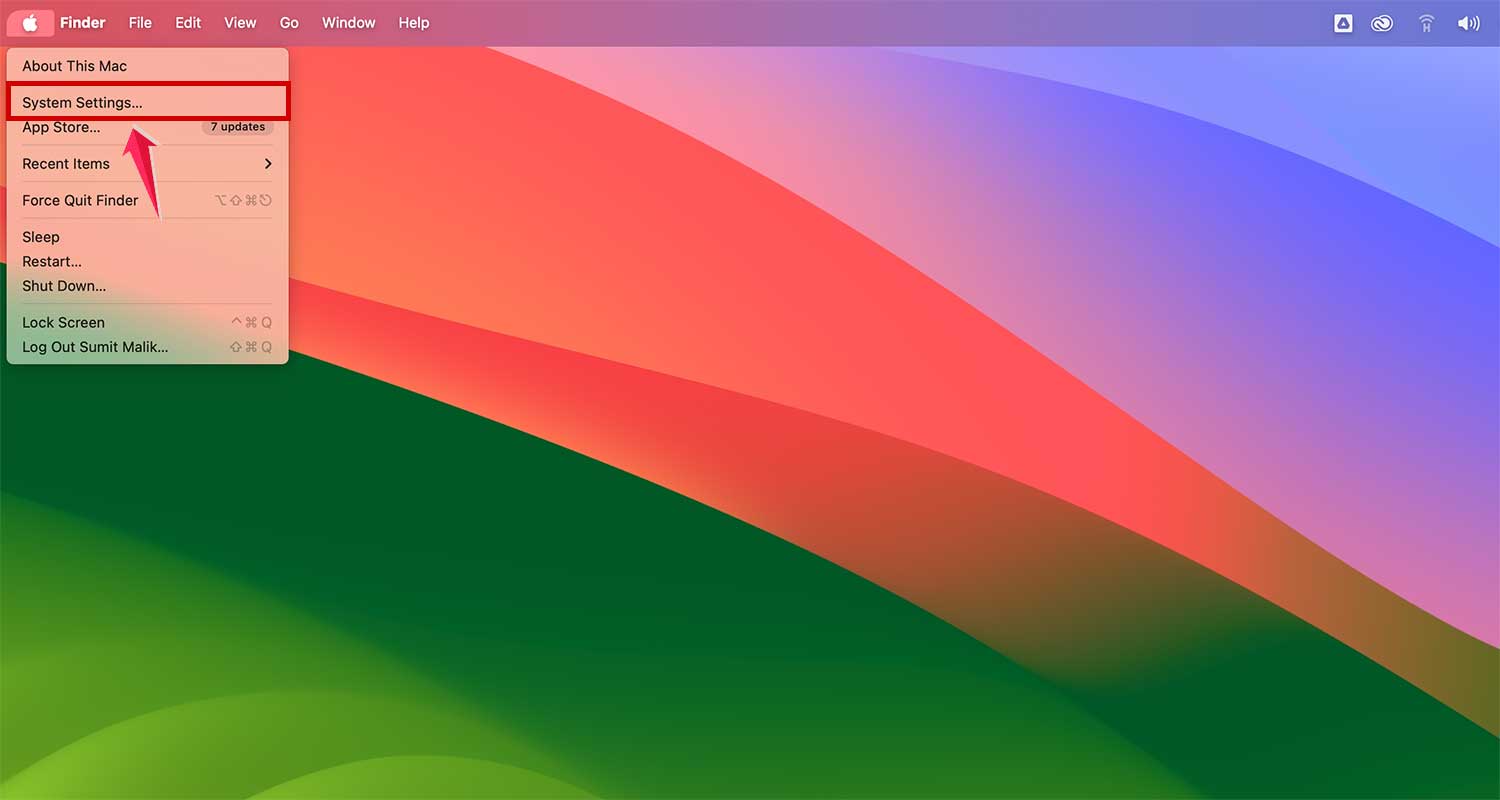
- Click the Apple menu.

- Tap on the System Settings.
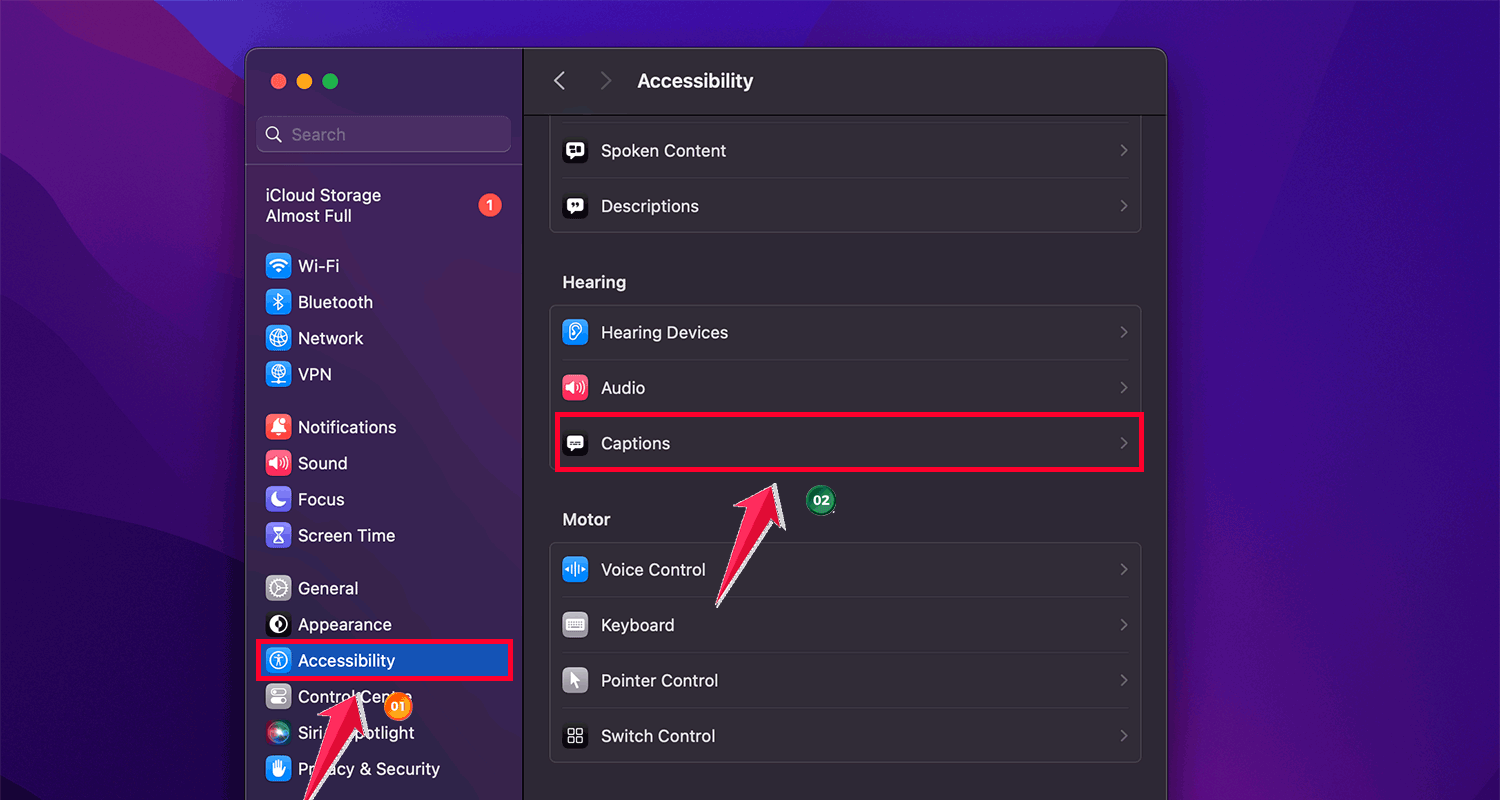
- Go to Accessibility > Captions.
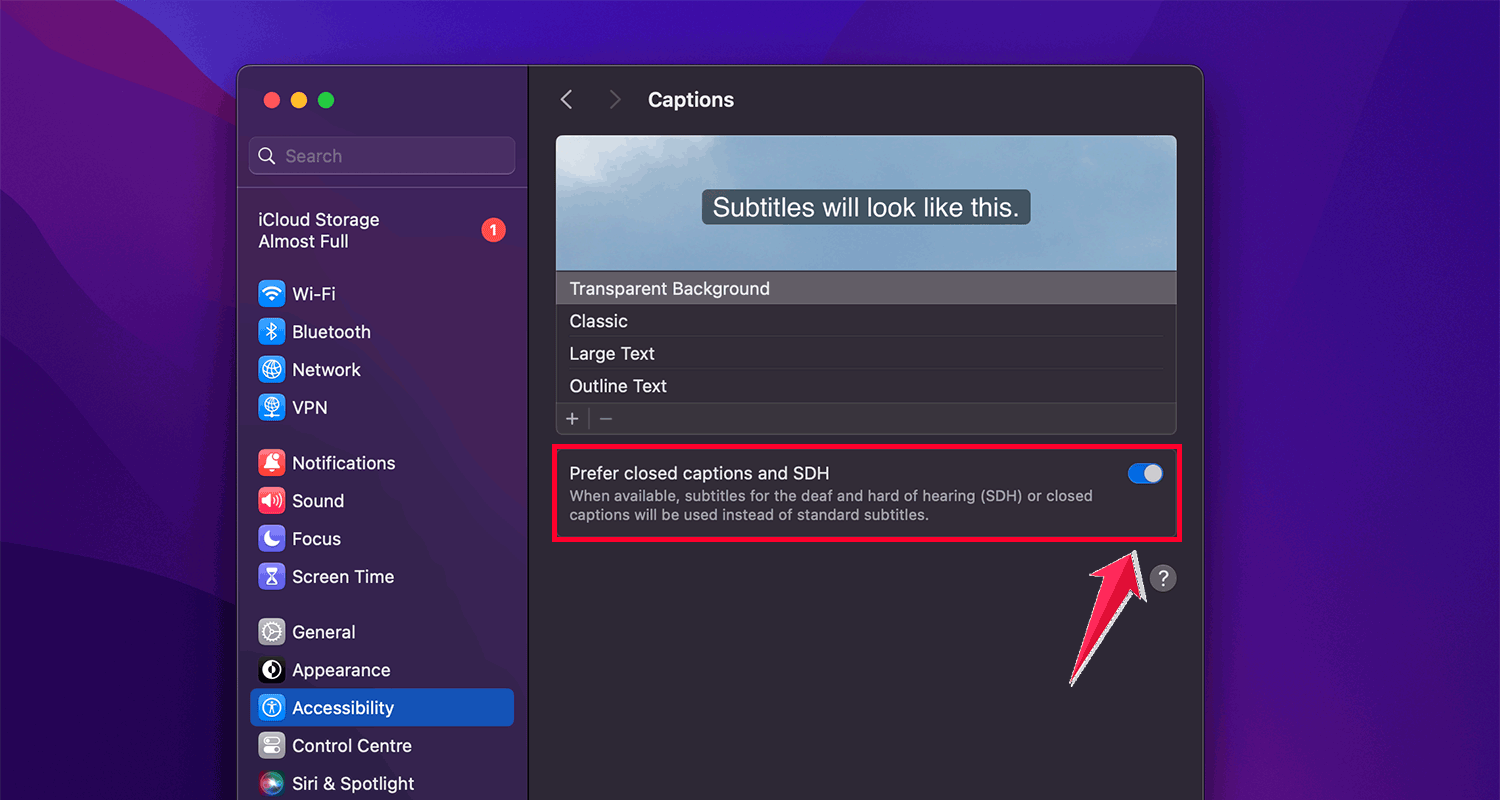
- Toggle on Prefer Closed Captions and SDH.
3. Use built-in subtitles
AirPlay works best with subtitles that come with your streaming app. Here’s why:
- AirPlay prefers built-in subtitles from apps like Netflix or Hulu.
- It doesn’t work well with other subtitle formats added from outside sources.
- If you’re using an app without its subtitles, AirPlay might not show them.
So, stick to the subtitles that come with your streaming service for the best results.
4. Update your devices
Keeping your devices updated can solve many issues, including subtitle problems. If you’re using a smart TV, you may also need to fix AirPlay lagging on LG TV after updating:
For iPhone/iPad:
- Go to Settings > General > Software Update.
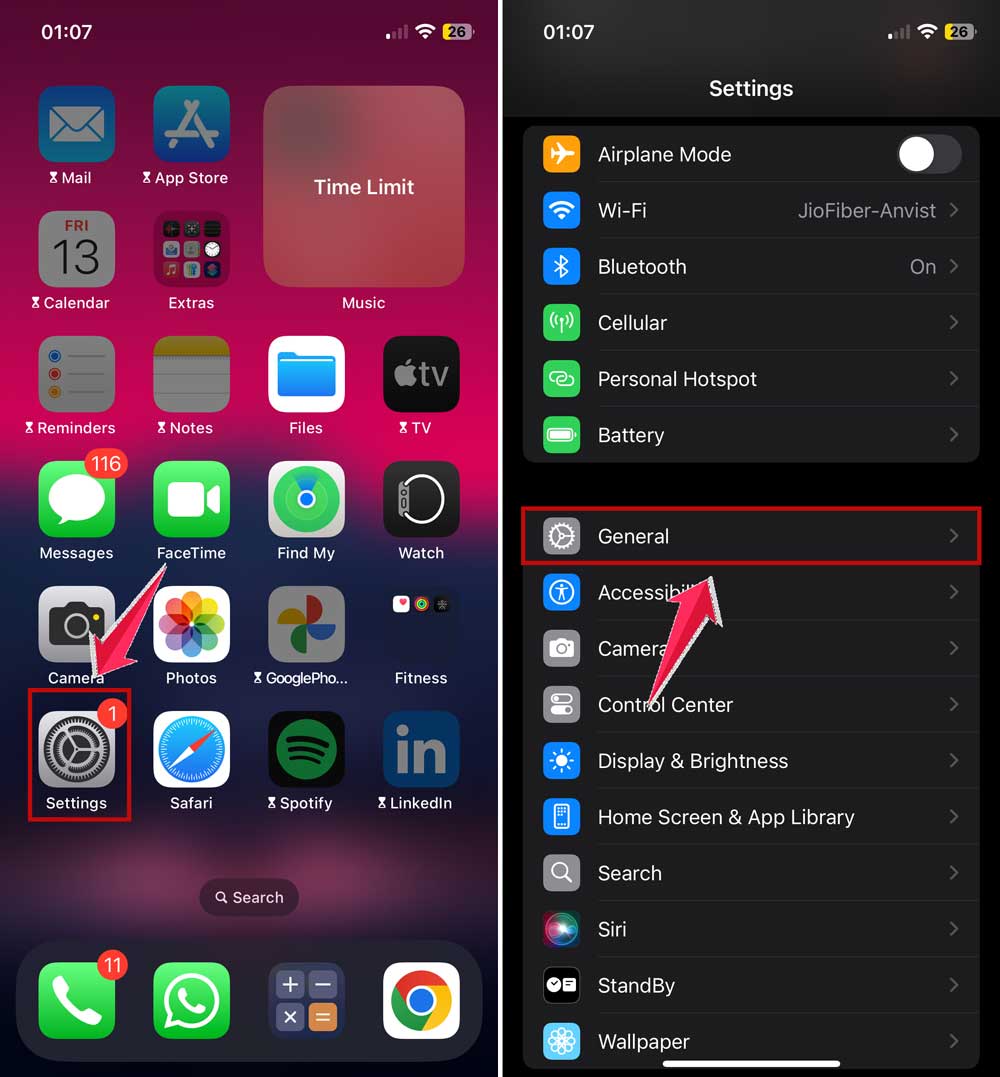
- If there’s an update, tap Download and Install.

For Mac:
- Click the Apple menu > System Settings > Software Update.
- If there’s an update, click Upgrade Now.

For Apple TV:
- Go to Settings > System > Software Updates.
- Select Update Software if available.

For other smart TVs:
- Press the Home button on your remote.
- Go to Settings > Support > Software Update.
- Select Update Now if available.
For Samsung TVs, you can also try turning off AirPlay and turning it back on.
5. Restart your devices
Sometimes, a simple restart can fix subtitle issues:
For iPhone/iPad:
- Press and hold the Side button and either Volume button until the power off slider appears.
- Drag the slider to turn off your device.
- Wait about 30 seconds.
- Press and hold the Side button until you see the Apple logo.

For Mac:
- Click the Apple menu > Restart.

For Apple TV:
- Go to Settings > System > Restart.

For other smart TVs:
- Unplug the TV from the wall socket.
- Wait a few minutes.
- Plug it back in and turn it on.
Restarting can clear temporary glitches and might fix not just subtitle issues, but also any sound problems you’re having with AirPlay.
6. Check app-specific settings
Some streaming apps have their own subtitle settings:
- In Netflix, look for the speech bubble icon during playback to adjust subtitle settings.

- For YouTube, click the gear icon in the video player and look for Subtitles/CC.

- In Prime Video, use the speech bubble icon or look in the app’s settings for subtitle options.
Always check the specific app you’re using for any unique subtitle settings.
7. Use AirPlay mirroring
If nothing else works, try mirroring your entire screen. This is especially handy if you’re trying to AirPlay Safari from iPhone or apps that have unique subtitle settings:
- On your iPhone or iPad, swipe down from the top-right corner to open Control Center.
- Tap Screen Mirroring.
- Select your AirPlay-compatible device.
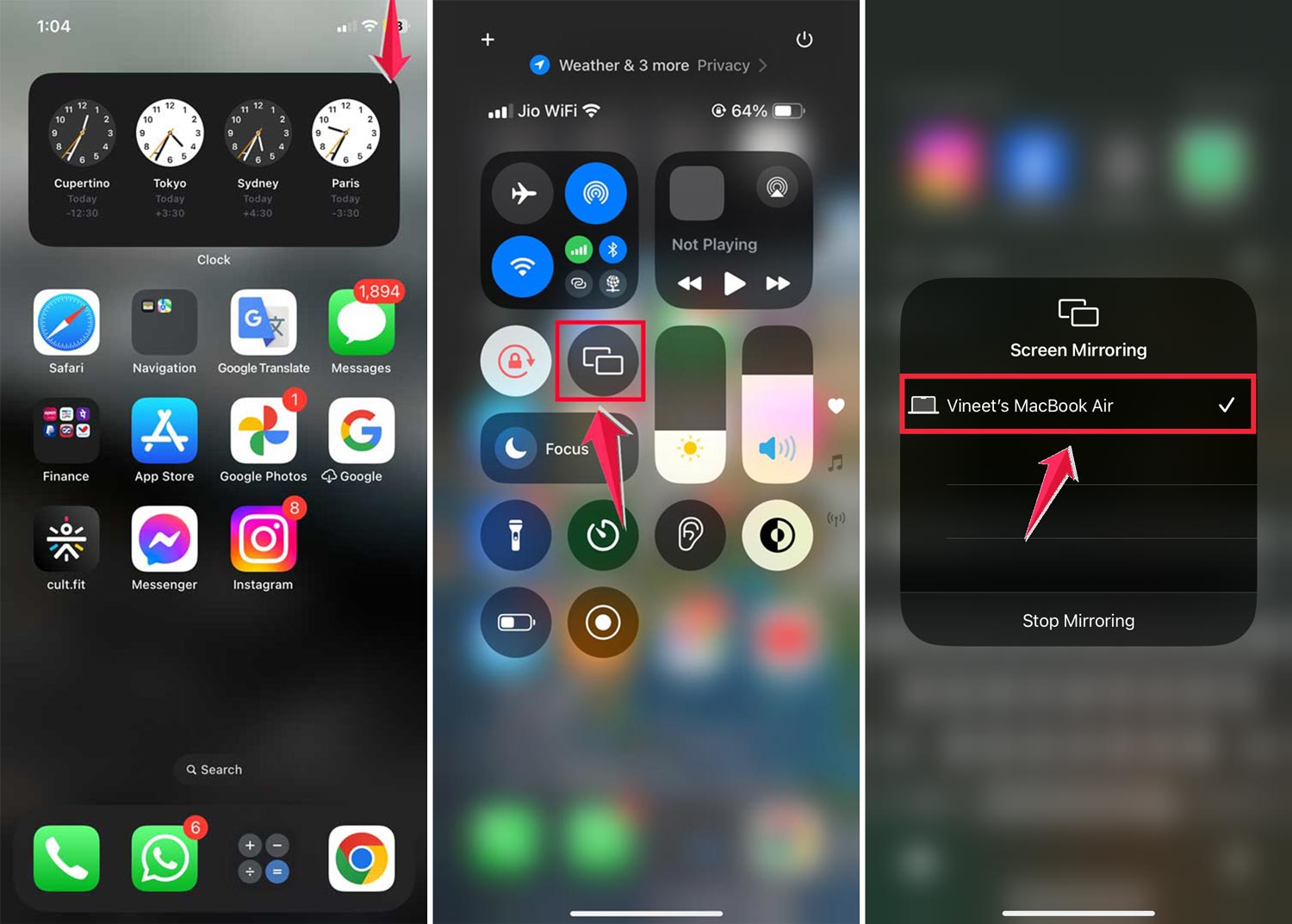
This will display everything on your device’s screen, including subtitles.
Remember, solving tech issues often takes a bit of trial and error. If one method doesn’t work, don’t get discouraged. Try the next one, and you’ll likely find a solution that brings those subtitles back to life. Happy watching!
The takeaway
Struggling with disappearing subtitles when using AirPlay can put a damper on your viewing experience. But don’t worry. It’s often an easy fix.
Remember, the simplest solutions often work best. Start by checking your subtitle settings and making sure your devices are up to date. If that doesn’t do the trick, try restarting your devices or using the built-in subtitles from your streaming app.
Contrary to what you might think, AirPlay issues aren’t always about complex tech problems.
Sometimes, it’s just a matter of tweaking a few settings or giving your devices a quick refresh. If you’re facing broader issues, like why AirPlay keeps disconnecting, addressing those can also improve your overall streaming experience.
The most important thing is not to give up. With the tips you’ve learned, you’re well-equipped to tackle subtitle troubles. So go ahead, fire up that foreign film or your favorite series, and enjoy every word. Happy streaming!
We’d love to hear about your AirPlay experiences. Drop a comment below and share your story!