Have you ever had AirPlay suddenly stop working while you’re watching something? It’s pretty frustrating, isn’t it? You’re not alone in this.
Lots of people have the same problem. In fact, over 100 people have talked about it on Apple’s help forums.
AirPlay can disconnect for different reasons. Sometimes, it’s because of your internet connection. Other times, it might be because of how your device is set up.
No matter why it’s happening, it can really ruin your viewing experience. (And if you’re seeing a black screen while using AirPlay, that could be another sign of these issues.)
But here’s the good news: you can fix this problem. We’ve found 12 simple ways to stop AirPlay from disconnecting. In this article, you’ll learn how to keep your AirPlay working smoothly.
How to solve AirPlay disconnection problems: 12 simple fixes
Are you tired of AirPlay cutting out on you? Don’t worry, you’re not alone. Many Apple users face this frustrating issue.
But here’s the good news: you can fix it! I’ve put together 12 easy solutions to keep your AirPlay connection stable. Let’s dive in and get your streaming back on track.
1. Restart your device
Sometimes, the simplest solution is the most effective. When AirPlay keeps disconnecting, try turning your device off and on again. This can clear up minor glitches that might be causing the problem.
Here’s how you can restart your Apple TV:
- Go to the Settings menu on your Apple TV.
- Find and click on System.
- Hit the Restart button.
If you prefer, you can also unplug your Apple TV for about five minutes, then plug it back in. This works like a refresh button for your device.
Remember, you can use this restart trick for your iPhone, iPad, Mac, or even your Smart TV. If your Mac has Wi-Fi but no actual internet access, that could be related.
2. Turn off Auto-Lock
The Auto-Lock feature on your device might be secretly causing your AirPlay problems. Here’s how you can switch it off:
- Open Settings on your iPhone or iPad.
- Tap on Display & Brightness.
- Click on Auto-Lock and set it to Never.

Why does this matter? Auto-Lock is like a timer that locks your device and pauses background activities, including AirPlay, if you don’t touch your screen for a while.
By setting it to “Never,” your device stays awake and keeps AirPlay running smoothly, no matter how long you’re watching or listening.
3. Turn off Sleep Mode
Sleep Mode can also interfere with your AirPlay session. Here’s how to turn it off:
- Swipe down to bring up the Control Center on your iPhone.
- Look for the bed icon and tap it to turn off Sleep Mode.
- Alternatively, tap on Focus and then select Sleep Mode to switch it off.

This should keep your device awake and ready for AirPlay. If Sleep Mode was already off and you’re still having trouble, don’t worry. We’ve got more solutions coming up.
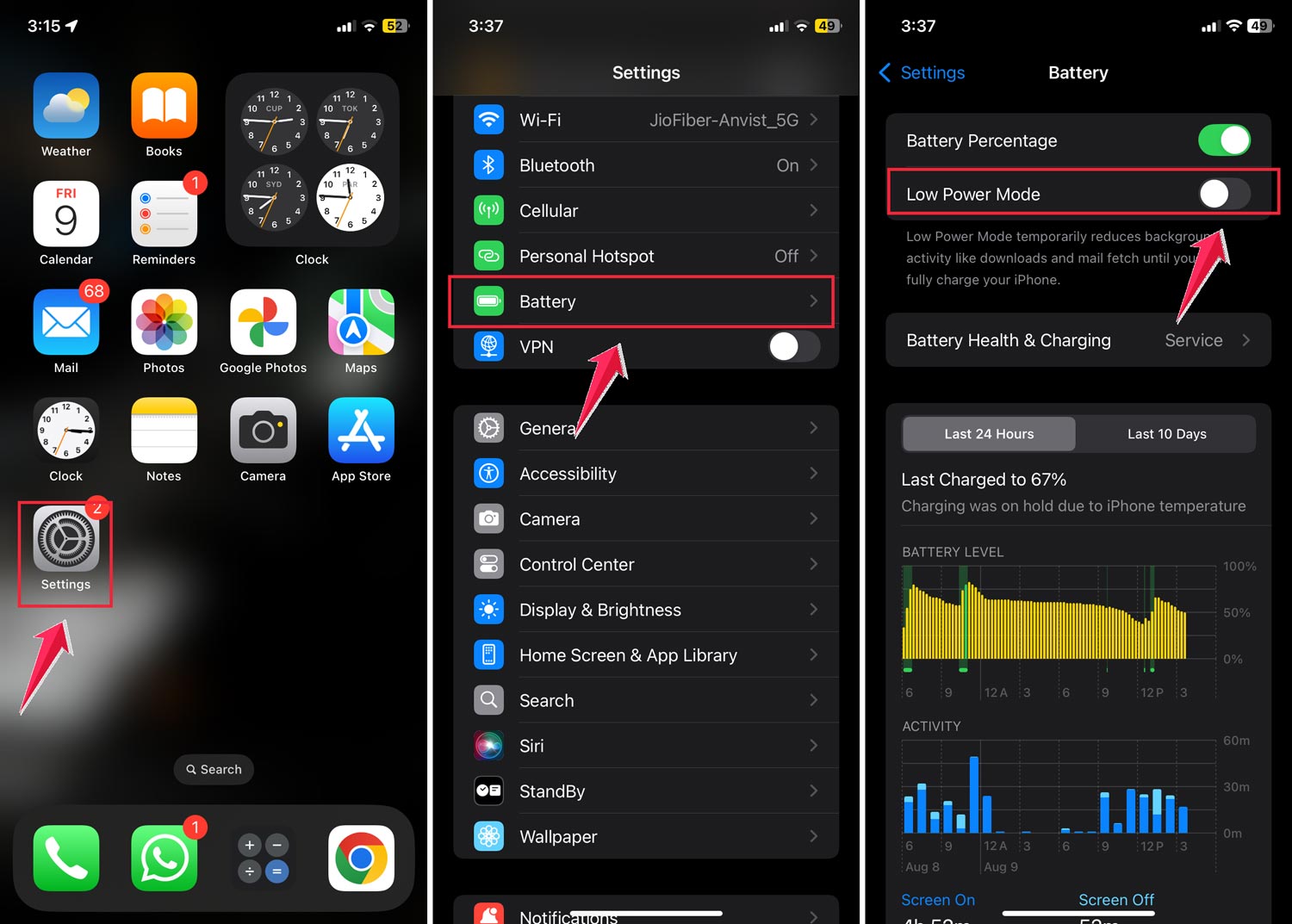
4. Turn off Low Power Mode
Low Power Mode on your iPhone or Mac could be the sneaky culprit behind your AirPlay issues. When it’s on, your device might stop some background tasks, including AirPlay. Let’s wake it up:
On your iPhone:
- Open the Control Center.
- Tap the Battery icon to turn off Low Power Mode.

If you don’t see the Battery icon in Control Center:
- Go to Settings.
- Tap Battery.
- Switch off Low Power Mode.
On your Mac:
- Click the Battery icon at the top of your screen
- Select Battery Settings

- Choose Never from the Low Power Mode dropdown

5. Check device compatibility
Before we go further, let’s make sure your devices can actually use AirPlay. Not all devices support it, so it’s important to check.
Ensure your Apple TV or smart TV is AirPlay 2-compatible. This is crucial if you want to cast photos, music, or videos from your iPhone, iPad, or Mac.
If you’re trying to AirPlay something specific, like Netflix, and it’s not working, here’s what to do when AirPlay won’t work with Netflix.
6. Check your internet connection
AirPlay needs a good internet connection to work properly. If your Wi-Fi is weak or unstable, AirPlay might disconnect.
Both your device and the TV need to be on the same Wi-Fi network, and this network needs to be strong and stable.
Take a moment to check your Wi-Fi connection. If everything looks good there, let’s move on to the next step.
7. Use an AirPlay-supported app
Here’s something you might not have considered: the app you’re using needs to support AirPlay. If it doesn’t, AirPlay won’t work no matter what you do.
Make sure you’re using an app that’s compatible with AirPlay. You can usually find this information in the app’s settings.
If your current app doesn’t support AirPlay, try finding an alternative that does. Not all apps support AirPlay.
If your current app doesn’t, try switching to one that does. For example, you can AirPlay Instagram Reels to TV with ease if the app supports it.
8. Check connectivity settings
To get AirPlay working, your device needs to be ready to communicate. This means making sure both Bluetooth and Wi-Fi are turned on.
Here’s a quick checklist:
- Turn on Bluetooth: This opens the door for AirPlay to work.
- Turn on Wi-Fi: This ensures your device is connected to the network.
If you want to use AirPlay without Wi-Fi, you can try peer-to-peer AirPlay. Create a Wi-Fi hotspot from your device and connect your TV to this network.
If all this still doesn’t work, consider using Ethernet cables for a more stable connection.
9. Use 2.4GHz Wi-Fi
You might have heard about 5GHz Wi-Fi. It’s fast, but sometimes it doesn’t play well with all devices, especially when it comes to AirPlay.
Here’s a pro tip: try switching to a 2.4GHz Wi-Fi network. It might be slower, but it’s often more reliable for some devices and uses less power.
10. Connect to Ethernet instead of Wi-Fi
Still, having trouble with Wi-Fi? You can go old school and use Ethernet cables. It’s like having a direct line. More stable and faster.
Just plug your Apple TV or AirPlay 2-compatible smart TV into the Ethernet, and make sure your iPhone is on the same Wi-Fi network.
This could be the key to fixing your AirPlay disconnecting issue.
11. Change the resolution
Sometimes, fixing AirPlay issues is all about getting the resolution right. If your iOS device and Apple TV are using different resolutions, things can get mixed up. Let’s make sure they’re on the same page:
For Apple TV 4K or Apple TV HD:
- Go to Settings on your Apple TV.
- Click on AirPlay.
- Find AirPlay Display Underscan and set it to Auto.
For Apple TV (2nd/3rd Generation):
- Open Settings.
- Navigate to Audio & Video.
- Select Adjust for AirPlay Overscan and change it to Auto.
These settings help your Apple TV figure out the best way to show what’s on your iOS device.
12. Update your Apple devices
Just like you need to learn new things to keep up with the world, your Apple devices need updates to work their best, especially with features like AirPlay.
If your device is running on an old version, AirPlay might not work smoothly. Let’s make sure everything’s up-to-date:
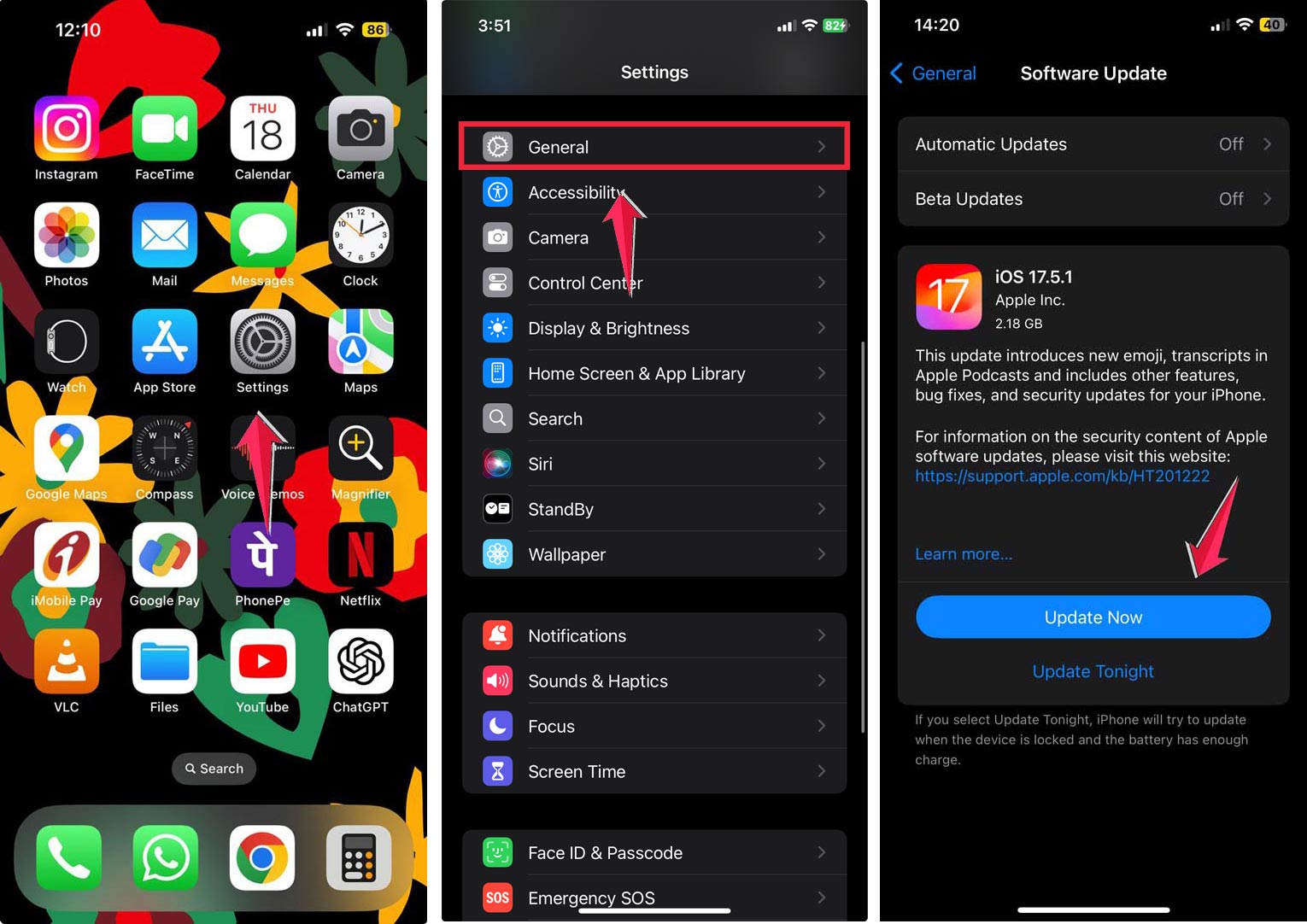
Updating your iPhone/iPad:
- Go to Settings.
- Tap on General, then Software Update.
- If there’s an update available, update your device.
On your Mac:
- Click on the Apple icon in the top left corner and select System Setting.
- Click on General and select Software Update from the options.
- If there’s an update, hit the Update Now button.

On your Apple TV:
- Go to Settings.
- Choose General and then Software Updates.
- Tap on Update Software.
- Enable Automatically update.

13. Bonus tip: Check the Firewall on Mac
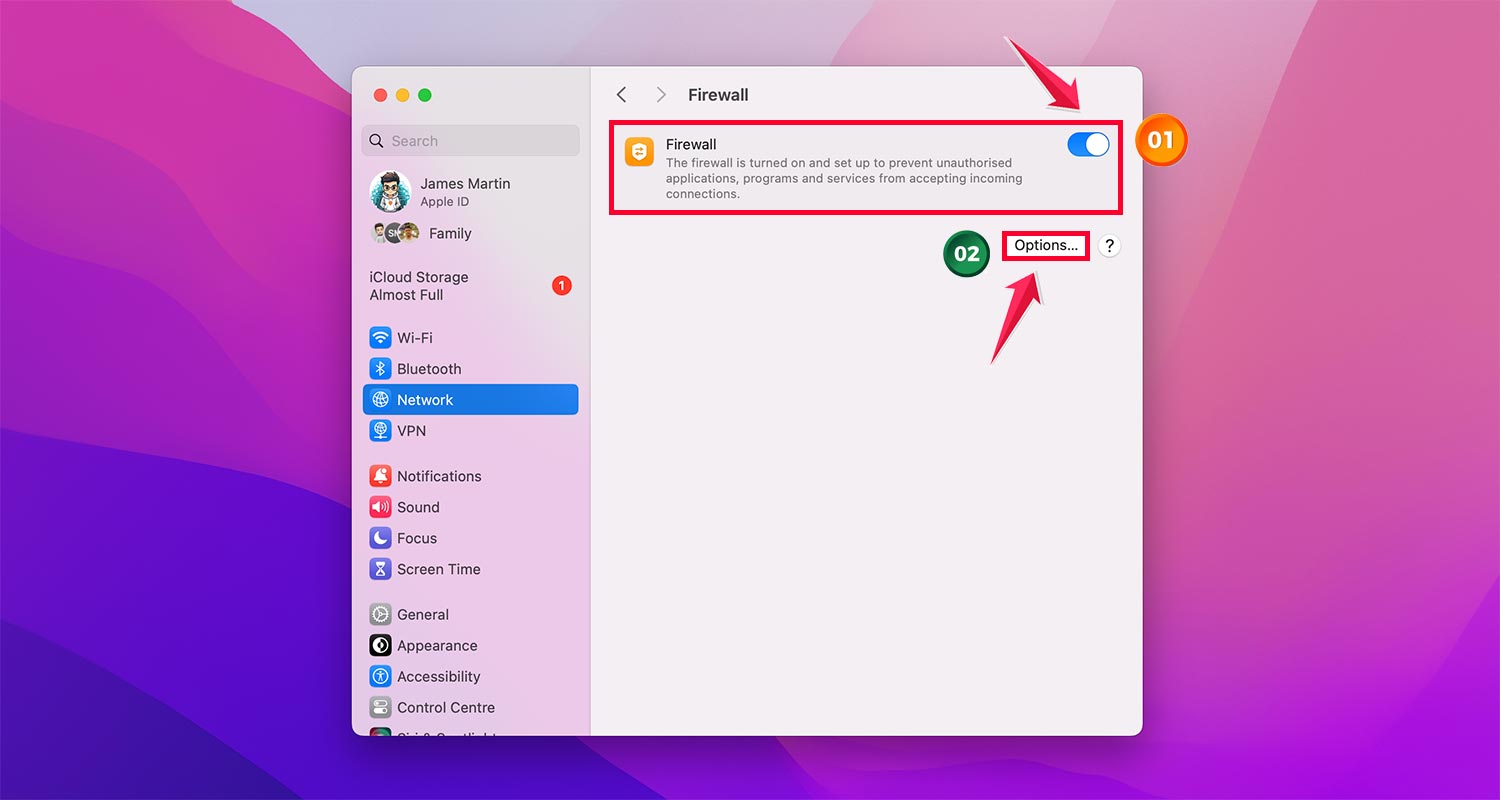
Sometimes, your Mac’s Firewall might be a bit overprotective and block the AirPlay connection. Here’s how to check those settings:
- Open System Settings on your Mac.
- Click on Network.

- Go to the Firewall tab and turn it on by toggle on.
- Now, click on Options.
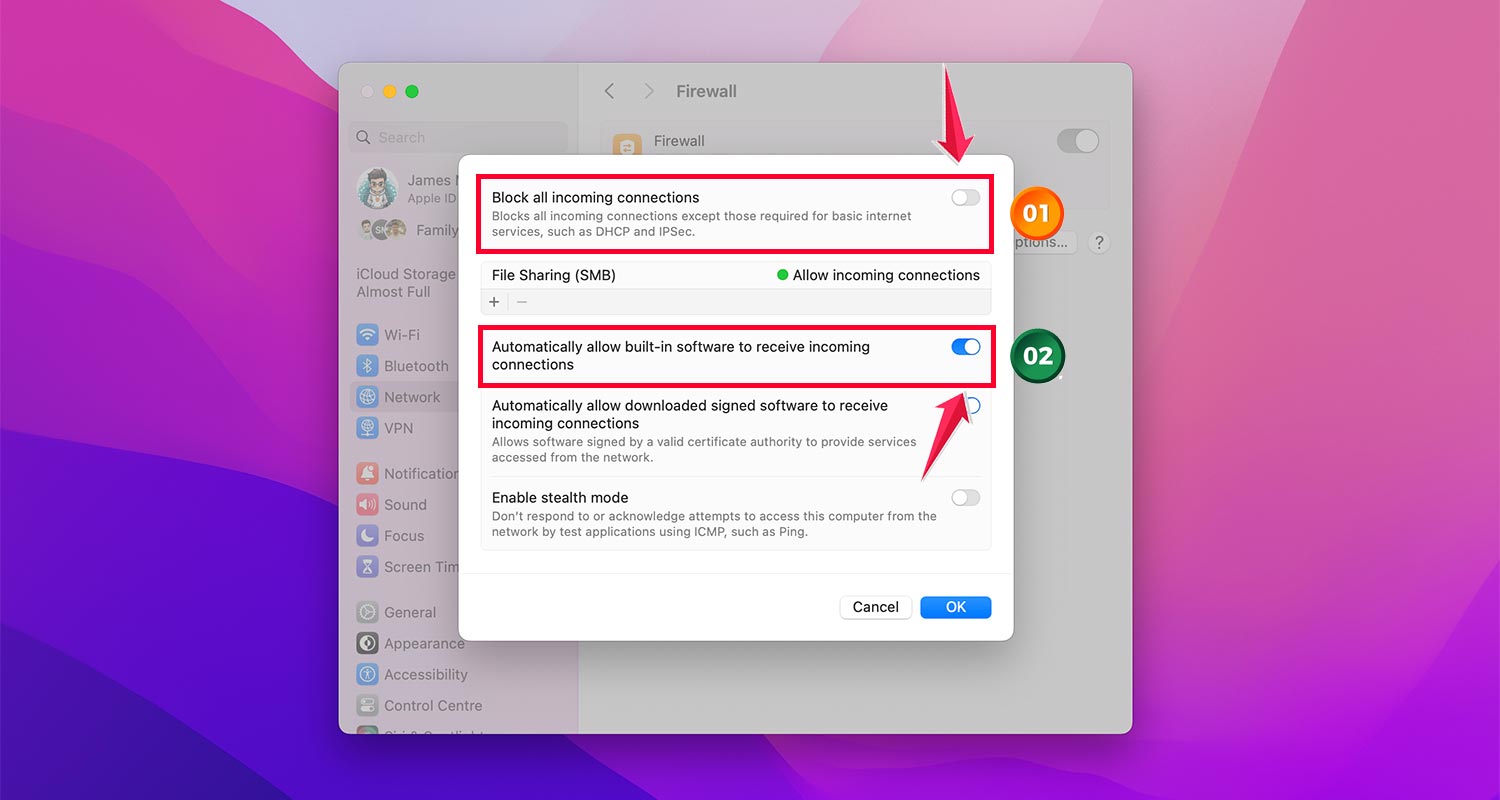
- Make sure the “Block all incoming connections” option is turned off.
- Enable the setting that allows “Automatically allow signed software to receive incoming connections”.
14. When to contact Apple Support
If you’ve tried all these fixes and things still aren’t working, it might be time to call in the experts.
There could be a hardware issue that needs professional attention. Here’s what you can do:
- Reach out to Apple Support directly
- Explain your AirPlay issue in detail. So, please be as specific as you can
- They’ll guide you through the next steps, whether it’s a software tweak or a hardware fix

Remember, AirPlay issues can be frustrating, but they’re often fixable. Try these solutions one by one, and you’re likely to find the one that works for you.
Don’t give up. Smooth, uninterrupted streaming is just around the corner!
The takeaway
AirPlay disconnections can be frustrating, but they’re often fixable. We’ve explored several simple solutions to keep your streaming smooth and uninterrupted.
Key fixes include restarting your devices, turning off features like Auto-Lock and Low Power Mode, and ensuring your devices are up-to-date.
Remember, sometimes the simplest solutions, like checking your Wi-Fi connection or using a 2.4GHz network, can make a big difference.
If your AirPlay starts but only plays audio and not video, here’s how to fix AirPlay only playing audio, which may help too.
Many people think AirPlay issues always require technical expertise, but that’s not true. Most problems can be solved with the straightforward steps we’ve discussed.
The most important thing to remember is not to give up. If one solution doesn’t work, try another.
And if you’ve tried everything and still have issues, don’t hesitate to reach out to Apple Support. They’re there to help you get the most out of your Apple devices.
We’d love to hear about your experience with these solutions. Please share your thoughts in a single-line comment below.